Review: 4th-generation Apple TV promises revolution; delivers evolution

The future of television is here.

That’s what Apple’s marketing team starts off with on the company’s web page about the new Apple TV, which is now a top-level section on the company’s website. No longer is the Apple TV tucked in with iPods; it’s got a seat at the table with the Mac, iPhone and Apple’s other products.

Clearly, Apple thinks its new TV puck is a winner, but it’s been a long road to get here.

First shown off in 2006, the then-named iTV was pitched as a simple box to show content from iTunes on your flatscreen television.

Right off the bat, Apple TV lived in the shadow of other products. Hell, it was introduced in the same keynote as the original iPhone.

Steve Jobs referring to it as a “hobby” in 2007 certainly didn’t help:

We’re in two businesses today, we’ll be very shortly in three business and a hobby. One is our Mac business, second is our music business, third business is the phone business, handsets. And the hobby is Apple TV. The reason I call it a hobby is a lot of people have tried and failed to make it a business. It’s a business that’s hundreds of thousands of units per year but it hasn’t crested to be millions of units per year, but I think if we improve things we can crack that.

The $299 box originally worked more or less like an iPod. It’d connect to iTunes over the local network, allowing users to sync whatever content they wanted. 2008’s “Take Two” software attempted to right some of the wrongs, but it wasn’t until September 2010 until Apple finally graduated the Apple TV from a weird, under-powered Intel Mac — running a stripped down version of OS X 10.4 and what was essentially Front Row — to a much smaller, sleeker product.

The new box was built around streaming — not syncing — and at $99, sold much better than before.

However, like with its first-generation product several years ago, Apple let the Apple TV sit too long, letting it grow stale. While the hardware had been revved to support 1080p, the outgoing Apple TV is basically a five year-old product.

With this new Apple TV, the company is making bolder claims than ever before. Gone is the hobby moniker. The hardware is powerful, it runs a new OS and ships with an SDK and a growing ecosystem of third-party apps. While time will tell if Apple will let it sit too long without an update again, today, this $149 (or $199) box is the new hotness from Cupertino.

So, let’s dive in.

Hardware

Outside, the 4th-generation Apple TV looks like a taller 3rd-generation unit. It’s still black and still attracts fingerprints. Around back, the Optical Out port is gone, to the chagrin of some users and the only-to-be-used-for-service Micro-USB port has been replaced by a USB C port. Oh, and that Ethernet port is still 10/100. No Gigabit in sight.

Inside, however, it’s an all-new game.

The Apple TV is powered by Apple’s 64-bit A8 processor. It comes with 2 GB of RAM, according to iFixIt.

The result of this chipset is that this thing is fast. The new UI is full of animations and transparency, and I have yet to see it stutter. Games are smooth and streaming content starts instantly.

There’s no 4K support, but I think that’s mostly okay for another couple of years.

In short, the platform responds like a modern device again, and I’m glad it does. The puck, however, isn’t nearly as interesting as what is used to control it.

Siri Remote

Let’s get this out of the way first: this thing is $79 to replace. As someone with three kids in the house, I’m just going to go ahead and set $80 aside when I inevitably have to replace it when its lost or shattered.

Yes, shattered.

Gone is the aluminum remote of yesteryear. The new Siri remote still has a metal back, but the front is made up of a family of buttons set into a half-plastic, half-glass front. The glass acts as a trackpad, allowing for gestures, taps and presses. It’s just as smooth and responsive as the Magic Trackpad 2, which is impressive in something so small.

I’m not much of a gamer, but even I can tell that some games just aren’t well-suited for this type of input. If you want the best experience playing games on this thing, you should pick up the $49 SteelSeries Nimbus Wireless Gaming Controller. It’s not the best controller in the world, but it sure beats tapping and clicking the trackpad while waving the Siri Remote around.

The remote communicates to the device over Bluetooth, but the Apple TV will respond to IR input, so those 17 older Apple TV remotes you have stashed around the house will work. (You can, apparently, pair a set of Bluetooth speakers or headphones to the Apple TV as well.)

My big problem with the Siri remote — besides the price is — is that it lacks the ease-of-use found on the old remote. Make no mistake, I think gestures are waaaaaay better than the old button layout, but it’s hard to work this remote by feel alone. Since the buttons are basically centered vertically, it’s hard to get the thing right-side-up most of the time if its dark. Backlit buttons would be kiler, but then the remote would be even more money to replace, I’m sure.

Maybe time will help ease this frustration, but right now, I have to think about the Siri Remote way too much. That’s not a good thing.

Software

tvOS is the name Apple’s given to the iOS variant running the Apple TV. This choice gave Apple — and developers — a lot of tools they needed to build apps for the device atop a stable foundation.

The UI is all-new, however, and frankly, it’s beautiful.

At the heart of the new UI is the Focus engine. I’ll leave the details to Guy English and John Gruber to explain, but here’s how Apple explains it in the new Apple TV Human Interface Guidelines:

On iOS devices, people interact with the user interface by tapping or swiping directly on the touchscreen. Apple TV doesn’t have a touchscreen. Instead, a remote is used to interact indirectly with elements onscreen from across the room. This interaction is based on a focus model. By pressing buttons and using gestures on the remote, people move focus from element to element, stop on a specific one, and click to access content or initiate action. As focus changes, subtle animations and the parallax effect produce a feeling of depth that clearly identifies the item that’s currently in focus.

It’s hard to describe, but the result of all of this is that tvOS feels fluid in ways far beyond what iOS and OS X can deliver.

Siri is fast and accurate. My guess is that because the number of things Siri has to be able to do here is smaller than on iOS proper, Apple can parse text faster than ever. I’ve yet to have it misunderstand me.

Sadly, as beautiful as it is, tvOS is punched full of holes.

There’s no iCloud Photo Library support on the Apple TV. The old-style Photo Stream support is there, but I guess no one revisited that after Photos.app launched in April.

Like podcasts? The Apple TV’s got nothing for you right now.

Siri is limited in really weird ways. Want to search for an episode of Arrested Development? No problem. Want to use Siri to play an album from Apple Music?

Meeehhhhhhhhhhh.

As of this writing, iOS’ Remote.app can’t be used with the new Apple TV. That means you can’t use your iPhone, iPad or Apple Watch to control the device, or even enter text. Coupled with the lack of Bluetooth keyboard support, entering password is a major pain in the ass.

While an iPhone can be used to set up the Apple TV, password entry is still required in many third-party apps, as well as the App Store itself.

As Dan Moren points out, there’s no support for iCloud Keychain in tvOS, which could help alleviate some of this back and forth.

tvOS is gorgeous and runs smoothly, no matter how many games or apps may be open at a given time, but it feels half-baked in many areas. The lack of some of Apple’s own services on the box is a head-scratcher, as are some of the seemingly-arbitrary limitations of Siri.

I hope someone in Cupertino is working on these issues. History shows we may be in for a wait.

Apps

Apps are the biggest software story on the new Apple TV. For the first time, third-party developers can build and sell apps for the platform.

Well, “sell” may be an overstatement.

The race to the bottom argument aside, the Apple TV’s App Store has some problems. While categories were added several days after launch, they are basic at best; as of this writing, there are just two: Games and Entertainment. Top Charts are present too, which is helpful, but all of this feels unfinished. I suspect it may have to do with the low number of apps in the Apple TV App Store, so hopefully this will solve itself over time.

A big problem is that there’s no way to link to an Apple TV app. If you hear or read about app, you have to remember to go the App Store on the television and find it later. As of this writing, the iTunes Search API isn’t even aware that the Apple TV exists. All you get is some empty JSON, according to one developer I spoke to on November 4.

In my head, the Apple TV App Store would be right at home inside a revised Remote.app. Users could buy apps there and the Apple TV could install them automatically. Just picture this: Read a review of a new game and decide to check it out? Tap the link, be sent to the TV App Store, tap buy and boom. It would be waiting for you when you got home from work.

Sigh.

(While I recognize that this may lead to another app to stuff into your “WTF APPLE STAAAAAAHP” folder of apps, I think that the Apple TV would benefit from the model used for the Apple Watch.)

Like the Watch, there’s no killer app from Apple here. No stellar example of how to build a great TV app. The built-in stuff is fine, but the fact that Apple’s isn’t shipping a first-party game (and is making the controller optional) means there’s not a lighthouse to draw developers in yet. That’s not a deal-breaker, but when I think about how hard Apple pushed iWork and iLife in the first couple of years of the iPad’s life, this feels a little … hollow.

Like I said, I’m not a big gamer, but I’m enjoying some fun causal games on the device. They are all fine, but some benefit from having that game controller hooked up. Content apps like Netflix, PBS Kids and Hulu are all nice and fast, as you’d expect.

All that aside, it’s the early days of this platform. Just like Apple has stuff to sort out, it’s clear that developers are still learning about this device. The fact that tvOS is basically iOS with several major frameworks stripped out should allow developers to work quickly, and I think that as time goes on, we’ll see some good stuff here.

I’ve tried apps that are really great, and others that are clearly lazy ports from iOS. While I’m not sure how many apps or games I’ll use in the future, it’s fun to explore now.

The Future

So, is the future of television is here? I’m not sure it is, and while some of that is Apple’s fault, a lot of it isn’t.

There are some glaring omissions when it comes to what tvOS can do and what it offers, but assuming Apple is working on those things, they won’t be problems in the long-run.

Things like universal support and voice commands feel like the future, at least for Apple TV owners. Having apps and games alongside streaming content is great too, but there’s a fundamental problem with this product that Apple hasn’t been able to fix yet: TV itself.

The reality is that while services like iTunes, Netflix and Hulu are fine, there’s a wealth of content out there locked away in cable bundles. Until Apple can break those deals up, this fancy new Apple TV is too much like the old one in areas. That’s not to mention the NBA, NFL and other sports overlords that have apps, but still follow blackout policies.

I’d love to turn on my Apple TV and be able to watch what I want, when I want. If content creators like Discovery Channel or Disney were to launch apps with subscription options for those of us without cable logins, the Apple TV would feel more like the future when it comes to on-demand entertainment.

Until then, and until Apple works some of the kinks, the future is still mostly a marketing line. The new Apple TV is good, but I’d love for it to be great.

Review: the Magic Keyboard

I’ve used Apple keyboards for as long as I’ve had a Mac. While I never owned one of 2000’s Apple Pro Keyboards when it was new, the keys felt way better to me than the keyboards that shipped with the iMac G3 family of machines. The 108-key keyboard shipped in both black and white, and featured a foot that could adjust the height of the keyboard.

It looked super cool in black with the G4 Cube:

The next keyboard was released in 2003 alongside the eMac and shipped more famously with the iMac G4. It only came in white, and lacked the adjustable foot from the previous model. In its place, Apple put a large slab of clear plastic that would show off the little bits of junk that would work their way into the keyboard over years of usage. I used one of these in college, but never fell in love with it, mostly due to the height and pitch of the keyboard. A subsequent wireless model didn’t address these issues, however.

In 2007, alongside the first aluminum-clad iMacs, Apple released its first aluminum keyboard. With a low profile and low-travel keys, I quickly became a fan, despite my love-affair with the Apple Extended II keyboard that ended after an operation on my elbow made it uncomfortable to use.

The Magic Keyboard is the smallest change we’ve seen between keyboard generations in a long time, and that’s okay by me.

As you’ve no doubt read by now, all three of Apple’s new input devices use Bluetooth and charge via Lightning port. They can also be paired with a Lightning cable, bypassing OS X’s clunky Bluetooth Setup Assistant. Plug a new keyboard in and boom it’s paired instantly. I can’t believe we used to pair things manually.

Equally old-fashioned is the pile of dead AA batteries left in the wake of the old Bluetooth keyboard. Having an internal, rechargeable battery makes a ton of sense.

I do wish the thing had a backlight. I assume that didn’t make it due height and power constraints, so I’ll keep holding to that hope for the next keyboard.

The body is slightly smaller than the old keyboard, taking up less space on the desk. I like to have my mouse as close to the keyboard as possible, so any saved width is welcome here. I ditched keyboards with numberpads years ago for this exact reason.

More importantly, the new keyboard is both shorter and flatter now. This means I don’t have to hover my hands as high to type comfortably, which is a win for my wrists.

The keycaps are a little bit larger than last time around, and with noticeably less travel. Word on the street is that these keys have 1 mm of travel. That’s not as extreme as the keyboard found on the 12-inch MacBook with Retina display, but it’s inching in that direction big time.

The traditional scissor mechanism under each key are still there; the butterfly subframe from the MacBook is still relegated to just that machine. That said, the keys do feel more precise than the older model; bottoming out with a louder, nicer click than before.

In my few days of using the keyboard full-time, I’ve already learned to back off the pressure with which I type. That’s a good thing, as smashing these keys into the aluminum beneath them is going to be hard on me and the keyboard long term.

I’m enjoying the new keyboard. I feel like I’m still in the learning curve of how much pressure I need to use, but I haven’t had any pain while getting adjusted to it. I like the clicky, precise nature of it; even using the built-in keyboard on my MacBook Pro feels sloppier, somehow. Coupled with the new built-in battery, refreshed form factor and clever pairing system, I’m looking forward to using this thing for years to come.

Review: Philips Hue White and Color Ambiance Starter Kit

The Philips Hue White and Color Ambiance Starter Kit is a fun little product.

In short, it’s a set of three LED bulbs and a bridge that allows them to connect to your home network. Once the dead-simple setup is compete, the Hues app allows you to select pre-designed “scenes,” control the lights individually, or even design new scenes based on photographs. Want to re-live your Tahiti experience? Load the photo into the app and you can be back in that magical place.

The lights aren’t bright enough to take over for other fixtures — for me, at least — but do a great job at changing the mood or feel to a room. I have all three of my bulbs in a floor lamp in our den, and it’s fun to add some color to things.

Thanks to HomeKit, the lights an be controlled via Siri, reminders and even geofences, but I’ve had real mixed luck with the HomeKit features so far.

The Starter Kit is $199, which is expensive. I hope Philips can get the price down, because right now, this kit just isn’t worth it. It is fun, though.

Notes.app follow-up

Thanks to everyone who sent me feedback about my article on Notes.app. Here’s some stuff I wanted to share more broadly:

  • Jason Burk sent me an email pointing to a blog post in which he outlines the workflow he used to move from Evernote to Notes.
  • Jason and others also sent me a link to Notes Exporter, a free Mac app that can export your Notes as plain text files. I ran it this morning, and got a pile of .txt files, as promised. The app didn’t do anything with my attachments, but I didn’t expect it to. There is some weird formatting in some of my files, but it’s nothing that couldn’t be cleaned up.
  • I got a lot of suggestions for Dropbox iOS text editors. I’ve tried most of them, but a few were new. If I end up back in that space at some point, I’ll have more apps to try.
  • I got an email from someone wondering if the font size in Notes.app could be adjusted at the .plist level. I tried that in writing my review, and couldn’t get anything to work. If you have some magic up your sleeves in this area, get in touch.

Notes on Notes.app

I’ve had an on-again, off-again thing with Evernote[1] for years. I like having attachments associated with my notes, but dislike almost everything about the service itself.[2]

That said, there’s a lot in Evernote that I don’t use.[3] I don’t have IFTTT routing any content in, and I don’t ever forward emails to the system. I occasionally use the web clipper to save webpages to Evernote, but it’s nowhere near vital to my workflow.[4]

The nerd in me really likes having my notes saved as text documents, written in Markdown. I’ve used Brett Terpstra’s excellent nvALT for years, too. My biggest problem is that I can’t ever seem to find a Dropbox-powered notes app on iOS that I like. Additionally, going text-only means I need to store assorted attachments elsewhere.

I’ve lived with this tension for years, migrating content back and forth between the two systems several times.

(I’ve also spent a lot of time in Simplenote, which I’ve liked for years. It’s fast, lightweight and reliable, but the lack of attachments means it has the same core problem as plain text.)

When Apple showed off iOS 9 and OS X El Capitan, the built-in Notes app got a lot of attention. Gone was the old, let’s-sync-via-IMAP-and-hope-for-the-best system. In its place, a more modern backend — powered by CloudKit — to an app with a lot more features than before.

The new Notes app allows users to style their text easily, add checklists, photos and even hand-drawn sketches. But is it any good?

In a word, yes.

First of all, sync has been rock solid in my experience. New notes and edits show up on my other devices within moments. All content is saved offline automatically, and with the app’s extension, its easy to save content from anywhere in iOS or OS X.

While the app doesn’t mind if I write in Markdown, its built-in formatting tools are pretty good. Not everything is preserved when content is copied out of Notes into other apps, but it does a way better job than Evernote at this.

Being able to mix content types is nice. Often, my notes are part text, part outline, coupled with a photo or screenshot of some type. Notes handles all this really well, and the application has a view in which you can see all attachments, across folders and notes for quick access. This is present on both the Mac and iOS apps, and I already really like it.

It’s not all good news, though.

The new app still sports a textured background, and its text still has a slight shadow to it. It’s gross and makes the text a little harder to read than I’d like. The Mac app’s default font size is too small and there’s no way to bump it up across all notes.

If you want to share notes or collaborate with others, you’re out of luck. I guess Apple’s solution for this type of work is iWork for iCloud, but you may die trying to figure out how that thing works. Proceed with caution.

Notes can be viewed and edited at iCloud.com, but it’s not great. All the text-editing functionality is present, but there aren’t any folders, and sketches are downloaded as .drawing files, which are basically useless:

Having folders is great, but notes themselves can only be sorted by the last date edited. Not having my notes in alphabetical order has taken some getting used to, and I still don’t like it. I know that the way Notes does it can be faster, but I really wish a future update would bring more options here.

Oh, and Notes doesn’t have any type of tagging system.

My last problem with Notes is more philosophical than anything else. While I use iCloud for my personal email, contacts, calendars and a lot more, I’m not in love with the fact that my notes are locked away in a weird format. My notes are in here somewhere, but I can’t get to them if something terrible happens to the Notes app:

Even with Evernote, I could clean up their weird-ass HTML formatted notes without the app.

These issues aren’t going to keep me from using Notes.app, because at its core, the app does what I want: mixing text and images in my notes easily, without nagging me about features I don’t care about. The sync is great, which is also important, but I wouldn’t mind Apple modernizing the UI on both iOS and OS X, and giving users more control over things like note sorting and font sizes.

There’s always next year, I suppose, but for now, Notes is enough for me.

Update: Follow-up can be read here.


  1. Upgrade to Premium!  ↩

  2. Have you heard about Work Chat?  ↩

  3. Check out our Evernote socks and laptop cases over here!  ↩

  4. Have you installed Evernote Hello? Oh wait, we killed that app and fired everyone working on it. Our bad.  ↩

iPhone 6S Plus Review

To put it bluntly, the iPhone 6S Plus is the best iPhone I’ve ever owned.

There are models of iPhones that were more fun when new. I shot a ton of video on my 3GS, and of course, the 4 was a breathtaking piece of engineering and design.

Back in the spring, I wrote about switching to the 6 Plus. All the good things about the bigger phone — the display, battery life, camera and more — are just as important to me this time around.

The 6 Plus wasn’t perfect, however. With just 1 GB RAM, it struggled under load. It had been years since I saw an iOS device stumble like the 6 Plus could, and it got old quickly. Those extra pixels were just too much for the internals to handle at times.

The 6 Plus was like that kid at prom who clearly just borrowed one of his dad’s suits. It was passable, but not great.

With the S in the name — and in that stupid box on the back of the phone — the Plus is out of its awkward stage.

2 GB of RAM means multitasking is smooth. Audio doesn’t skip when Safari tries to reload a tab. Camera.app opens quickly, every time.

It’s kinda insane that I just wrote that sentence in 2015, of course. But the reality is that Apple’s gotten this phone right this time around.

On the outside, the 6S Plus looks like the outgoing model, but the aluminum and glass are stronger than before, and the whole thing weighs a touch more than last year.

As I wrote in my first impressions, I like the additional 20 or so grams that the new case, cover glass and display have brought. The phone isn’t heavy, but it is solid. It feels great in the hand. It still fits in Apple’s leather case from last year, but I’m using it caseless most of the time.

3D Touch is no gimmick. While I have adjusted the sensitivity to the lightest setting, its taken just a couple of weeks to make things like Quick Actions and the Peak/Pop combo to become part of my muscle memory. Zooming around the phone really is faster than ever, and added with iOS’ new context-aware back buttons, I feel like I see the home screen less and less.

The accompanying taps from Apple’s Taptic Engine are brilliant. Not only do Peek and Pop’ vibrations feel great under your thumb, since the Taptic Engine replaces the old, much harsher, vibrate motor. The 6 Plus vibrator was garbage; this thing is simply great.

Live Photos are interesting. I like the context they add to them, and I like that they are playful, but the implementation needs work. The UI blurring when loading them feels really jarring, and sharing them to other apps and devices is still just broken in many cases. I know that broader support will take time, but until then, I’m almost hesitant to shoot a lot of Live Photos.

The camera itself is great, as usual. I haven’t shot much in 4K, but when I have, its buttery-smooth. Still photos are better than ever; that upgraded sensor allows for a lot more details than before.

When Apple announced the iPhone 3GS, it was said that the “S” stood for speed. In my head, that’s been the case ever since, and the 6S Plus continues that tradition. Past the additional RAM, the new A9 chipset is crazy fast. Things like games, applying photo filters and just navigating the UI are notably faster. While — like all performance increases — this feeling will wear off, I’m still surprised by it while doing familiar tasks.

The chipset isn’t the only thing faster on the 6S Plus. TouchID is crazy fast. A simple tap is enough to unlock the phone. I have to remember to hit the power button if I want to skim my notifications, since simply bumping the home button doesn’t work anymore to wake up the screen: the phone unlocks instead. While I appreciate TouchID improving, this seems a little too fast at times.

I know the Plus isn’t for everyone, but it is for me. The 5.5 inch, 401 ppi display isn’t just beautiful, but I find the additional space (and increased battery capacity) useful as this is the most-used device I own. Thankfully, every year, my pocket computer gets better, right on schedule.

OS X El Capitan Review

OS X El Capitan is here, and to be honest, even as a hardcore Mac user, it’s kind of a sleepy release. That’s not to say there isn’t good stuff in the new version of OS X; there are a lot of nice features here, but its a quiet year.

Between you and me, I’m a little glad about that.

A year ago, OS X Yosemite brought a wide-reaching redesign to the operating system, building on top of the foundations laid by OS X Mavericks just 12 months before that. This year, El Capitan brings a new level of polish to the OS, tweaking some things here and there that needed attention.

Since it was announced, I’ve been unhappy with OS X’s annual release cycle, but Apple’s sticking with it.

This puts extra work on developers to ensure their apps are up to date. As OS X follows major iOS release versions by sometimes just a couple of weeks, this means many Mac apps lag behind while developers who work on both platforms struggle to catch up. A slower release cycle — and one not based in the fall, even — would help ease this uneven workload.

Even though the Mac App Store makes downloading and installing new versions of OS X easier than the old days,[1] it is more complicated and more time-consuming than tapping “Update” on an iPad or iPhone for average users.

This release cycle is also aggressive for education and enterprise customers. I have a lot of friends in those worlds and they often just skip a release or two at a time. I’m not sure that’s a good thing.

As such, new versions of OS X don’t enjoy the same widespread early adoption that iOS does, meaning developers and users alike may not see the benefits of Apple’s work for months or even years.

Of course, the simple truth is that OS X is on an annual release cycle so Apple can share and blend features and technology with iOS in an easier way. As the two systems share more and more with each other, a hand-in-hand release is increasingly important.

However, very little in El Capitan truly needs to be in a “.0” release. The updates to apps like Notes and Mail could have been included in an update to 10.10 and it would have been fine. (Just look at Photos, which didn’t come to the Mac until 10.10.3 as a good example of this sort of update.)

All that aside, the new version of Mac OS X here, and it’s time to take a look at it.

System Requirements

One upside of the annual release cycle is that Apple can offer OS updates to more customers. As such, El Capitan will run on any Mac that can run OS Mountain Lion or higher.[2]

  • iMac (Mid 2007 or newer)
  • MacBook Air (Late 2008 or newer)
  • MacBook (Late 2008 Aluminum, or Early 2009 or newer)
  • Mac mini (Early 2009 or newer)
  • MacBook Pro (Mid/Late 2007 or newer)
  • Mac Pro (Early 2008 or newer)
  • Xserve (Early 2009)

I’ve run El Capitan on two systems: the 12-inch MacBook with Retina display and a Mid–2015 15-inch MacBook Pro with Retina display. As far as modern Apple notebooks, you can’t pick two machines that are more different from a power perspective, and both ran the OS just fine.

An Aside on the Name

“Mac OS X El Capitan v10.11” is the full name of this release, but as has been the case for many years, in public, Apple refers to this as “OS X El Capitan.”

El Capitan, of course, is a mountain within Yosemite. Apple’s playing a “Leopard/Snow Leopard” or “Lion/Mountain Lion” trick here. El Capitan is the exhale to Yosemite’s inhale. The ying to its yang; the peanut butter to its jelly.

There is, however, a problem.

There’s no doubt that “10.11” is weirder than “10.10,” and — simply put — names are easier to remember than numbers. What happens next year when iOS 9 is replaced with something new? Looking across Apple’s growing ecosystem, OS X’s naming scheme looks even weirder and more problematic:

  • iOS
  • watchOS
  • tvOS

I think it’s time for a change to macOS, as Jason Snell suggested back in May:

Mac OS is a name with a proud history that bridged the gap from the latter days of the original Mac operating system through the first decade of OS X. It does what it says on the tin–it’s an operating system that runs the Mac. The phrase “Macs run Mac OS” makes sense. OS X is never going to run anything that’s not a Mac. Let’s embrace it. It’s the Mac OS.

And by jettisoning the X, Apple can finally increment the digits that have been slowly increasing since the start of the century, and call Mac OS Kings Canyon or Mac OS Shasta version 11.0.

I have a feeling El Capitan will be the last version of “OS X” we see, but time will tell.

Public Beta & Install

Like Yosemite, El Capitan was offered as a Public Beta. Anyone with an AppleID could sign up to run the OS over the summer. Like last year, these releases were slightly slower than the developer releases.

Installing is all done via the Mac App Store. Click Install, enter your password and — after a 6-ish GB download — El Capitan is off to the races.

The install process is the same as it has been for years. There’s very little setup and the system takes over, rebooting after the first part of the install is complete. On the new Retina MacBook, install took just shy of 30 minutes, but on my MacBook Pro, it was much faster. Your mileage will vary.

After installation is complete, the setup process begins.[3]

Meet El Capitan

While the new version of OS X does bring many API changes, I’m going to focus on the major features found in this year’s release. It’s a shorter list than in years past as El Capitan is more about refinement than anything else.

A good example of this is the cursor. In El Capitan, if you rapidly move the cursor in an attempt to locate it on the screen, it grows in size temporarily to help you find it.

El Capitan brings the second new system font to macOS OS X in as many years: gone is Helvetica; hello San Francisco.

I’m not going into the typographical details of the new system font, but if that’s your jam, be sure to watch this video from WWDC or check out this Medium post by Akinori Machino.

All in all, I think San Francisco is a nice improvement to OS X. While it isn’t as big of a jump from Lucida Grande to Helvetica, it is noticeable. It’s crisp and clean, and doesn’t break down at smaller sizes like Helvetica can. Designed for the modern age, it’s especially nice on Retina displays. It gets a thumbs-up from this Mac user.

In addition to a new font, our old friend the “Spinning Beachball of Death” has been redesigned as well. The new version is slightly more muted, and much more flat.

The last under-the-covers change I want to mention is extended Force Touch Trackpad support. Applications running on El Capitan can provide haptic feedback to the user like Apple’s own QuickTime and iMovie do today.

System Integrity Protection

System Integrity Protection (or SIP; also dubbed rootless) is new in El Capitan, and is designed to keep OS X and processes running on top of it more secure. Here’s how Apple describes it:

A new security policy that applies to every running process, including privileged code and code that runs out of the sandbox. The policy extends additional protections to components on disk and at run-time, only allowing system binaries to be modified by the system installer and software updates. Code injection and runtime attachments to system binaries are no longer permitted.

In short, SIP prevents parts of OS X itself (namely /System, /bin, /usr — not /usr/local — and /sbin). from being tampered with outside of official Apple software updates. Not even Administrator users on the system can edit these directories. This will harden OS X from malicious code injection and other ickiness.

I’m all for that, but this does mean some of the weirder apps that power users use may break, and maybe for good. (If you do want to disable SIP, it can be done from the recovery partition, but I’m leaving it on on my machines.)

Metal

First brought to iOS with iOS 8, Metal is Apple’s low-level framework for “GPU-accelerated advanced 3D graphics rendering and data-parallel computation workloads.”

In English, that means Metal makes things like games or graphic editors faster by harnessing the power of the Mac’s graphics hardware in a way that doesn’t tax the CPU.

Of course, the gaming scene on the Mac has always been anemic compared to other platforms. I don’t know if Metal is enough to change that, but it should open the door to more developers.

Metal isn’t just about games, though. Since Metal basically harnesses the GPU, it can be used with applications that require large amounts of computational power to perform their tasks. Apple showed Adobe using it in apps like Photoshop and Illustrator to drastically increase the speed of intense tasks. If developers adopt this, lots of different types of apps could see big gains, all without hitting the CPU any harder.

Metal isn’t present on all Macs that will run El Capitan; the machine must be from 2012 or newer.

Window Management

Every few years, Apple screws with the window management in OS X. This year, those changes come in two forms: a revised Mission Control and a new feature named Split View.

Mission Control

In 10.3 Panther, Apple added Exposé, a quick way to see all open windows at once. In 10.5 Leopard, we got virtual desktops called Spaces.

In 10.7 Lion, Exposé and Spaces were smashed together to create Mission Control. Virtual desktops (and full-screen) apps could be seen at the top, with all open windows sat below:

With El Capitan, Apple has revised Mission Control once again to make better use of smaller notebook screens. The basic layout is the same, but gone are the tall previews of the various spaces and full-screen apps that may be open:

To see a preview of other Desktops, or to add a new one, hovering over the top bar will expand it to match the functionality previously in place. While I appreciate this on a MacBook, even on my 15-inch MacBook Pro it feels like a silly change, not to mention on my 27-inch external display. I’d like to see this become a setting in System Preferences, as it requires a hover to see the complete picture.

Split View

Split View is a huge deal on iOS. It marks the first time two apps can be running in the foreground on an iPad.

Of course, that’s nothing to break a sweat about on the Mac, which has been multi-windowed and capable of multitasking for years and years and years.

However, window management has always been a bit messy on the Mac. OS X has never had a Windows Areo-like snapping feature before. Apps like Moom added some of these features to OS X, but only as a third-party option.

El Capitan brings Split View to the Mac to make it easy to run two apps side by side, taking up the entire screen.

The problem is that Split View isn’t immediately obvious. There are two ways to enable it:

The first method requires the user to click and hold on the green fullscreen “stoplight” window control on any window. If the app is Split View-compatible, you can drag it to the left or right side of the display and an overlay will appear showing that the app can be pinned to either side. Release the mouse or trackpad, and any other Split View-compatible windows will appear on the other side. Select the one you want, and the two will become their own Split View virtual desktop. That’s a bit complicated to explain, so I’ve included a short video:

The second method can be done entirely within Mission Control, and I think is far less fiddly. Simply drag an application into a new Desktop, then drag a second one:

As you can see from that video, you can resize apps in Split View. Like iOS, OS X will blur an app’s window if it can’t resize on the fly.

To remove apps from a Split View, simply click the green window control again, or pull the Desktop down from the top of Mission Control back to the main section of the view and the Split Screen will break up, putting both apps back into their regular windows.

While the implementation is a bit weird, I like Split View a lot. It’s a great way to settle down into a specific type of work easily. It feels so much more tidy than just spawning additional Desktops when I need to concentrate and leave things like Tweetbot and Slack open, but not easily visible.

Spotlight

When introduced with OS X 10.4 Tiger, Spotlight was pitched as the best way to search the documents on your local Mac.

In today’s world, that’s not enough. Spotlight has been getting better over the years at searching not only your local disk, but the Internet as well, through sources like Wikipeida and Bing.

El Capitan adds several new data types:

  • Weather
  • Sports
  • Stocks
  • Web video
  • Transit

Spotlight also supports natural language searching. Here’s how Apple describes it:

Searching for files has never been easier now that Spotlight understands natural language. For example, type “email from Harrison in April” and Spotlight shows you email messages that match. You can also use more complex searches, like “presentation I worked on yesterday that contains budget,” and you’ll get just what you’re looking for. You can search with your own words in Mail and Finder, too.

Spotlight is getting better, but I still prefer Alfred. However, for most users, the built-in tool just keeps getting better.

Updated Apps

A new version of OS X not only means a new operating system, but updates to the various bundled applications. This year, four apps got some attention.

Safari

The Mac’s built-in browser isn’t the most popular on the planet, but it’s still used by lots and lots of people, so Apple usually adds features each year. 2015 is no different, with the addition of Content Blockers, a Responsive Design Mode that makes debugging responsive websites easier than before, a redesigned Web Inspector that doesn’t suck anymore and a bunch of additional CSS support.

Two of the best new features revolve around tabs.[4] Both are cribbed from other places, but are welcome additions nonetheless.

First, tabs can be pinned. Pinned tabs can display a custom icon, or the first letter from the site name. Pinned tabs persist after Safari is relaunched, and only appear on the first Safari window opened.

Creating a custom pin image involves pointing to an .svg with a touch of code:

link rel="mask-icon" mask href="coolfilehere.svg" color="black"

The color will be used to tint the SVG, but I think they look best in black. You can see my site’s pinned tab image on the left here:

The other callout in that screenshot is the other new tab-related feature in Safari: tabs making sound will pick up a little sound badge on the tab itself. Additionally, the current tab will show a hollow version of the same icon, indicating it’s not home to the audio.

Notes

Notes on El Capitan is a real contender to things like Simplenote or Evernote.

Notes.app notes[5] can take all sorts of content. Text can now be styled as a Title, Header or Body text. All sorts of things can be added as attachments:

  • Photos
  • Videos
  • Audio
  • Sketches
  • Maps
  • Websites
  • Audio
  • Documents

At this point, Sketches can only be created on an iOS device, which is a bummer.

Notes is backed by CloudKit, so it just works. Sync between the Mac and iOS 9 devices is fast and — in my testing — flawless. I like that the app supports folders, but I really hate that the only way to sort notes is by modification date. I’d hug anyone at Apple I needed to have an alphabetical sorting option.

Mail

OS X’s email client has picked up Spotlight’s new natural language search, in addition to a much-improved fullscreen mode. And, users can now swipe on a message in the Inbox to mark it as read or delete it.

The biggest change I’ve noticed in Mail.app is improved Data Detectors. Now, Mail can add Suggested Events to my calendar, allowing me to confirm them with just a click. Likewise, creating a new contact — or updating an existing one — can be done with a single click.

Photos

Upgrading to OS X El Capitan’s version of Photos.app is a one-way trip; you can’t go back to the previous version later. That’s not a big problem, but something to be aware of.

The new Photos app can now be used to add location data to images, something missing from the OS X Yosemite version. Additionally, developers can now write plug-ins for Photos, so hopefully we’ll see more powerful editing controls in the near future.

As for me, I’m still keeping all my photos in Dropbox, but Photos is more tempting now than ever.

Maps

I’ve been told by people who live in real cities that Maps now has Transit directions, but Memphis is all like ¯_(ツ)_/¯ when it comes to this sort of stuff, so I don’t get to test it.

Conclusion

All in all, El Capitan is a nice update to OS X, but not a big or even particularly noteworthy one. That’s not a bad thing; OS X is a mature platform, and the time for wild changes has passed. The Mac platform is stable, vibrant and powerful. El Capitan only helps push those ideas further.

Make a backup of your Mac, and go get it.


  1. I don’t miss installing OS X from a series of CDs.  ↩

  2. One of these days, I won’t be able to copy this list from old reviews, but today is not that day.  ↩

  3. Fun fact: the application that runs the setup process is called MacBuddy. I’ve always liked that.  ↩

  4. Don’t worry, this isn’t coming back.  ↩

  5. I appreciate Apple naming apps for exactly what they do, but it makes it confusing when reading and writing about things. RIP, “iCal.”  ↩

6S Plus First Impressions

I’ve enjoyed my iPhone 6 Plus since first realizing #MykeWasRight and trading in my small, junky iPhone 6 for a nicely-sized, amazing iPhone 6 Plus back in the spring.

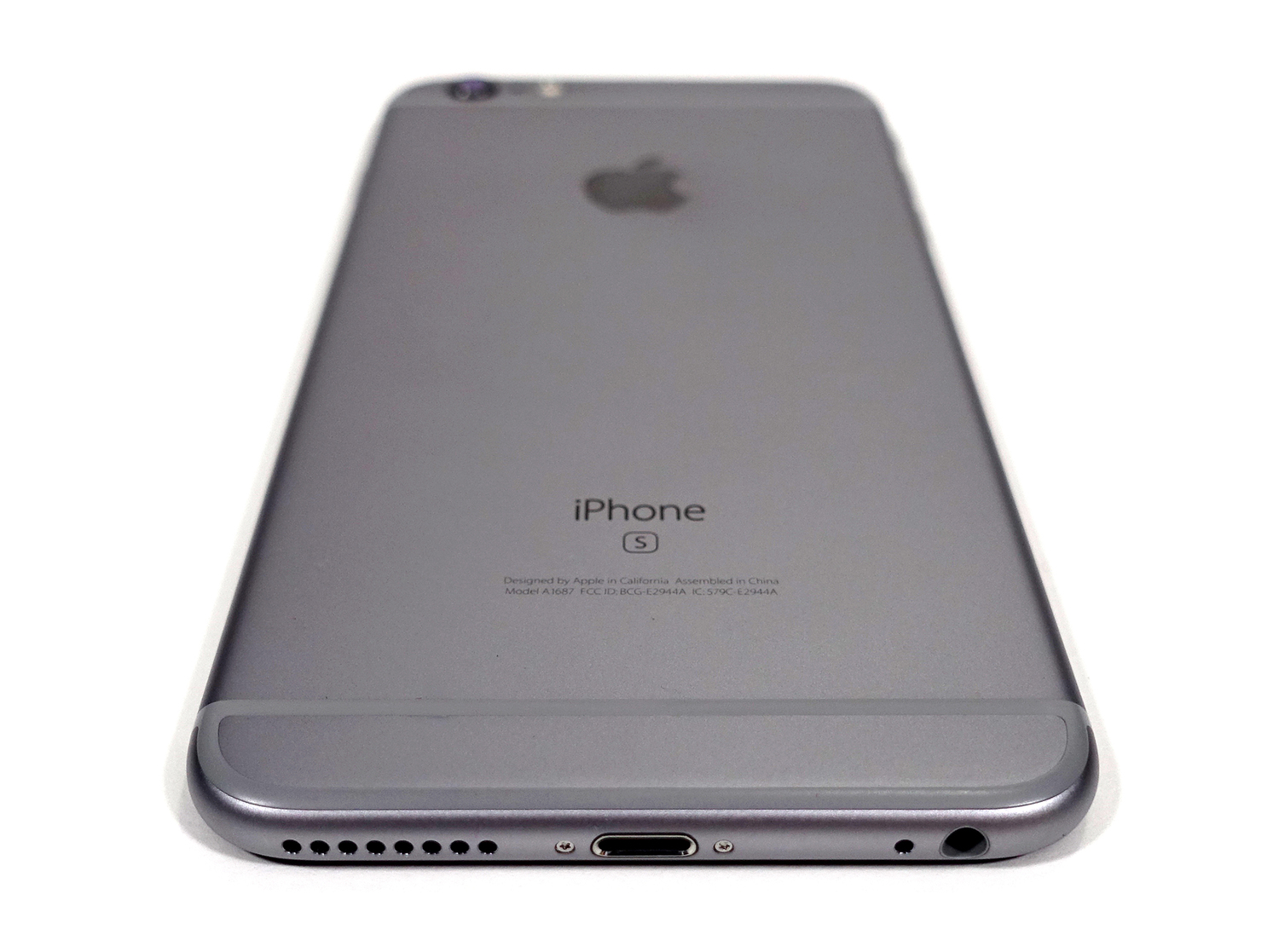
Like many of you, I pre-ordered a phone a couple of weeks ago, and today it came: a 64GB Space Gray iPhone 6S Plus. There’s a lot I haven’t done with this new phone yet, but I’ll be taking notes for a review. Here are some initial impressions until then:

1. It’s a tad heavier.
While only 20 or so grams heavier than the model it replaces, the 6S Plus is noticeably heavier in the hand. I gave both to my wife and asked her what the differences were between the two devices, and the weight was the first thing she said.

That’s not a complaint, mind you. The 6S Plus feels really nice to hold; the touch of extra weight helps it feel more solid, somehow. While I know this impression will fade over time, it’s something I noticed the second I pulled it from the box.

2. It’s a tad grippier.
Like the weight thing, the new phone seems slightly more grippy. It’s still a crazy-slippery device with those rounded edges, but the metal seems a little more tacky now. I hope its a sensation that sticks around and doesn’t wear off over time.

3. 3D Touch is awesome.
As goofy as the names “Peek” and “Pop” are, this new level of interaction is really nice. I haven’t accidentally triggered anything; like the Watch, the force these touches require is something you have to apply deliberately. It’s great in apps, but it’s really great on the homescreen. I can’t wait until all my apps provide shortcuts here.

4. Taptic Motor > Old Vibrate Motor.
It now no longer sounds like a bomb going off if I get a notification and my phone is sitting flat on my wood desk.

5. It’s fast.
After the initial post-restore churn settled down, I quickly noticed how fast this phone is. Apps launch quickly, multitasking is smooth and TouchID is so fast, I never see the lockscreen. I’ll need to change my habit of bumping the home button with my thumb to turn on the screen; now it just logs me into the phone instantly.

Review: Three Months of Apple Watch

My 42mm stainless steel Apple Watch shipped at the end of April. In the three months since, I’ve worn it every day. I’ve biked in it, slept in it, taken it to both U.S. coasts and have gotten used to having it in my life.

While we’ve known about Apple Watch’s existence for almost an entire year, and while I have spent lots of time with mine, it’s still a very hard thing to write and talk about, and the reasons for that are complicated.

By the time the iPhone showed up in 2007, the smartphone category was already around, and while Apple disrupted it, their device wasn’t entirely new. The iPad in 2010 benefited from being instantly familiar to any iPhone owner.

The Watch doesn’t come with either of those head starts. Even as a user of several fitness bands and even the Pebble (albeit briefly), the Watch really feels like a new category of device.

Additionally, there’s all of the weirdness around the product. Apple’s initial messaging about the device was less than clear, and the UI can be confusing in places. In short, I’m more than a little conflicted about my fancy new watch. I like it, and I would miss it if it went away, but it’s not even close to being a critical part of my life as a nerd.

I know this review is more-than-fashionably late, but it’s taken me this long to gather my thoughts. Something like a smartwatch has to sink into your routine before its true value becomes known.

Hardware

First-generation hardware is a funny thing. When it first comes out, it’s usually seen as an amazing feat of technology and engineering, but time does first-generation hardware no favors. In several years, we will probably be looking back at this watch and wondering how we wore something so thick and heavy on our wrists.

With that in mind, I think that the hardware is pretty damn good. Yes, Apple Watch is thicker than what I was wearing previously, but its smooth, stone-like profile allows it to slip effortlessly under long sleeves.

The screen is incredible. While in direct sun, it’s easy to tell where the LCD ends and the frame begins, most of the time, the front of Apple Watch is just one smooth, unbroken sheet of black. I love the way it looks ringed in stainless steel.

As mentioned, I purchased the stainless steel version. The case of my watch weighs 50 grams according to Apple’s website, up from the 30 grams of the 42mm aluminum case found on the Sport collection. I’ve had the opportunity to play with — and wear — the Sport, and while the weight difference certainly is noticeable, I’m not dragging my left arm around as if it’s tied down with a ball and chain.

While the Sapphire crystal display and ceramic back seen more or less impervious to scratches, that is not true of the case itself. I haven’t dropped mine or banged it into anything hard, but the case has a good number of scuffs and small scratches.

Of course, that’s to be expected with stainless steel jewelry. None of the scratches are more than surface-deep, and I’m sure I could buff them out, but in practice, they don’t bother me as much as I thought they would. I view it like the backs of all the iPods I have owned over the years: the wear and tear gives it some personality.

The Watch has two analog inputs: the Digital Crown and what Apple calls — somewhat amazingly — the side button. The poor thing doesn’t even get capital letters in its name.

The Digital Crown is remarkable in the sense that it is exactly what you expect it to be. It’s easy to turn, precise and textured in a way in which it’s easy to manipulate. I have had mine get sticky on a couple of occasions, but a quick rinse under the faucet — something Apple actually recommends — has always righted the issue.

Likewise, the side button is a nice button. There’s never any doubt in my mind when it’s been depressed, as it has a nice clicky feeling.

Perhaps the most remarkable bit of hardware is inside Apple Watch: the Taptic Engine. Here’s Apple’s over-the-top marketing bit about it:

It’s called the Taptic Engine, a linear actuator inside Apple Watch that produces haptic feedback. In less technical terms, it taps you on the wrist whenever you receive an alert or notification, or press down on the display. Combined with subtle audio cues from the specially engineered speaker driver, the Taptic Engine creates a discreet, sophisticated, and nuanced experience by engaging more of your senses. It also enables some entirely new, intimate ways for you to communicate with other Apple Watch wearers. You can get someone’s attention with a gentle tap. Or even send something as personal as your heartbeat.

Marketing mumbo-jumbo aside, the Taptic Engine feels like a tap on the wrist. It really is that easy to describe. There’s no sound, and it doesn’t feel like an iPhone vibrate motor strapped to your arm.

Noticing the taps, however, requires the band to be quite snug. Taps from a watch that slides up and down your wrist are easily missed.

Lastly, the issue of battery life. I’ve run my watch into the reserve mode exactly one time, and it was after a 13-hour drive in which I was using Apple Maps almost the entire time. These notifications (and keeping my arm on the steering wheel) kept Apple Watch awake far more than it is most days.

That road trip aside, I’ve had zero complaints about battery life. Most days, by the time I snap it onto its charger, my watch has at least 40% battery life remaining — often far more. If I’ve used it for tracking a bike ride or run during the day, that number is lower, but the moral of the story is that this thing can easily last through a day.

Battle of the Bands

I ordered my stainless steel Apple Watch on launch night with a black Sports band. In the time since, I’ve picked up not only a white sports band, but the Classic Buckle as well.

My two sports bands are more different that I expected. The black one’s material is softer and more supple (if I can use that word to describe fluoroelastomer) than the white one, which feels more like plastic than rubber. That’s not to say the white one is bad, but the black band definitely feels better.

The leather Classic Buckle was pricey, and I’m not in love with it. It’s very comfortable and very lightweight, but those two goals come at a cost: the leather strap is crazy thin, and it makes it feel cheaper than it is. I’m only using this band if I’m in a dress shirt, and as that’s not a thing I do very often, it stays in the dresser most of the time.

Most days, I choose to wear the white sport band. I love the look, but I have noticed it draws more attention to my watch. The only times I’ve gotten questions about Apple Watch in public have been while I’m wearing the brighter band.

Software

watchOS is a weird mashup of new ideas and some borrowed from iOS.

There’s no need for me to dive into how watchOS works at this point, as the basics are well-known. There’s a watch face with notifications and Glances just a swipe away with a world of apps just a push of the Digital Crown away.

There is a real learning curve to this thing. The first several days, I would tap the Digital Crown expecting something to happen, just to be reminded that things aren’t always quite what they seem when it comes to watchOS.

I don’t think, however, that the learning curve is a show-stopper. Once I was a few days into wearing Apple Watch, my brain got everything under control and my fingers now know what to do without me stopping and thinking about it.

The OS itself is really interesting. Due to the size of the display, most things are broken into manageable, bite-sized chunks. Where on the iPhone, the timer, stopwatch and alarms are all packed into one app, the Watch treats them separately.

The whole OS is designed to be used in short bursts. While I may stare at my MacBook Pro for hours while writing a review, I will read an iMessage on my wrist in the matter of a few seconds.

watchOS does what it can to make information ready for you when you want it. If you feel a tap on the wrist, by the time you raise your arm, the incoming message or notification is in view, obscuring the rest of the UI. Scroll down on the crown, and you can take action on the incoming data with pre-populated options behind large, easy-to-tap buttons.

Glances also take the whole screen, but provide on-demand information, unlike Notifications. A simple swipe up from the bottom of the display and a horizontal row of cards provide all sorts of information, as well as quick links right into apps.

From what I’ve heard others say, I think I’m using Glances more than most. I have 8 currently setup, and while I do have to wait for the third-party ones to update their information from my iPhone, I expect that will be better with watchOS 2 this fall.

The stand-out feature for me on Apple Watch is Siri. It’s super easy to raise my wrist while cooking or watering the yard to tell Siri to start a timer or set a reminder. While we’ve had Siri for a while, it feels brand new in this new form factor.

Likewise, dictating a reply to an iMessage is simple, and easy to do. Siri seems far more accurate here than on the iPhone, and while I’m sure there are actual reasons for that, it just makes me all the more frustrated when Siri on my iPhone mangles things.

Siri and dictation have a big downside though: I feel horribly embarrassed just thinking about talking to my watch in public. I’m just not going to reply to a text with my voice while at the store. However, around the house or in my car, it’s pretty sweet.

Watch face

I wrote about watch faces at length back in May, but I think some of it is worth repeating here.

There are ten different watch faces to choose from, and most of them can be outfitted with Complications, or little bits of data like the temperature, upcoming calendar events and more. This means that the face of the watch can become a mini-dashboard for more than just the time.

I bounce back and forth between the Modular and Simple faces, depending on how busy my day is. I wish all of the faces were more customizable, but it’s not hard to get a few workable options set up.

Apps

I’ve broken apps out into their own section for one big reason: I don’t think they’re fully necessary at this point.

Thanks to the lack-luster performance due to the limitations of WatchKit, I’m not using many third-party apps on a regular basis. While there’s a conversation to be had on whether Apple handled this rollout in the best way possible, the truth is that third-party apps are slow and clunky at this point.

I suspect that I’ll use apps more after watchOS 2 ships with native app support, but it’s hard to tell. I can say that Apple’s first-party apps — for the most part — are fluid and smooth. It’ll be nice to see that experience come to all the little circle icons on my Watch.

That said, I don’t think I’ll be suddenly using many more apps than I currently am. As discussed, the Watch is best used in short bursts, and too many apps on my iPhone just aren’t a good fit for that kind of interaction.

Take to-do lists for example. The Watch is great for checking items off as I walk through a store, but I don’t want to perform a review of my entire task system or re-order a bunch of projects on my wrist. Today, the best watchOS apps are simple, and I think that will continue to be the case. Complaints about not having the entire Facebook experience on the Watch are just stupid. Here’s my friend Katie Floyd on this topic:

Personally, I find the lack of Facebook, Snapchat and most of Google’s apps on the Apple Watch fantastic. Our phones are with us all the time. No one want’s to miss that urgent call or message. But having these devices with us all the time means that any time we have a few extra seconds we can check email, browse the web, see what’s happening on Facebook, catch up on Twitter or any of a number of other things. Have 30 seconds in the checkout line, pull out the iPhone. That’s fine, but it’s also a little mind-numbing.

One of the things I love most about my Apple watch is that I can’t do these things. Instead, information comes through the Apple Watch (via a paired iPhone) to me. Once the notification settings are properly tweaked, only the most important messages, items truly worthy of my attention, will come through. In the three months since I’ve had my Apple watch I’ve found I’m happy to leave my iPhone at my desk or in my purse rather than always carrying it in my pocket because I know if something important comes through, I’ll get a gentle tap on the wrist. I’m no longer that person who is out with friends and family and is constantly checking their phone rather than being in the moment.

I couldn’t agree more.

Fitness

Fitness tracking is a core feature of Apple Watch, and the device makes it fun to keep up with steps taken, minutes spent active and hours spent standing.

Throughout the day, information is gathered from the accelerometer and heart rate sensor. This data is captured and translated into a set of rings that slowly fill up as the day progresses.

This simple gamification of fitness is genius. It keeps me interested and invested in my activity level throughout the day. I’ve often gone outside for a walk during the middle of the workday to add some color to the Move and Stand rings.

For me — and I suspect for many people — the Exercise ring is the one I fail to fill the most often. Adding color to this ring can happen by going on a brisk walk, bike ride or run. The ring is filled with or without the built-in Fitness app running, but I tend to open it so I can track things like distance and speed while cycling by simply looking down at my wrist.

I can’t speak to the scientific accuracy of Apple Watch’s fitness tracking, but I know that for me and many others, it’s making a difference in our daily lives.

I’ve owned several fitness trackers over the years, but Apple Watch is more compelling than any of them. The data captured is more comprehensive, more integrated with the rest of my iPhone, and is built in to a device I already want to have on my body. It’s a win.

Communication

In addition to timekeeping, technology and fitness, Apple pitches its wearable on the fact that it can be used for intimate, personal communication with another person.

In addition to receiving and sending iMessages, Apple Watch includes what the company hilariously calls Digital Touch.

The whole interface lives behind the side button, where a ring of friends’ faces await you, assuming you’ve set them up in the iPhone app for managing the watch.

Select a person, and you can call them, send them a regular iMessage (complete with freaky animated emoji) or a Digital Touch.

With Digital Touch, you can doodle a little picture to a friend, send a tap or — if you’re sure they won’t take it the wrong way — a representation of your heartbeat, which will play out via the Taptic Engine in their watch.

These communication methods are only available to people wearing an Apple Watch, and that may be why this hasn’t really taken off in my life. Sure, it’s funny to send Myke Hurley my heartbeat or draw a stick figure to Federico Viticci, but I’ve never used it to seriously communicate or get someone’s attention with a tap.

I suspect that I might feel differently if my wife had an Apple Watch, but as she’s opposed to that, Digital Touch will remain a funny thing to do with friends, and not evolve into the private, intimate, communication method Tim Cook promised on stage.

In Conclusion

As I said over 2,800 words ago, I’m conflicted when it comes to thinking about Apple Watch.

I’d recommend it to anyone who is strongly tied to their iPhone and is looking for something to track their fitness.

That combination is what sets Apple Watch apart from things like the much-cheaper Fitbits of the world. Having one wearable to deal with notifications, fitness and more is great, but by no means necessary.

That’s where the rub is with this thing. Apple Watch is much more about want than need. I can’t judge that for anyone but me, but it is something to think about. The Apple Watch probably isn’t going to change your life, but it will make it better in a bunch of small ways. I find it a valuable addition to my life, but not everyone will, and that’s fine. After all, as Apple says, its the most personal device they’ve ever made.

Review: the Kindle Voyage

These days, it’s hard to argue in favor of dedicated devices.

Smartphones have taken the place of consumer video recorders, point-n-shoot cameras and even the iPod.

Fitness bands — despite several recent product announcements from Jawbone, Fitbit and Microsoft — will seem silly once the Apple Watch hits shelves early next year.

In this world, Amazon continues to release e-ink Kindles each year, despite themselves making an entire line of iPad-style tablets.

The iPod-vs-iPhone comparison is impossible not to make. Apple’s venerable music player slowly faded away because the iPhone was simply a better way to enjoy music on the go. It did video better, had a built-in connection to the iTunes Store and was already in everyone’s pocket. Carrying a dedicated music player in the other pocket stopped make sense to the vast majority of consumers, so the iPod went away.

I don’t think that’s the case for the e-ink Kindle quite yet. Reading on a Kindle Fire or iPad Air is a fine enough experience, but it lacks in something only the e-ink Kindles can provide: a tactile experience while reading.

E-ink does its best to mimic honest-to-goodness, made-from-dead-trees paper. There’s a quality to reading on these displays that’s just better than reading on an LCD, no matter the resolution.

There’s also the fact that no matter how much stuff Amazon crams into the OS that runs on their e-ink devices, a Kindle isn’t going to chime with an incoming email or Slack notification.

However, is that experience enough to save keep the e-ink Kindle line alive? How does the new Kindle Voyage stack up to previous generations?

Hardware

I’ve reviewed two previous Kindles: the 2011 base model and the first-generation Kindle Paperwhite.

The Voyage is much less of a leap forward than that original Paperwhite was, but the collection of improvements leads to a better experience.

Screen

The Voyage retains the front-lit screen from the Paperwhite, but there’s no hint of dark spots or uneven lighting that plagued early models.

The backlight is far less yellow tinted than the Paperwhite. The LEDs are cooler in appearance, but not so much that the lighting is harsh. I actually prefer the color temperature on the Voyage, as it helps things feel more crisp.

The biggest improvement to the backlight on the new Kindle, however, is its ability to auto-adjust based on ambient brightness. While the manual controls are still present, I haven’t had the need to adjust things myself. Amazon’s gotten auto-adjust right.

The screen itself is now flush with the bezel around it, making the depression seen on previous models a thing of the past.

That’s not to say the text on the screen appears on the surface of the display, like on the laminated displays Apple uses on the iPhone and iPad Air 2. There is an air gap between the screen and the cover, but it’s miles better than the sunken-in displays of Kindles past.

The screen is now 300 ppi, up from the 212 ppi found on the still-for-sale Paperwhite. While the increase in pixel density may not dramatic on paper, in practice, the Voyage is far more pleasant to read. Letterforms are clearer, curves are less jagged, and everything is just more crisp.

The Voyage’s screen is now covered in micro-etched glass, which Amazon says reduces glare and more closely matches the feel of paper than previous screens.

Glare is better on the Voyage, but I wasn’t complaining about it on my Paperwhite. The texture can be felt if you rub your fingers across the display, but unless you have a stack of old Kindles at your disposal, it’s hard to tell the difference from memory.

Buttons!

In my Paperwhite review, I wrote this, regarding the touch screen:

Touches are precise and register quickly, but in my brief time using the device, I haven’t gotten used to poking the screen. But that’s not the fault of the Kindle, but rather my own years of use.

Two years with the Paperwhite were enough for me to get used to touching the screen to change pages, but not enough for me to like touching the screen to change pages.

It’s too easy to fire some other interaction on the touch screen, and if you’re in bed, jockeying your hands around to be able to hold the device comfortably and tap the screen is annoying.

Thankfully, the Kindle Voyage sort of brings back the page-turn buttons of old.

I say sort of because the page control mechanism isn’t a physical button like before, but instead, a set of force sensors that turn the page when the side bezel is squeezed. Amazon calls this “PagePress” and it’s not nearly as awkward as it seems on paper:

PagePress is a custom-designed force sensor made of carbon and silver, which reacts to a subtle increase of pressure, triggers a page-turn, and provides a haptic response only your thumb can perceive. Because PagePress has no moving parts, the haptics provide you with the most minimal indication that you have pressed the button, to reduce distraction from reading.

In practice, this is the best page-turning mechanism Amazon’s shipped on a Kindle. It takes just enough force where it’s intentional, but not tiring, and like previous generation-Kindles, both forward and back controls are present on each side.

The Kindle’s software lets you fine-tune the pressure needed to trigger a page turn and the amount of haptic feedback that’s given from the device. Additionally, the whole thing can be turned off, giving users the biggest range of options ever presented on a Kindle for page control.

Body

Size-wise, the Voyage is slightly shorter and noticeably thinner than the Paperwhite. The Kindle logo on the front is more subdued, but the back of the device is radically different.

The soft-touch material is still present, but it’s now neighbors with a hard plastic section at the top, and the whole thing is divided into angled sections. This makes the Kindle Voyage feel thinner than it actually is, but I prefer the look of the Paperwhite’s back.

(As before, the back is a fingerprint magnet. Human grease is gross.)

The power button has been moved from the bottom lip of the device to the back, ending our long national nightmare of accidentally putting our Kindles to sleep by bumping them against something. The micro USB port is still present at the bottom, as is the LED showing charging status.

The Case

Amazon’s $59 case for the Kindle Voyage — dubbed the Leather Origami Cover, but named “Amazon Protective Leather Cover for Kindle Voyage” on Amazon’s webpage is the weirdest case for any device I’ve ever used.

The Kindle snaps onto the back part of the case using magnets, and the cover comes in from the top — not the side — like an old reporter’s notebook.

The cover itself is divided into five sections, making it look like Batman-style body armor. These panels can be folded into a stand when flipped backwards, making the Origami case a type of mini-easel for the Kindle.

While I like the idea of this, in practice, it’s far too fiddly. I can’t ever seem to remember which way to manipulate the case to make it stay together, and the contact point created by the cover-turned-tripod-foot is far too small, allowing the Kindle to tip over if used on a soft surface like a bed.

The relative uselessness of the case, coupled with the fact that it’s just plain bulky is too much for me. I’ve been using it to house my Kindle in while stashed in my messenger bag, but if I’m reading, I flip back the cover and pry the Kindle off the case’s magnetic back. My desire for a naked robotic core — a device that’s best used without adornment, but can be transported in something bigger — has never been true for a Kindle before now.

Software

The Kindle Voyage does a lot of things I ignore. While an occasional trip to the dictionary is nice, I don’t take advantage of most of the software features Amazon has packed into this thing. X-Ray is mostly a novelty to me, as I can keep up with references in a book without an issue, I don’t share on Goodreads and I don’t take notes as I read.

Thankfully, the Kindle’s core experience of just reading can be enjoyed without worrying about these services and features.

Conclusion

At $199 (or $289 if you spring for 3G and no ads) the Kindle Voyage is expensive compared to the $119 Kindle Paperwhite or $79 Kindle. There’s no real way around that.

The question at hand is this: is the extra dough for the Voyage worth it? In my experience — coming from a first-generation Paperwhite — the answer is yes, if you use your Kindle heavily. If you don’t, or if you don’t mind the display you’ve already got, the Voyage may be worth skipping.

I view this sort of like the iPad upgrade problem. Year-over-year improvements may not be worth the money for most people, but there compelling reasons to upgrade every few years for almost everyone.

As far as the future of dedicated devices, I think the Kindle is safe for now. I still prefer reading on my Kindle over my Retina iPad mini and I enjoy using and care about the Kindle, but I can’t help but think I’m in a shrinking minority.

Review: With OS X Yosemite, Aqua’s All Grown Up

Every summer, Apple takes the wraps off a new version of OS X. This past June, Craig Federighi introduced Yosemite.[1] His performance was electrifying, and throughout the week, he was seen taking selfies with developers, telling jokes and being the overall cool guy from Apple.

Beyond the flashiness of the keynote, however, there was real substance. OS X Yosemite is a big leap forward for OS X’s user interface and the way it interacts with iOS.

Like Mavericks before it, OS X Yosemite is available for free on the Mac App Store. The annual verbiage about checking on system requirements, having a good backup and making sure your third-party apps work on the new operating system all apply this year.

Welcome to Yosemite

Instead of a wide-ranging review, life (READ: starting Relay FM, having a baby, etc.) dictated I spend time on just the revamped UI. That said, Yosemite does come with major changes to iCloud data storage, not to mention Handoff, Continuity and Apps Extensions. All of those things are awesome, but maybe its better to think of this article as follow-up to On the past, present and future of Apple’s Aqua user interface, which I published back in April.

While this new version of OS X is structurally the same as all of its predecessors, there’s not much left of that original Aqua look left.

Apple didn’t go all iOS 7 on OS X’s ass, though.

While introducing OS X’s new UI, Federighi insisted that the company started with the concepts of clarity and utility. Apple has worked to make OS X more approachable over the years, and with Yosemite, that means making things simpler. For example, Dock icons retain some textures, but many have lost unneeded decoration.

The Dock icons are a good example of the direction Yosemite takes as a whole; good and bad (as we’ll see with Finder). This blog post by Nick Keppol really breaks it down well.

Yosemite doesn’t have the large swaths of white with colorful, text-only buttons that iOS does. It’s still OS X, but it’s been flattened out and made a little more translucent.

Let’s dive in.

Helvetica Neue

Since the very earliest builds, OS X’s GUI has been defined by the typeface Lucida Grande, which has graced the menus, labels and stock UIs shipping from Cupertino since 1999.

Here’s a GIF showing the differences between the two fonts:

Helvetica Neue is tighter, with more uniform space between letters and a more consistent stroke.

While the change is a bit jarring at first for long-time Mac users, it’s one with an eye toward the future.

Here’s John Gruber in his iPhone 4 review from 2010:

It’s a subtle change, but Apple has changed the system font for the iPhone 4, from Helvetica to Helvetica Neue. The change is specific to the iPhone 4 hardware (or more specifically, the Retina Display), not iOS 4. On older iPhone hardware, iOS 4 still uses Helvetica as the system font.

[…]

Aesthetically, this change is a win. Helvetica is a great typeface; long-time DF readers know I’m a huge fan of it, and the choice to use it for the iPhone’s system font is one of my favorite decisions in Apple history. But Helvetica Neue, subtle though its differences are, is a nice improvement. It is a more Helvetica-y Helvetica.

Why change only on the iPhone 4, though? I suspect it’s because Apple’s digital version of Helvetica is better hinted for on-screen rasterization than Apple’s Helvetica Neue, which makes it look slightly sturdier on the relatively crude pre-Retina Display iPhone screen. I.e., Helvetica looks better than Helvetica Neue on older iPhones, but Helvetica Neue looks better on the truly-print-caliber Retina Display.

His point remains true today — Helvetica Neue gives a level of clarity and precision on high-density displays that Lucida Grande never could.

On my 13-inch MacBook Air, OS X’s menus are readable, but on the Retina MacBook Pro, they are nice to read. Some information-dense screens, like this one from the System Information app, is a little hard on the eyes:

The question I keep returning to is this:

Did Apple go to Helvetica Neue too soon?

After all, the MacBook Pro line is the only Mac with a Retina display. The MacBook Air and iMac are non-Retina, and Apple doesn’t sell a Retina-level external display for its Mac mini and Mac Pro customers.

I don’t know the answer. Yosemite looks more or less fine on non-Retina displays, but I do think it’s a step backwards from the Lucida Grande of old for a whole heck of a lot of OS X customers.

Then I see it on my MacBook Pro and kinda stop caring about anyone else.

Translucency

In a long essay about OS X’s GUI, I wrote:

There are those “OS X Ivericks” mockups floating around and an “OS X Montauk” design over on Dribbble:

While I don’t know if Apple would go this far with OS X, it is interesting to consider.

Turns out, Apple’s design for Yosemite is in the same ballpark as that rendering. However, instead of large white UI elements, Yosemite’s loaded with translucent panels.

To create the soft glow of content below Yosemite’s menus, Notification Center and more, instead of just tinting what’s beneath, Yosemite is using the colors and programatically creating the menu bars, Notification Center and more to make them feel warmer than just a sheet of dark glass would. This gives the transparency a playfulness with the content it’s covering that otherwise wouldn’t be there.

Apple’s calling this technology Vibrancy and it’s in play in both the light and dark modes of OS X Yosemite. (More on that dark mode in a bit.)

As with iOS 7 a year ago, Apple claims that translucency can give the user a sense of place, using depth as an organizational tool. Content, Apple would say, is more important than OS X UI chrome and clutter.

Beyond that, at WWDC, Federighi noted that translucency allows for personality, as sidebars are tinted with the colors of the windows (or Desktop picture) behind them.

This GIF shows the process in action over a custom (and rather mind-melting) wallpaper. Keep an eye on the sidebar of the Finder window:

It’s important to note that only the sidebar of active windows are transparent. If you have multiple Finder windows open, only the top one will sport a translucent sidebar; the others will be opaque as before Yosemite.[2]

Vibrancy doesn’t make the content hard to read, but like in iOS, over large sections of the screen, it just comes across as muddy.

Gross, right?

(That same effect is used when browsing Time Machine. Gone is the star field that first appeared with OS X Leopard.)

I’m not completely against this new translucency in OS X. It can add valuable information about scroll position. For example, the Finder title bar picks up the tint of the content within the window as it scrolls past the edge of the view.

However, translucency can and does cause legibility and clarity issues under the right circumstances. In this screenshot, I have Mail open in front of a Safari window with CNN’s website loaded:

Out of the corner of my eye, the red looks like some sort of alert or flag. The fact that it’s hard to read is secondary only to the mind-bending question as to why the empty message list[3] isn’t translucent.

iOS 7 introduced this sort of transparency, but as iOS apps don’t ever have overlapping windows, it’s not as big of an issue there. However, as OS X still has a windowed UI, transparency just has too many edge cases to deal with.

To help combat this — and give Core Animation a break — only the front-most window will allow what is below to shine through. This helps make it clear which Finder window is the foremost when a lot are open at once, as the others will retain the pre-Yosemite opaque sidebars.

However, in practice, I haven’t fallen in love with Vibrancy. It looks good most of the time (when it looks bad, it looks really bad), but it can cause odd usability issues and even be distracting in certain circumstances.

Thankfully, this little guy lives in the Accessibility preference pane:

The truth is, I’m not sure that all of the blurry transparency in Yosemite really meets Federighi’s goal of making OS X easier to use. I think it’s much more about giving OS X a little more personality. I’m not saying that’s bad; I think it’s just … unnecessary in places. Toggling transparency may make Yosemite look a little more boring, but at least everything is readable.

Dark mode

To say that Yosemite comes with a “Dark Theme” is vastly over-stating the “Dark menu bar and Dock” option found in the “General” preference pane:

As shown above, OS X’s new dark mode only affects the menu bar, Command+Tab UI, drop-down menus, the Dock and Spotlight. Everything else — from Finder windows to built-in apps — remain their normal, bright selves, no matter what System Preferences says.

Even in the very last developer builds, the dark mode had broken elements, like the labels in Finder’s File menu:

In fact, throughout OS X, there are little corners of the dark mode that are broken. Coupled with the fact that many third-party menu bar apps haven’t been updated yet, and things get gross in a hurry.

(I have no idea why the Spotlight icon is not pinned to the right. It has a tendency to move around.)

The net result of this is that dark mode feels half-baked. I’m not suggesting that Apple sherlock the f.lux guys, but I would like to see this feature fleshed out a bit more in future releases. Using a darker Dock and menu bar may be easier on the eyes, but any benefit is gone the second a white Finder window or blank TextEdit document sears your retinas.

The dark mode does bring up the topic of which Appearance theme looks best with Yosemite. For years, I’ve run my Macs with the Graphite on; muting the stoplights and menubars to a gray tone.

With Yosemite, a user can select both Blue and Graphite as before, but toggle the dark menu bar and Dock independently. The combination of the dark mode and Graphite appearance means the menu bar’s hover state can be hard to see at times:

As for me, I think I’ll be using Yosemite with the Graphite appearance and dark mode off.

Other interface changes

Yosemite’s big changes may be all about fonts and translucent sidebars, but there are lots of other UI changes packed into the release.

Spotlights and title bars

After changing the system font — what many would consider sacred across previous OS X design changes — nothing else Apple could do would feel as impactful, but the company didn’t stop there. Yosemite brings revised window controls and toolbars to the Mac.

The window controls — those red, yellow and green icons in the top-left corner have been flattened for Yosemite, but the way they work has been edited as well, as hinted at in their new hover states:

The red button still closes the window, and the yellow still minimizes the window to the Dock, but in Yosemite, the green button now puts the app in full-screen mode. The double-ended arrow control introduced in Lion is gone.

Previously, the green control would make the window bigger, but not always in a way the user expected. This behavior change makes a ton of sense to me, and I think it will be welcomed by many, many users.

(To use the old “zoom” control, press the Option key while clicking the green button or double-click a window’s title bar if System Preferences is set to ignore that input for minimizing windows.)

The toolbar — the part of the window that the stoplight and other icons sit in — has also been revised to allow for more vertical real estate for content. In many cases, including Safari, it means the old title bar is gone:

(This is also the case in Finder, Maps, Notes and more.)

While at first glance, these changes make windows look more than a little weird to the experienced OS X user, having more vertical real estate — especially on notebook displays — is welcome.

There are downsides to not having title bars, however. When a toolbar gets full of buttons, there’s less UI to click and drag on to to move the window.

Safari

As always, Apple’s tweaked their built-in apps, but Safari has received the most attention this year.

The lack of a title bar means getting to the content quicker, but the vibrancy around that pink ad on the right is nuts. My biggest problem, however, has to do with the way Apple’s changed the Toolbar. If you look closely, you’ll notice my bookmarks bar and address bar aren’t centered. The latter was knocked slightly left the second a new item was added to the right of it, despite using the “Flexible Space” item on either side of the address bar:

In addition to the re-jiggering of windows, Safari now — by default — only shows the root URL in the address bar. This means that while on relay.fm/about Safari only displays relay.fm which leads to confusion. Thankfully, this ridiculous preference can be changed in the application’s settings.

In practice, these problems aren’t that big. Safari is fast and stable, but it’s perhaps the best poster child for everything wrong with Apple these days — little things are often slightly broken in the name of progress.

Spotlight

Since it’s introduction with Tiger, Spotlight has been stuck in the upper-righthand corner of OS X. With Yosemite, it’s been set free to live front-and-center:

If that looks familiar, it’s because Apple’s taken the approach of apps like Alfred, both in appearance and the ability to show data in a more helpful format.

Notification Center

Widgets can now live in two places on OS X — the Dashboard and Notification Center, which has been more or less lifted directly from iOS. Despite your preference, Notification Center is always made up of Yosemite’s dark vibrant material.

Game Center

Felt is dead, but those stupid bubbles from iOS should die, too.

Handoff

While the details of Handoff are beyond the scope of my design review of Yosemite, Apple’s tinkering with the Dock is not.

Now, if an iOS device has something it can pass to the Mac, that app icon appears at the front of the Dock, to the left of the Finder, which, in my mind at least, is heresy.

In this screenshot, I’ve hovered the new icon, showing it’s more or less what I could have guessed — a Safari session on my iPhone that I can open on my Mac. Clicking the icon will open the session in my browser.

(Handoff icons also appear in the Command+Tab switcher.)

This is a great feature, and I’ve come to enjoy it in the beta periods of iOS 8 and Yosemite, but if you’re at your Mac and multi-tasking with another device, the icon is changing. Bounce from Safari to Messages on your iPhone and Safari then Messages will take their place on your OS X Dock. In practice, it’s hard to use more than one device at a time, so this changing takes place when you aren’t paying attention. However, if someone is using one of your devices while you are at your Mac, the ever-changing icon is enough to drive you batty.

The ability to answer a phone call on your Mac is also part of Handoff, and is another UI element that is always presented as if dark mode were on:

While the equalizer and old-school phone icons are a little weird, the best part of this feature is that it’s really easy to accidentally answer a call if you’re typing quickly when one comes in and you hit the Enter key.

Apple menu changes

While I still dislike having to open the Mac App Store to update system software, Yosemite now makes it a little easier to see when updates are available.

Additionally, the “About this Mac” menu item now opens the expanded “More Info…” screen that first appeared a couple of years ago. Gone is the old window that graced OS X for over a decade:

The Finder Icon

I’ve made a lot of jokes on Twitter since June about the new Finder icon. Maverick’s is on the left, and the new, meth’d out one is on the right:

All in all, I think most of Yosemite’s app icons are good, but I hate having at the new Finder art stare at me every day from my Dock. I like the bright colors, but the dopey smile is just too much for me.

In which I realize (yet again) I’m an old man

When I looked back at Aqua earlier this year, I realized that Apple’s been refining the look and feel of OS X since first announcing it in January 2000.

For the most part, these changes have made OS X more usable and better-looking. While there are outliers, Apple’s been fine-tuning OS X’s look for a decade.

In its early versions, OS X featured lots of translucency to help the user understand the placement of open windows. Yosemite does similar things for similar reasons, but modern Macs can run these graphics smoothly. That wasn’t the case in the Mac OS X 10.0 and 10.1 days, so with 10.2 and 10.3, Apple dialed it back, making OS X feel more responsive.

Sadly, Jaguar and Panther brought other issues, but as the decade ground on, Apple kept unifying and flattening things, and, for the most part, the changes were logical and welcome.

I don’t feel like I can say that confidently about all of Yosemite’s design changes. Switching system fonts and cleaning up icons are good, but the ability to see through sidebars and make the menu bar dark come with too high of a cost in their current forms. In writing this review, I’ve realized that the two major elements in Yosemite’s design that I can control — transparency and dark mode — aren’t for me.

At this point, I’m not sure referring to Yosemite’s UI as Aqua is even correct. If Aqua defines the structures and underlying philosophies that shape OS X, then it’s still present, despite the ever-growing number of changes from those original lickable buttons. However, if Aqua is just a collection of colorful buttons, windows with title bars and a predictable color scheme, it may have died the second Craig Federighi showed off Yosemite this summer.

Semantics aside, Yosemite’s UI feels awkward. Parts of it are beautiful, but parts of it are broken. Surely some of the weirdness stems from the sheer number of changes present. Yosemite is a natural evolution from Mavericks and iOS 7 a year ago, but Apple’s hit the fast-forward button. As a result, Yosemite isn’t a refined as it could be.

But hey, that’s what next year’s WWDC is for, right?


  1. Don’t miss his bit about naming the new version of OS X.  ↩

  2. As a note, thankfully, transparent panels appear white in window-based screenshots; the background color only shines through if a selection (or all) of the screen is grabbed as an image.  ↩

  3. F YEAH INBOX ZERO.  ↩