Kbase Article of the Week: Final Cut Express 1 and 2 Frequently Asked Questions (FAQ)

It’s mostly forgotten now, but for years, Apple shipped Final Cut Express, a video editor that lived somewhere between iMovie and Final Cut Pro. It was discontinued in 2011 when Final Cut Pro X was released. Here are some FAQs Apple of the past thought may be helpful to users of the application:

  1. Why isn’t my serial number accepted by the program?
  2. Why can’t I hear audio while capturing?
  3. Why can’t I hear audio during playback from the Timeline?
  4. Final Cut Express doesn’t recognize my camera. What’s wrong?
  5. Where can I find the product manual?
  6. How can I prevent out-of-sync audio on long clips?
  7. How do I transfer my project to iDVD?
  8. I hear beeping when I play audio. Why is that?
  9. How do I set keyframes?
  10. Why don’t I see real-time effects and transitions?

The answer to question 10 really puts things into perspective:

Answer: Make sure you choose View > Video > Real-Time. Available real-time effects appear in bold type in the Effects menu and Effects browser and will vary based on the performance of your computer (a G4 processor is required). Multiple video layers can also prevent real-time previews from appearing.

Apple Announces Logic Pro and Final Cut Pro for iPad

This morning, Apple dropped some big news for creative professionals:

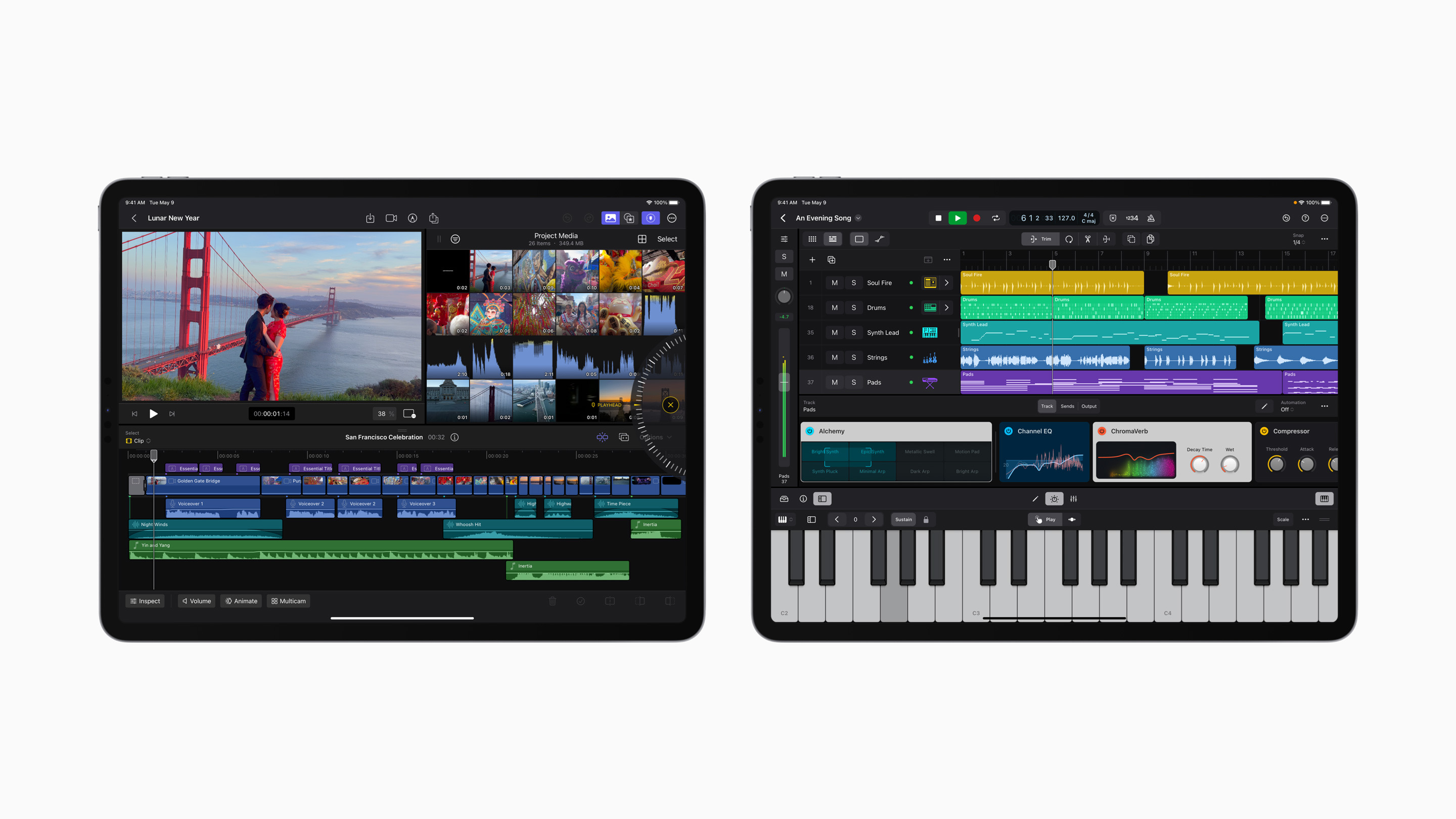
Apple today unveiled Final Cut Pro and Logic Pro for iPad. Video and music creators can now unleash their creativity in new ways that are only possible on iPad. Final Cut Pro and Logic Pro for iPad bring all-new touch interfaces that allow users to enhance their workflows with the immediacy and intuitiveness of Multi-Touch. Final Cut Pro for iPad introduces a powerful set of tools for video creators to record, edit, finish, and share, all from one portable device. Logic Pro for iPad puts the power of professional music creation in the hands of the creator — no matter where they are — with a complete collection of sophisticated tools for songwriting, beat making, recording, editing, and mixing. Final Cut Pro and Logic Pro for iPad will be available on the App Store as subscriptions starting Tuesday, May 23.

“We’re excited to introduce Final Cut Pro and Logic Pro for iPad, allowing creators to unleash their creativity in new ways and in even more places,” said Bob Borchers, Apple’s vice president of Worldwide Product Marketing. “With a powerful set of intuitive tools designed for the portability, performance, and touch-first interface of iPad, Final Cut Pro and Logic Pro deliver the ultimate mobile studio.”

Final Cut Pro and Logic Pro for iPad

If these were slated for WWDC, but were kicked out of the keynote for more exciting things, June 5 may be a pretty wild day.

Looking over the materials on Apple’s website, it appears that these two apps are just want people have wanted — pro-level editing tools, redesigned for the iPad’s unique form factor and input devices.

I think it’s best to reserve judgment until we see how these apps work in the real world, but I can’t help but worry that iPadOS will hold them back. Using professional tools like these apps require file transfers, media management, advanced audio routing and more. Those aren’t iPadOS’ strong suits, at least of today. Given that these apps are coming out in just a few weeks, before WWDC, I wonder how many of these things will be addressed in iPadOS 17 at all.

The details at the bottom of the Newsroom article are important to note:

Starting Tuesday, May 23, Final Cut Pro and Logic Pro for iPad will each be available on the App Store for $4.99 (US) per month or $49 (US) per year with a one-month free trial.8 Final Cut Pro is compatible with M1 chip iPad models or later, and Logic Pro will be available on A12 Bionic chip iPad models or later. Final Cut Pro for iPad and Logic Pro for iPad require iPadOS 16.4.

I’m not shocked that these new apps are available only via subscription, but I think this the first time Apple has made new software available this way. On the Mac, Logic Pro and Final Cut Pro are one-time purchases, priced at $199.99 and $299.99, respectively.

All in all, this is great news, even if you aren’t a Logic or Final Cut user like I am. These apps are a sign that Apple is attempting to take the iPad more seriously as a computer for professionals, and that’s a good thing.

Sponsor: DEVONthink of DEVONtechnologies

Whether you’re in the harbor or at high sea, you need to know where you are or where you’re sailing. If you have all the maps, books, and documents. DEVONthink for Mac and DEVONthink To Go for iOS will not let you down on your mission and help you navigate the “seven seas of information.”

DEVONthink for Mac

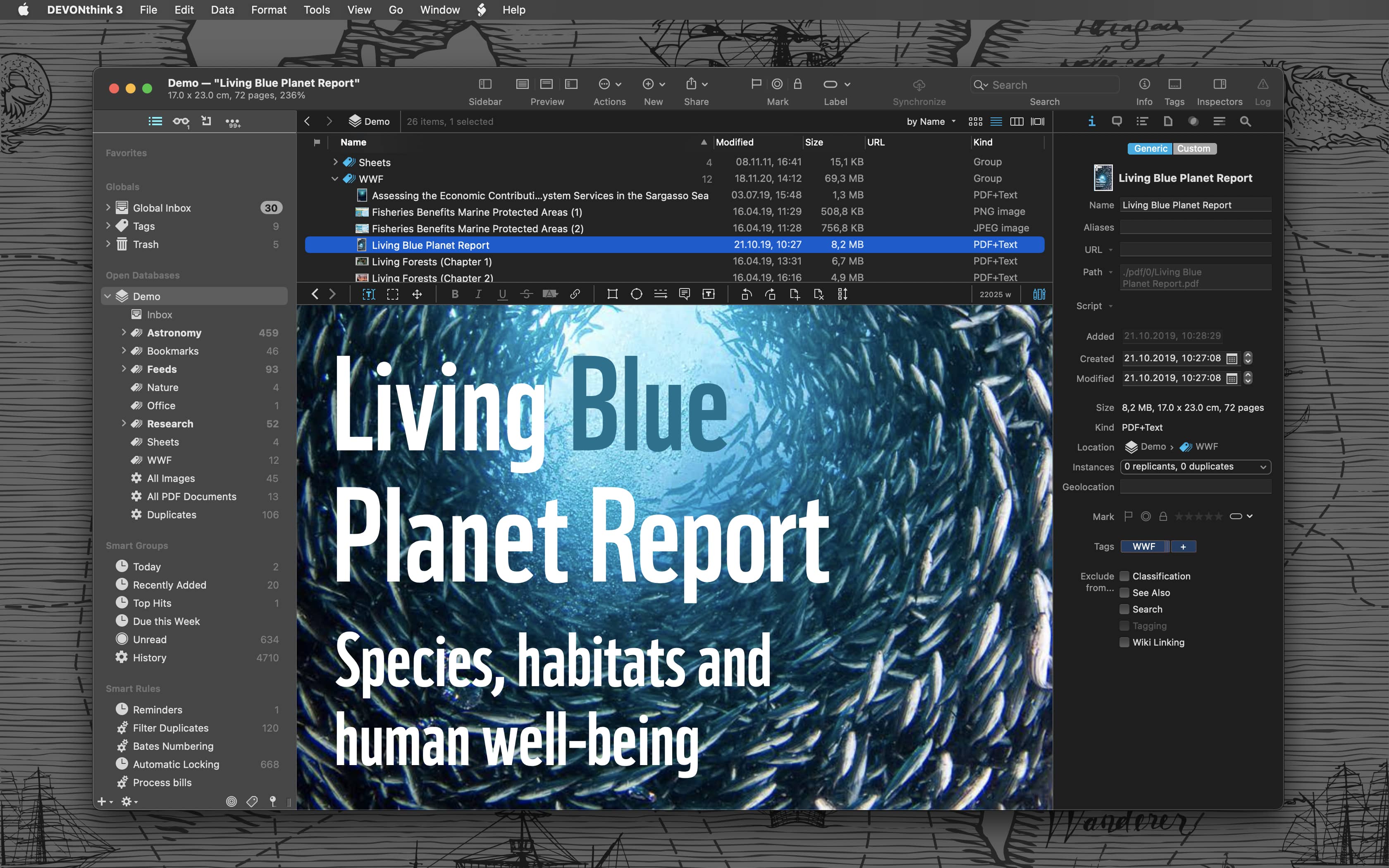
Sailor jokes aside, DEVONthink helps you get organized in your office, home office, or on the go. It keeps all your documents, snippets, and bookmarks in one place. Organize them however you need and let DEVONthink’s unique AI assist you all the way with filing and finding. And if that wasn’t enough, smart rules and flexible reminders let you delegate all the boring, repeating daily tasks to DEVONthink too. On iOS, use Shortcuts actions to integrate DEVONthink To Go with your other apps.

Of course, whatever you keep in your databases remains yours. It’s all stored locally, nothing is uploaded anywhere unless you say so. Flexible synchronization technology with strong encryption makes sure that you have all your important documents with you on whatever device you’re working on or taking with you. Use iCloud, Dropbox, any WebDAV service you may have booked. Or synchronize directly over your local network.

And, of course, there’s so much more, from email archiving and scanning to an embedded web server for sharing your data securely with your team. Check out https://www.devontechnologies.com to learn more about DEVONthink, DEVONthink To Go, and more.

Instapaper Updated to Support CarPlay

From the Instapaper blog:

With the Instapaper CarPlay app, it’s now easier than ever to listen to your articles while driving. The CarPlay app offers easy access to your entire Instapaper account, including your saved articles in Home, Liked, Archived, and Folders.

To start listening to an article, just select one from the list.

When an article is playing, you can easily rewind, fast forward, adjust playback speed, and like or archive the article.

This seems like a very clever use of CarPlay. It’s just too bad that Instapaper’s reading voice isn’t that great compared to some of the options out there.

On What Happened to Brydge

Chance Miller at 9to5Mac has written an absolute banger of a story about Brydge, the accessory maker best known for their line of iPad keyboards:

Brydge, a once thriving startup making popular keyboard accessories for iPad, Mac, and Microsoft Surface products, is ceasing operations. According to nearly a dozen former Brydge employees who spoke to 9to5Mac, Brydge has gone through multiple rounds of layoffs within the past year after at least two failed acquisitions.

As it stands today, Brydge employees have not been paid salaries since January. Customers who pre-ordered the company’s most recent product have been left in the dark since then as well. Its website went completely offline earlier this year, and its social media accounts have been silent since then as well.

Apple Posts Q2 2023 Results

As always, Jason has a bunch of charts up over at Six Colors:

Apple announced its latest quarterly results on Thursday. The company posted $94.8 billion in revenue, down slightly from the year-ago quarter but—at least to my eyes—not down as much as we might have expected.

Mac revenue was, as expected, down 31 percent to $7.2 billion—the lowest quarter of Mac revenue since 2020. iPad was down 13 percent to $6.7 billion, the lowest iPad revenue quarter since 2020. iPhone was up 2 percent to $51.3 billion, which given the downward trend elsewhere was pretty impressive—it was a Q2 record for iPhone revenue.

Services revenue soared to an all-time record of $20.9 billion, up 5 percent. Wearables was down by one percent, to $8.8 billion.

The iPhone sold better than I thought it might, but given that the entire PC industry is down, the Mac and iPad’s numbers aren’t surprising. I think these numbers say less about Apple than they do the economy in general, and tech specifically.

Reflections on the Thunderbolt Display

As noted by Joe Rossignol, the Thunderbolt Display is being added to Apple’s list of obsolete products.

In addition to making me feel old, this news made me remember just how good the Thunderbolt Display was.
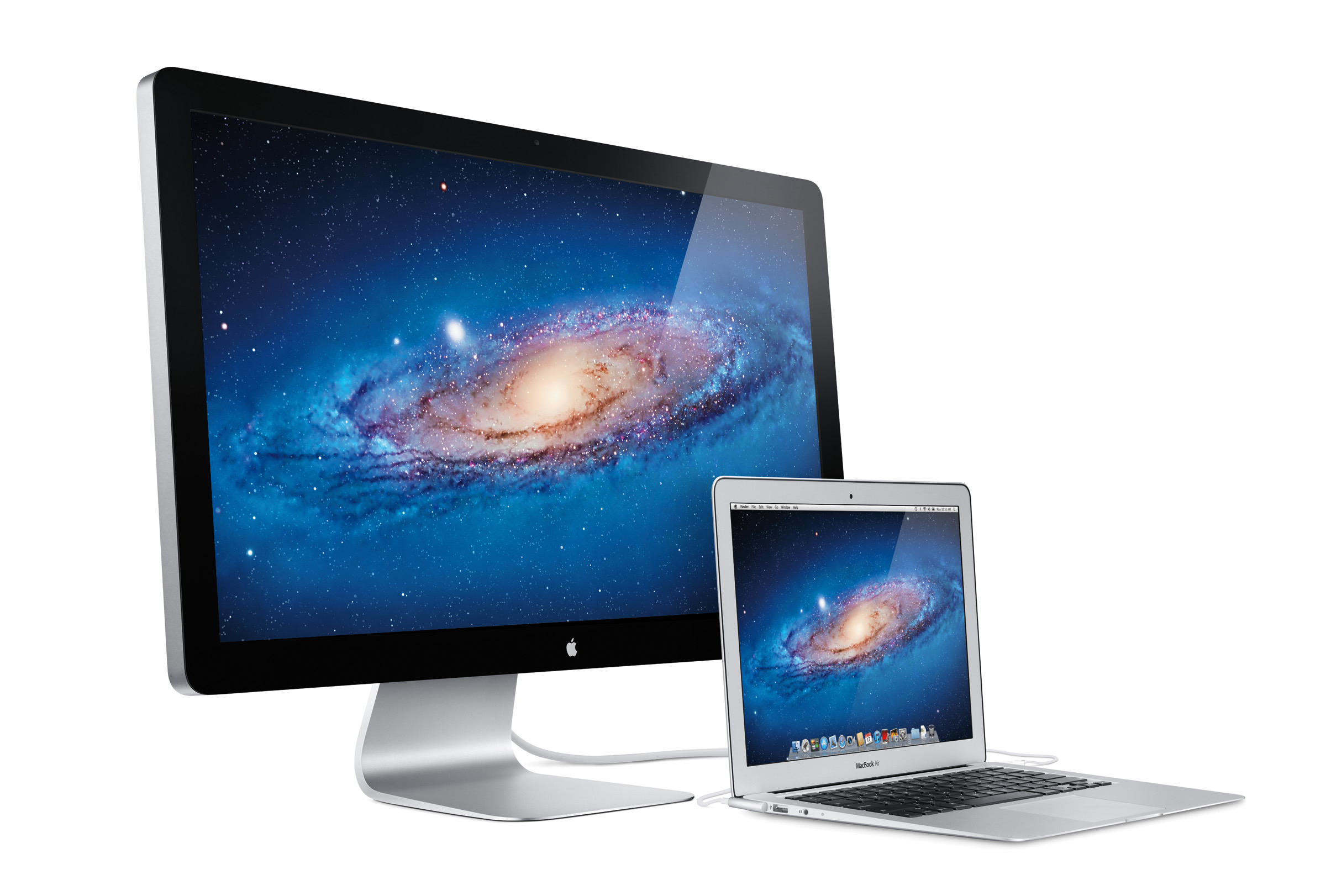
Thunderbolt Displays

Announced in 2011, the Thunderbolt Display was an extension of the previous display, the 27-inch LED Cinema Display which was announced a year earlier. Here’s a bit from Apple’s press release:

Apple today unveiled the new Apple Thunderbolt Display, the world’s first display with Thunderbolt I/O technology and the ultimate docking station for your Mac notebook. With just a single cable, users can connect a Thunderbolt-enabled Mac to the 27-inch Apple Thunderbolt Display and access its FaceTime camera, high quality audio, and Gigabit Ethernet, FireWire® 800, USB 2.0 and Thunderbolt ports. Designed specifically for Mac notebooks, the new display features an elegant, thin, aluminum and glass enclosure, and includes a MagSafe connector that charges your MacBook Pro or MacBook Air.

“The Apple Thunderbolt Display is the ultimate docking station for your Mac notebook,” said Philip Schiller, Apple’s senior vice president of Worldwide Product Marketing. “With just one cable, users can dock with their new display and connect to high performance peripherals, network connections and audio devices.”

All of that connectivity meant that Mac users could sit down at a desk, plug in a few cables and get right to work. There’s an old joke1 that the back of Apple’s computers look better than the front of computers made by other companies; in this case, the back of the Thunderbolt Display was more feature-packed than the front of most other displays.

Rear of Thunderbolt Display

Speaking of the front of displays, the Thunderbolt Display featured a 27-inch LCD running at 2560 by 1440 pixels, covered in glass with black bezels like the iMacs of its time. Above the display was a FaceTime camera running at 720p, and a 2.1 speaker system eliminated the need for external speakers.

All of this was just $999, which seems like an absolute steal given Apple’s current display prices.

Back in 2011, I was working in IT full-time, and was able to pick one of these up for my desk. I paired it with a 15-inch MacBook Pro for years, and it was a great setup.

Despite being announced a year before the first Retina MacBook Pro, the 109 ppi resolution felt old pretty quickly, especially after the iMac 5K arrived in 2014. The Thunderbolt Display hung on until 2016, when it was discontinued with a press statement:

“We’re discontinuing the Apple Thunderbolt Display. It will be available through Apple.com, Apple’s retail stores and Apple Authorized Resellers while supplies last. There are a number of great third-party options available for Mac users,” said an Apple spokesperson.

Today, the Studio Display serves as Apple’s mainstream display, and Thunderbolt has finally delivered on the notebook/desktop setup promises that the Thunderbolt Display made. I can sit my 14-inch MacBook on its stand, plug in one cable and be off to the races. It feels like the future, even if that future started 12 years ago.

  1. This joke was made when the iMac was introduced in 1998, and then became a bit of a meme in keynotes for years. 

On Rapid Security Responses

Adam Engst has an in-depth article up about the new update type that iOS, iPadOS and macOS users saw earlier this week:

Ultimately, it’s good to see Apple finally utilizing the long-promised Rapid Security Response update mechanism. I’ll admit that I had somewhat come to dread operating system updates, particularly on the Mac, where you can end up staring at a black screen for far longer than is comfortable. Rapid Security Responses won’t fix that problem for actual operating system updates, but I hope Apple can use them to reduce the number of full updates that are necessary.

CarPlay’s UI Needs a Revisit in the Age of Large Screens

Yesterday, I picked up my new truck, a 2023 Toyota Tundra. Coming from an older Tacoma, this truck is amazing, and that includes the large 14-inch screen. The truck has wireless CarPlay, and I noticed something right away: CarPlay’s UI doesn’t stretch very gracefully for these larger displays.

The home screen actually looks pretty good, with a giant map and nice large buttons:

CarPlay home screen

Sadly, it’s the best-looking screen at this size.

The phone app is okay but the full-width cells in that table view are a bit odd. I also have no idea why the dialer looks the way it does.

CarPlay Phone app

CarPlay Phone app

Full-screen media playback is perhaps the worst of the screens, with both Overcast and Apple Music showing how much work Apple needs to do here:

Overcast in CarPlay

Apple Music in CarPlay

At WWDC last year, Apple showed off the future of CarPlay. I love their vision for the future of the car, but I hope we don’t have to wait for that to see improvements for those of us living in the present.

Kbase Article of the Week: Moving your MUSICMATCH Songs into Your iTunes Library

Apple Support:

Learn how to move songs from MUSICMATCH into your iTunes for Windows Library.

When you first start iTunes, you are given the option to search for music to add to the iTunes library. If you did not select this option, follow the steps below to add music to iTunes.

To move songs from MUSICMATCH into the iTunes Library:

  1. Open iTunes.
  2. Open your “My Music” folder by clicking the Start button and then pointing to My Music.
  3. Arrange the windows so you can see both the My Music folder, and the iTunes Source list.
  4. Drag your MUSICMATCH songs from the My Music folder to the Library in the Source list.