Sponsor: Rogue Amoeba: Great Audio Software, Ready for Your Journey to Tahoe

Apple just announced MacOS 26 (Tahoe), and the team at Rogue Amoeba is already hard at work on official support for the new OS. This week, they’re also sponsoring 512 Pixels.

Rogue Amoeba

For over two decades, the (strange) name “Rogue Amoeba” has been synonymous with audio on the Mac: you can use Audio Hijack to record audio from any app or audio device, while Loopback gets audio into apps in a virtual audio device. Grab SoundSource to get easy app-level volume controls, right from the menu bar. With these tools and more, Rogue Amoeba has all of your audio needs covered.

Thanks to an overhauled audio capture backend, (the product of years of hard work), the current lineup of Rogue Amoeba’s apps can already run on Tahoe. If you’re brave enough to use Tahoe right out of the gate with the first developer preview.

Of course, you’ll also be in great shape on any recent version of MacOS. Get started in seconds, with fully functional free trials of all their apps today.

As a reader of 512 Pixels, you can save 20% on any purchase by using coupon code 512SUMMER25 at checkout. Don’t miss out; this deal expires on July 4.

My thanks to Rogue Amoeba for sponsoring 512 Pixels, and keeping Mac audio users happy with all their great apps.

Stay Hungry, Stay Foolish

The Steve Jobs Archive:

To celebrate the 20th anniversary of Steve’s commencement address at Stanford, we are sharing a newly enhanced version of the video below and on YouTube. It is one of the most influential commencement addresses in history, watched over 120 million times, and reproduced in media and school curricula around the world. The talk even helped inspire an unlikely NBA title comeback for the Cleveland Cavaliers when LeBron James played a clip from it in the locker room before a critical game three against the Golden State Warriors in 2016.

It’s not an obvious candidate for a classic. A commencement address by a college dropout. A talk aimed at 22-year-olds that warns “You will gradually become the old and be cleared away.” A text as shadowed by reality as soaring with inspiration: “Your time is limited, so don’t waste it living someone else’s life.”

I haven’t watched this in a long time, but damn, it is still so good:

WWDC25: Tahoe Delivers New Format for Disk Images

Howard Oakley has spotted a change coming with macOS 26:

Disk images have been valuable tools marred by poor performance. In the wrong circumstances, an encrypted sparse image (UDSP) stored on the blazingly fast internal SSD of an Apple silicon Mac may write files no faster than 100 MB/s, typical for a cheap hard drive. One of the important new features introduced in macOS 26 Tahoe is a new disk image format that can achieve near-native speeds: ASIF, documented here.

This has been detailed as a major improvement in lightweight virtualization, where it promises to overcome the most significant performance limitation of VMs running on Apple silicon Macs. However, ASIF disk images are available for general use, and even work in macOS Sequoia.

Inside the ‘Macintosh’ Screen Saver

macOS Sequoia’s Macintosh screen saver is one of the strongest hits of nostalgia Apple has ever produced. If for some reason you haven’t seen it, Mr. Macintosh has you covered:

When this showed up last year, a little birdie told me that it was dynamically generated based on the user’s preferences, which explained why I couldn’t find it as a movie anywhere in the filesystem.

I’ve used it as my screen saver since then — set to Dark Gray — but I never made it around to digging into what makes it tick.

When looking for macOS Tahoe’s wallpapers, I was reminded of this project. I went digging through the SSD on my MacBook Pro, and my journey through Finder has yielded great fruit.

The screen saver is actually an Extension, residing at /System / Library / ExtensionKit / Extensions / WallpaperMacintoshExtension.appex (spaces added for legibility).

Right-clicking to “Show Package Contents” unveils a treasure trove:

Macintosh Resources

I’m not really a programmer, but I know enough to see how this works. There is code telling those images how to move and interact with each other through a set of .program files. If the user has Macintosh set as their wallpaper, the screen saver slides to a stop once they return to the Desktop.

Here you can see IconGarden.program, resaved as plain text. Here is its corresponding image:

IconGarden

Here we have System6ControlPanel.program as plain text, and its image:

System6ControlPanel

Interestingly, a bunch of the .program files include the string “Macintosh 40th Anniversary,” which helps explain how this project came to be.

For preservation purposes, I figured I should export the Macintosh images at a larger resolution for easy sharing. You can snag a .zip of them here.

WWDC25: The End of the Intel Mac Era

Apple:

macOS Tahoe will be the last release for Intel-based Mac computers. Those systems will continue to receive security updates for 3 years.

Rosetta was designed to make the transition to Apple silicon easier, and we plan to make it available for the next two major macOS releases – through macOS 27 – as a general-purpose tool for Intel apps to help developers complete the migration of their apps. Beyond this timeframe, we will keep a subset of Rosetta functionality aimed at supporting older unmaintained gaming titles, that rely on Intel-based frameworks.

WWDC25: macOS Tahoe Breaks Decades of Finder History

Something jumped out at me in the macOS Tahoe segment of the WWDC keynote today: the Finder icon is reversed.

You can see that in the image below. On the left is macOS Sequoia, and on the right is macOS Tahoe:

About Finder

I know I am going to sound old and fussy, but Apple needs to roll this back.

Some History

The Finder logo has changed over the years, but the dark side has been on the left forever. Here it is on the boot screen on System 7.5.3, which shipped in 1996, an early version of the logo in color:

Finder in 7.5.3

And in the About This Computer screen in Mac OS 8:

Finder in 8.0

This same basic design survived the move to Mac OS X, as can be seen here in the Public Beta from 2000. The only real change was the addition of a little sheen to make it fit in better with the Aqua user interface:

Finder in Public Beta

Here you can see it in Mac OS X Panther which shipped three years later:

Finder in Panther

The Finder then transitioned to the Retina era in 2012 with OS X Lion:

Finder in Lion

The logo was updated with the redesign that was ushered in with OS X Yosemite in 2014, then tweaked again for macOS Big Sur in 2020:

Finder in Yosemite

Big Sur Finder

A Solution

The Big Sur Finder icon has been with us ever since,1 and I hope Apple reverses course here. I understand that the new icon is meant to be in sync with the new Liquid Glass user interface, but some things are just tradition.

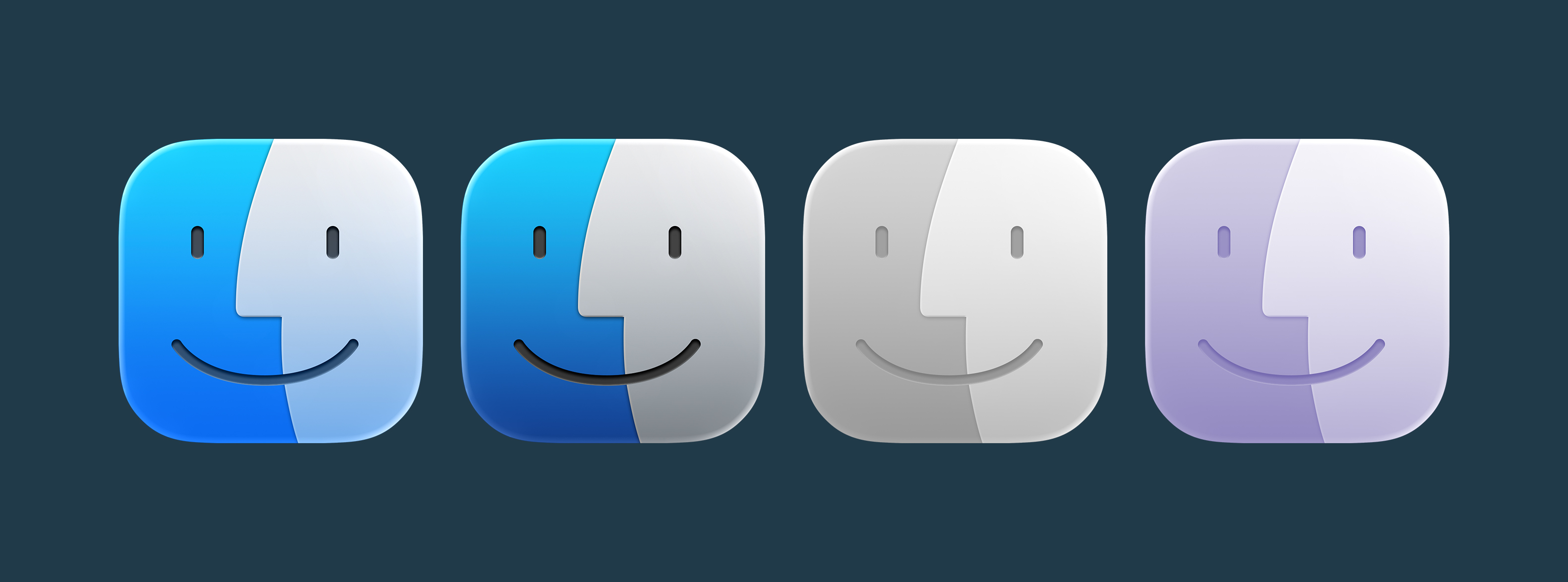
For kicks, I ran the current Finder icon through Apple’s new Icon Composer app, and I think it looks pretty good with Liquid Glass, even in the clear and tinted modes:

Liquid Glass Finder


This has been filed with Apple as Feedback FB17840162. Yes, seriously.


Update: Apple fixed this in Tahoe Developer Beta 2.


  1. It even showed up in the keynote as a rearview mirror decoration at 53:40 in the video, as noted by 512 reader Ben.