Project 8086 Part II: Real Mode Productivity; or, 8,086 Reasons to Get a Newer Computer

MS-DOS Correspondent Kevin Lipe reporting again from the trailing edge of computing. When I was last with you, we discussed the Pocket 8086. If you don’t remember what the Pocket 8086 is, or who I am, or what any of this has to do with everyone’s favorite Apple blog, I’d refer you to part one of that series, as it will sort of answer maybe two of those questions.

I was pretty ambivalent about whether the Pocket 8086 was good at what it was trying to do, because I didn’t really think there was much of a goal for the project other than “hey this is cool.” But as someone who always loves a good deep dive into old software tools to see what I can learn about how to work with new ones, I have to admit that I felt a strong urge to see if I could actually find some thing to use it for.

So that’s what we’re doing here: exploring the questions “what do I really do with computers?” and “what happens if I try to do those things on a Pocket 8086?”

The pain points with this machine were all with the hardware: the terrible keyboard, the lack of mouse emulation, the fact that Windows is on here even though the V30 processor only supports Real Mode applications–all of those things are still true, and they make any attempt to do any “real” work that much more painful on this device.

And yet: it is a computer, and a computer is a tool, so surely this one has its place too, right?

Let Me Tell You All About My Productivity System

…not really. Listen, I was a 43 Folders reader just like you were, and you really don’t want me to peel back the curtains on my GTD-flavored personal productivity vortex. (I’ll just drop the nugget here that all of my first-draft writing happens in Org mode and let you draw your own conclusions.) But what when I think about “productivity” I think about the things I use a computer for, and that’s a pretty simple list at the end of the day:

  • I keep track of my work in the form of tasks and projects.
  • I write in both text files and in word processing documents. (My day job involves a lot of PowerPoint, and I am going to continue not to acknowledge that here.)
  • I model things and analyze problems in spreadsheets.
  • I do a lot of email, and I do it in Outlook. (Unfortunately, I am one of Those People.)
  • I also do quite a bit of outlining, project planning, and mind mapping.

I use a lot of very normal tools to do this stuff for the most part. Todoist is my list manager of choice at the moment. It could be something else by the the time Stephen publishes this article.

I use Emacs and I use Word, and I use Pandoc to turn Org files into Markdown, and even LaTeX every now and then.

Spreadsheets are always in Excel, because that’s the only real spreadsheet application, and I use it in R1C1 mode, the way that God intended.

The outlining and planning happens in Org mode, happens in Xmind, or sometimes even Microsoft Planner, which still isn’t as good as Trello, but is what I have access to. I don’t feel like these tools are really all that spectacular.

Sure, I also use Logseq, Syncthing running on a private file server, a lot of private git repositories, and all kinds of other nerdy stuff as infrastructure, but on the whole, that’s not really where work happens; rather, that stuff all functions to support the work.

Tools of the Trade

So, let’s say I want do to some of my “normal” stuff on my very “normal” PC/XT-class tiny laptop. What does that look like? How might that even work?

Master Control Program, or Whatever

Let’s start with the operating system: MS-DOS, version 6.22. This is the final version of DOS that was sold as a retail product, so it would make sense that this was the version selected by the makers of the Pocket 8086 as the operating system for their device, even if it is a little too “new” to be period-correct.1

According to WinWorld and all the other sources I could find, DOS 6.22 was released in June 1994. This means that the operating system on the Pocket 8086 is more than ten years newer than the hardware base on which its running. I think that’s actually pretty remarkable, both that such an “advanced” version of DOS would run on such ancient hardware, and that even at such a late date in its evolution the operating system was so simple that it was able to run on such ancient hardware without much compromise. It’s a two-way surprise.

So even if 6.22 isn’t quite right for this machine, it means users can access a wider range of supported software and it certainly smooths out some of the rougher edges in earlier versions.

The (Pirated) Arrows in my Software Quiver

Let’s go down the list of use cases and talk about what applications I think might be a good fit for each.

Task lists and work tracking: This seems like a natural fit for Lotus Agenda, a cult classic in the genre and, if I’m honest, the tool that made me want to write this installment of our Pocket 8086 guide in the first place so I’d have an excuse to play with it.

Writing: Since I do this in two different ways–text files and documents–it seems natural to look at using two different tools for it on the DOS side. For a text editor, Borland Sprint seems solid, and for a word processor, since I tried WordStar and found it so inscrutable that I had to give up in despair (and, mind you, this is from a guy who uses Emacs!), I’m going to cheat a little and use a tool I already know a little bit: the legendary WordPerfect 5.1.

Spreadsheets: Nowadays, spreadsheets are very much a monoculture: there are people who use Excel, and there are unserious people who think Google Sheets is a spreadsheet application. In the DOS days, this was much less settled, and there was actually quite a bit of competition. There was VisiCalc, ported over from being the killer app for the Apple II family, but there was also Lotus’ 1-2-3, there was Borland’s Quattro, and several others that all gained significant amounts of market share. For some reason, Boeing even released its own spreadsheet application.2 Microsoft’s Multiplan had its following, but Lotus became the biggest and most “standard” of these tools. But standard is boring, so I’m going to try to use Quattro Pro.

Email: Considering that I don’t really have a way to connect this thing to a network and I’m not motivated to try to do it over a serial port, just forget it. Email existed in the DOS era, but I’m just going to have to pretend it didn’t.

Outlining and projects: There were outliners for DOS–ThinkTank made an appearance, and MaxThing–but since I’m ultimately a lover of a Gantt chart, I’m going to take the DOS version of MS Project for a spin.

It’s Time to Go to Work

So, armed with these applications and the Pocket 8086, I sat down to try to actually do … some stuff. You know, computer stuff. Here’s how it went, in order from least interesting to most interesting.

Sprint

The very plesant UI of Borland Sprint

Borland Sprint calls itself a word processor, but in reality it’s a perfectly acceptable text editor, with a pretty simple user interface. I actually stuck some .txt files from my laptop on the Pocket 8086’s CompactFlash card, opened them in Sprint, and was able to get right to typing. I didn’t do it long, because the keyboard was too painful, but I have to say: Sprint is a totally fine text editor, and it’s from a time when that was not necessarily an easy task. It’s good, and I like it. It’ll stay on the machine, and I’ll use it whenever I need to edit a text file. That’s much higher praise than it probably sounds like!

Microsoft Project

I mean, it's Project.

…I mean, look at this thing. It’s inscrutable. The original GUI version was for Windows 2, and from the screenshots I can find on the internet, looks like it made more sense. But I didn’t try that version, I tried version 3 for DOS, and gave up after about two minutes. The current desktop version of MS Project isn’t exactly a paragon of simplicity or ease of use, but frankly in 2025 the DOS version feels like a toy. I would love to hear if anyone actually used this, even when it was new, because it seems very unlikely.

Project planning of this kind isn’t something I do often enough, and when I do, I’m sure not going to do it on my magic little DOS computer if it sucks this much.

Quattro Pro

I looked at several different versions of Quattro Pro before landing on version 3, which is from 1991. That’s probably a little too new for what I’m trying to do here–this version is very “GUI-ified” and works well with a mouse–but it seemed like a solid choice since I was bucking the trend and not using Lotus 1-2-3. There’s a little more backstory here: Borland was sued by Lotus for copying 1-2-3’s menus, and this is the first version after that lawsuit. The result is very polished, although the Lotus-style menus are still accessible (Note: this Quattro Pro screenshot is from WinWorld because I couldn’t get DOSBox-X to cooperate):

Here's the Quattro Pro GUI.

After trying to create one spreadsheet to track how much I was spending on some car repairs this week, my verdict is simple: Mac users had it a lot better than they realized in the late 80s and early 90s.

The early Mac versions of Excel are limited, sure, but they have simple interfaces, they’re easy to use, and they’re logical. Even the later versions of Excel (after we started calling it “Mac OS” instead of “System”) which were basically just ports of the Windows version are pretty straightforward.

Mac Excel 5 gets a bad rap.

It could very well be that twenty-plus years of using Microsoft Excel (I started counting from my high school Computer Applications class) have just hardwired my brain not to work well with any other spreadsheet application… I have the same odd dysphoria when I try to do something with LibreOffice Calc. But Quattro is just too dang hard to use for me to feel comfortable opening it to noodle some calculations the way I do all the time with Excel. It’s functional, sure–it’s clearly a good application, and Borland put a lot of time and effort into it, and because of that I’d be shocked if it doesn’t still have a fan club.

This is probably the one category of tool where I’m just too tainted by modernity to render an accurate judgement, so I’ll follow advice I heard Merlin Mann give on a podcast once and just say, “it’s not for me.”

WordPerfect

WordPerfect 5.1 at launch

This is a tool that has inspired a lot of internet fandom from people who are still using it after all these years, constantly having to tweak and reconfigure to keep the thing working in whatever environment they’re in at the moment. There’s a book about where it came from, which I think Stephen read and did not like. And it has to be said: this is a good word processor, once you figure out how to do anything in it.

The welcoming embrace of a new WordPerfect file.

One of the challenges of working in the DOS environment is that since there’s no GUI, no standard interface for applications, everybody had to just make up their own and hope people figured it out. This is why the manuals had to be so much bigger: because nothing was very discoverable. Whereas Sprint is a new enough tool to have adopted some of the common user interface conventions from popular DOS tools, WordPerfect was old and big enough to still have its own, and the only way to know how to do anything is to look it up. (F7 quits, if you get lost. It’s still way easier to use than Vim.)

It's so old Voltaire probably used it.

Spend a little time with WordPerfect 5.1 and you see why it inspired (and inspires) such a loyal following: it’s really pleasant to use. The white-on-blue text and the lack of much else on the screen besides your words, the thing you’re working on, make it feel very “minimal writing environment” while still containing enough word processing functionality–this was a very powerful package, especially for the time–to do just about anything. If I’m being honest, I still missed Word, which I’ve always liked (especially Word 5 for the classic Mac, as discussed), but WordPerfect feels lived-in, like a flexible and capable tool. I came away very impressed by how much was already available to users nearly 40 years ago.

Lotus Agenda

Lotus Agenda is an application which has fascinated me for years. I’ve always been obsessed with My System, since whenever I first became a GTD head in college (43F reader, remember?). As such, I’ve used just about everything–from the original Kinkless GTD OmniOutliner scripts and the prerelease sneak previews of OmniFocus, to Remember the Milk,3 to Org mode text files, to a brief dalliance with Taskwarrior, to Todoist in several different stints, Amazing Marvin, even Outlook Tasks and Microsoft To Do.

As stated previously, I’m in Todoist these days, but I’ve always wondered: what if I had a tool that wasn’t cloud based that did everything I wanted, and could run on a very minimal set of hardware and software requirements?

In college I was the main Apple Certified Macintosh Technician at the oldest independent Apple dealer in the state of Tennessee.4 Since 1978 these folks had been selling Apple products, but of course, they’d also sold Cromemco CP/M systems, various DOS stuff in the 80s, and whatever else there’d been market demand for back when that was a thing.

As a parting gift when I left that job, I got a fully working Apple II+ with an Applied Engineering Z-80 card and a full set of manuals that is now a permanent part of Stephen’s collection.

I also got this:

Evaluation Copy, indeed…

At the time I’d heard of a modern attempt at recreating Agenda and was inspired to see what all the fuss was about. Problem was, I didn’t have a DOS computer and I didn’t have anything with a floppy drive (even though this copy helpfully came with 5.25″ and 3.5″ disks along with the full set of manuals). It was years before I could actually use the thing thanks to DOSBox. Yes, that’s cheating a little bit: I’ve already used this tool before. But the version I had access to at the time was version 2, which Tavis Ormandy also wrote about excellently here. My disks are actually an evaluation copy of version 1, which I finally found on WinWorld when preparing for this project. Since I have a physical copy of this one, and I have all of the manuals–which Stephen and I may yet scan for the Internet Archive–that’s what I’m using. (I doubt it’s worth sending in the registration cards thirty-five years later, but who knows.)

Lotus Agenda's welcome screen

My apologies to Robert Harmening. Your version of Lotus Agenda has been pirated for decades, apparently.

It’s considerably less colorful than the newer version, of course, white-on-black instead of the soothing blues and grays of version 2. Launching Agenda blind, without reading a lot of documentation first, feels a bit like you’ve stepped into some alien retrofuture where the computer is waiting a command that you don’t know how to give.

An empty Agenda file

Agenda is a very cool application, and for making a simple list of things to do and then looking at it every so often, it’s pretty good! I use a lot of repeating tasks in whatever tool I’m using and Agenda is pretty smart about them. I was impressed by the depth of thought that went into the tool, but even with hundreds of pages of printed manuals at my disposal, it’s just so hard to use compared to even Org mode’s agenda views that I really struggled to use it for a full morning before giving up.

Here's a simple list of tasks.

Here’s the reality: I’m already prone to working on my system more than working my system. I love to tweak, fiddle, reorganize, and recategorize my tasks instead of actually doing them. If ADHD is a superpower, call me the Martian Man Hunter. But using Agenda to keep track of tasks, on a system that isn’t multitasking, when so many of my other tasks have to be done on the same computer that can only run one app at a time, just doesn’t make a lot of sense. Agenda is truly a weapon for a more civilized age: you could fire it up, look at your list of stuff to do, probably print it out, and then make your phone calls or do whatever other “not on the computer” stuff people used to do back before screen time ate all of our brains.

Here's the note I added to my "weekly review" task

The small business owner or sales professional of 1988 probably loved this thing. For me, it was too much work to force it to be what I wanted, but I’m willing to admit that in all likelihood that’s about me and not about Lotus Agenda.

Sidebar: The Cult of Agenda

So I’ve had Agenda on my radar for a while, dating back to the aforementioned 43F post. There are a lot of other people out there with fond remembrances of the application, like this Redditor. There are resources out there for people who still use the application. Certainly it’s had some inspiration on things like Taskwarrior and Org mode, whether the authors of those tools are even aware of it.

As mentioned, Ormandy’s Agenda 2 writeup is excellent. That dedicated core of users is kind of what inspired me to attempt this installment of the series in the first place: some people really loved these tools and have never found anything that gives them the same feelings of clarity and control. For me, that’s probably still Word 5 on the Mac, but it’s very easy for me to understand how it might be a DOS-only PIM app for others.

People get attached to their tools; it’s human nature. We take care of them because they take care of us, and that goes to the root of what it is to use computers to do things–the whole reason we have them in the first place. It warms my heart to see these applications, decades later, still have admirers, and thanks to the quality of modern emulators, they’ll probably be able to run them in some form or fashion until we all run out of electricity and/or fresh water.

(So, another five years or so, right?)

In Conclusion: Is Any of This Stuff Useful to Me?

I’m trying to separate the experience of using these applications from the experience of using them on the Pocket 8086, because I really, really want to love it, but the godawful keyboard just makes that an impossibility.

That’s actually the most disappointing thing here. I wanted to be able to use the Pocket 8086 the same way I used my beloved Handspring Visor: a little helper that I could consult as needed to get me through my day, telling me what was on my priority list and serving as a little scratchpad for ideas and calculations throughout the day.5

It was impossible because the thing was just too damn painful to actually type on, and that’s before you account for the fact that I couldn’t figure out how to use Colemak on the thing. The rest of the hardware is fine! I like the size, and the screen is perfectly acceptable. But the main method of interacting with the thing is even worse than I said it was in my initial review.

I wasn’t planning on addressing the Mac at all in this series, or really even spending much time thinking about it. But my main takeaway from this installment is that Mac users, in the late 80’s, had it a lot better than DOS users, even though the applications available on DOS might have been more capable. The Mac versions of Word and Excel are easy to use, and easy to figure out. For basic text editing, you already had BBEdit not long after this era, but even before then, the options were fine. There were more and better outliners available (that wasn’t even a MORE reference, but that’s a great app). The only thing I couldn’t find an analog for on the Mac that I like better was Agenda, and it might be fun to make one!

I really wanted to come away with this newfound love of DOS applications. In a way I did, but what I really wanted to do was get back to the days when I wrote an entire short novel in Word 5 in Basilisk II. (Even if Stephen would prefer AppleWorks)

These tools are capable, powerful, and flexible, but they’re just too hard for my little brain to use in an intuitive way, and they’re all so different. There’s a lot to be said for everybody having to use “Command S” to save.

What I’m really hearing myself say is that I need to buy another PowerBook 180. Maybe Stephen’s got an extra; that eMate of his used to live at my house, after all. Or maybe I need to put new batteries in my Visor. Or, maybe, I just need to use the tools that I like to use and look to the future instead of the past? That one seems unlikely.

Up Next

On deck for the next (and final) part of the series: what is permacomputing, and what does it have to do with a Chinese-made PC/XT clone in a netbook case?


  1. It’s certainly not the original version of PC-DOS that would have come on a PC/XT in 1983; that would have been DOS 2. When I was a kid learning how to use my grandad’s PC (to play GORILLAS.BAS in QuickBASIC, mostly) DOS 5 was what I was using. To be clear, there is an MS-DOS 7, the version that underpins Windows 95, but I’d say it’s fairly obvious that’s not a good fit for this system or this experiment. 
  2. Yes, that Boeing. Presumably this is what they used to calculate the airworthiness of the 737 MAX, which could explain quite a bit. 
  3. Ahem. 
  4. Stephen and I met working at our local Apple Store behind the Genius Bar, and later when I got fired for being late too many times we ended up working at competing third-party Apple shops. It was a weird time. 
  5. Which gives me the idea that I should pitch Stephen on another one of these about using an old Palm device, but that seems like a lot of work to sign up for. 

Sponsor: Browse Twice as Fast with Magic Lasso Adblock

Want to experience twice as fast load times in Safari on your iPhone, iPad and Mac? 

Then download Magic Lasso Adblock – the ad blocker designed for you.

Magic Lasso Adblock

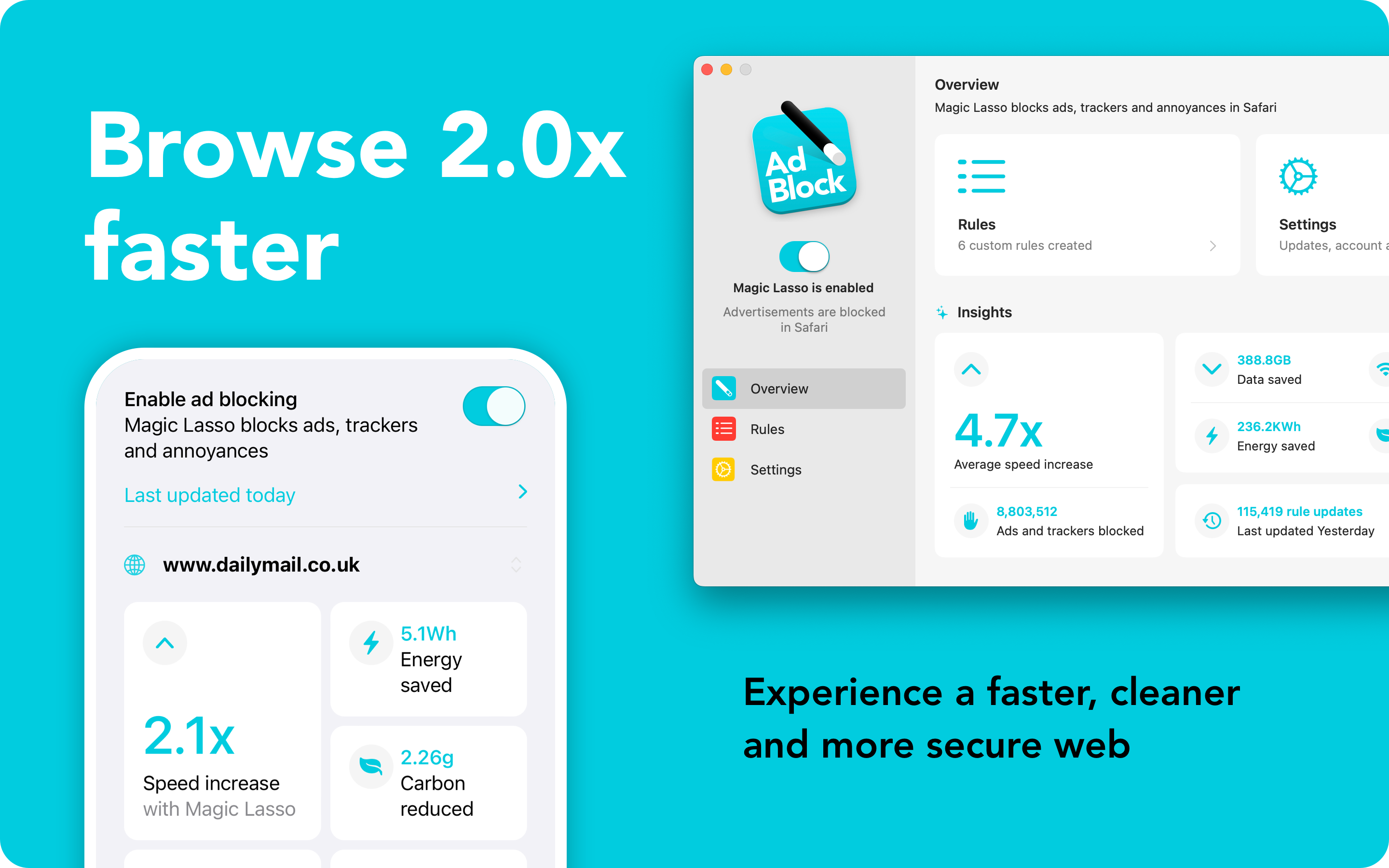
As an efficient, high performance and native Safari ad blocker, Magic Lasso blocks all intrusive ads, trackers and annoyances – delivering a faster, cleaner and more secure web browsing experience.

By cutting down on ads and trackers, common news websites load 2x faster and browsing uses less data while saving energy and battery life.
Rely on Magic Lasso Adblock to:

  • Improve your privacy and security by removing ad trackers
  • Block all YouTube ads, including pre-roll video ads
  • Block annoying cookie notices and privacy prompts
  • Double battery life during heavy web browsing
  • Lower data usage when on the go

With over 5,000 five star reviews; it’s simply the best ad blocker for your iPhone, iPad and Mac.

And unlike some other ad blockers, Magic Lasso Adblock respects your privacy, doesn’t accept payment from advertisers and is 100% supported by its community of users. 

So, join over 350,000 users and download Magic Lasso Adblock from the App Store, Mac App Store or via the Magic Lasso website.


Apple Intelligence Really Wants Joanna Stern to Have a Husband

Joanna Stern has written about this before, but in her email newsletter this week, she addresses the fact that Apple Intelligence continues to misgender her spouse:

Stern

Here’s a notification for you, Apple: There is no husband.

Despite what my iPhone’s frequent notification summaries report, my husband isn’t messy, he isn’t sad and he definitely didn’t take out the garbage—because, again, I don’t have one. Wife? Yes. Husband? No.

She goes on:

And then there’s my hubby situation. Summaries of messages from my wife often include the word “husband”—usually when she’s talking about one of our sons. With a tap, you see the original notifications, so the confusion abates quickly, but it can still be shocking to see something so wrong.

Yep, this was totally ready to ship.

Apple Intelligence Notification Summaries Tweaked in iOS 18.3 Beta

Apple’s “intelligent” notification summaries have been …uhhhhh… making things up as LLMs often do, and after repeated complaints from the likes of the BBC, Apple is changing how they work. Chance Miller has details:

Here are the changes included in iOS 18.3 for Apple Intelligence notification summaries:

  • When you enable notification summaries, iOS 18.3 will make it clearer that the feature – like all Apple Intelligence features – is a beta.
  • You can now disable notification summaries for an app directly from the Lock Screen or Notification Center by swiping, tapping “Options,” then choosing the “Turn Off Summaries” option.
  • On the Lock Screen, notification summaries now use italicized text to better distinguish them from normal notifications.
  • In the Settings app, Apple now warns users that notification summaries “may contain errors.”

The further we get into the Apple Intelligence Era, the more unhappy I am with the company’s whole approach to these features. These changes coming in iOS 18.3 should have been there from day one.

CARROT Weather 6.2

I’m pumped about this version of my favorite weather app:

Live Activities
Now you can opt to have Live Activities start automatically when precipitation is in the area! They’ll be started via a notification about 15 minutes before rain or snow begins, then you’ll continue to receive updates until precipitation stops, at which point the activity will be automatically removed.

CarPlay App
View weather along your driving route, right from your car’s dashboard! The CarPlay app functions as a GPS app, so you can input your destination and get directions from CARROT in her typically snarky style – plus, you’ll get to see all the weather along the way, including live radar, severe weather alerts, and more.

I have wanted a weather CarPlay app for years. CARROT isn’t first to this, but given it’s the weather app I use every day, it’s an instant-add to my truck.

My UniFi Experience, Thus Far

After years of waiting, AT&T Fiber finally became available on my side of the street,1 giving me access to sweet, sweet gigabit speed both to and from the Internet. This became the impetus for me to replace most of my home network.

I was using a set of pretty old eero base stations, back from when they were a Relay sponsor years ago. They were great, but I had a recurring issue with the entire network would drop to 100 MBps, despite my switches being gigabit-capable. This was annoying on my previous Comcast connection, but simply not tenable on fiber. After talking to several friends, I opted to dive into the UniFi universe.

My initial order looked something like this:

It was the access points I was most excited about, as WiFi 7 would prove to be a huge upgrade in speed for the wireless clients.

Everything arrived in just a couple of days2 and setup was super easy. It shows that a bunch of folks at Unifi used to work at Apple. Sadly, the problems started almost immediately. It seems that for some people, the U7 line of access points are troublesome when it comes to IoT devices and even some Apple gear. For me, this showed up with our Apple Watches, which would drop off the Wi-Fi and not reconnect without a full reboot. This led to Watches that wouldn’t communicate with our iPhones and spin their radios up so hard that battery life was a true disaster.

From my hours of reading up on this issue, it doesn’t seem to affect everyone, so perhaps I was just unlucky. It means that my WiFi 7 dreams were dashed, and the U7 Pros were swapped out for a set of U6 Mesh access points. Since putting those in, things have been flawless. I’m very happy with the coverage provided by the access points, and it seems like the U7 line just isn’t ready for prime time.

Here’s how things look now:

Network Layout

As you can see, I have two main switches. One is in the house, and the other is at the end of a long run of weatherproof CAT-6 out to my office. Everything runs back to one of those two switches, via CAT-6 in the walls of my office, or through the attic of the house. If you can run networking cable where you live, it’s worth the time and effort.

There are two much smaller wired USW Flex Mini (the gigabit version of this thing) switches in play as well — one is on the workbench in my office, and the other is in the entertainment cabinet, providing a wired connection to our Apple TV and a Mac mini I keep around for a few oddball tasks. These switches are powered via POE, which is really cool.

Of course, there are loads of products sold under the UniFi brand, including cameras, locks, and network attached storage devices. I am curious about the cameras in particular, and may swap out my Ring cameras for them in the future, but that would require some Ethernet runs to some pretty terrible places around the outside of my house. We’ll see if I tackle that project in the future, but for now, I’m pretty happy with my network.


  1. My neighborhood was built in the early 1950s, and our utilities come in overhead from the back of our lots. Directly behind my house is a large public concrete drainage ditch. The utility company has a right of way on both sides of the ditch, so there’s a strip of land between the back of my backyard and the ditch that isn’t really mine. It is there that the closest utility poles are located. When AT&T first rolled out fiber in our area years ago, they didn’t run it down my side of the street, and I assume that was to avoid all the nonsense that comes along with the ditch. We have a new fiber company coming to town, and maybe that is what finally got AT&T to finish out their install, adding service to a whole bunch of addresses in the same situation mine was in. Whatever happened, I was psyched to get the call that I could finally ditch my old Comcast Business Class connection that was slower and much more expensive than the 1 GBps fiber I am now enjoying. 
  2. UniFi gear ships from here in Memphis, which makes it super quick to my house. The company’s founder, Robert Pera, is a big name around here. 

Mastodon Moving Assets to a Non-Profit Organization

From the Mastodon blog:

Mastodon was founded on the principles that people should be able to control their social circle online, curate their own timeline, and convene freely with any community of their choosing. We believe social media should help users build bridges, not walls. And we believe this is best achieved through federation.

Today, we are excited to announce that Mastodon is taking important steps to ensure its legal and operational structures better reflect and support the pursuit of these ideals.

Simply, we are going to transfer ownership of key Mastodon ecosystem and platform components (including name and copyrights, among other assets) to a new non-profit organization, affirming the intent that Mastodon should not be owned or controlled by a single individual.

This comes as projects run by rich dudes are having a real moment. WordPress is still melting down as Matt Mullenweg continues to make terrible decisions motivated by rage, and last week Meta made a series of changes that will put people across the world in harm’s way, all in attempt to curry favor with the in-coming administration. Meanwhile, Bluesky continues to take on millions in funding from firms like Bain Capital.

Non-profit governance is not a magic bullet, but if the organization is led by level-headed folks who understand that their decisions have real-world consequences, Mastodon may just be okay.

Sponsor: FastScripts 3

Automation on the Mac is alive and well and FastScripts 3 from Red Sweater makes it easy to organize and run your favorite scripts.

With FastScripts you can set up powerful keyboard shortcuts to run your scripts, or select and run your scripts from a menu bar icon. The app supports AppleScript, Automator, and shell scripts including Ruby, Python, or anything else you can cook up! Version 3 is a major upgrade that brings powerful new features supporting parallel script execution, a streamlined in-menu search function, and progress reporting.

FastScripts 3

John Gruber of Daring Fireball describes FastScripts as a “Hall of Fame Mac utility,” and says that “anyone who uses scripting on their Mac should be using FastScripts.”

FastScripts is free to download, offering a free 14-day trial with all premium features enabled. When the trial is over you can continue using it for free with some features disabled, or pay a one-time fee of $39.95 to unlock everything for good.

FastScripts has been revered by automation experts and the merely automation-curious for almost 20 years. See what all the fuss is about and download it today.