
On this feedback episode of MPU, more about AppleCare and the Vision Pro, then some listener feedback and more proof David and I spend too much time together.
512 Pixels
Alternative Browsers Coming to EU iPhones⇢
As part of the sweeping changes coming to the iOS ecosystem in the wake of the Digital Markets Act, iOS will be opened up to run third-party browser engines, and regardless of their underpinnings, third-party browsers will be presented as options to users. John Voorhees has the details:
One element of the changes coming to iOS in the European Union is that beginning with iOS 17.4, EU users will see a choice of browsers when they first launch Safari that can be set as the systemwide default browser. For each country, that list will contain the 12 most popular browsers from its App Store storefront displayed to the user in a random order.
As you can imagine, there is overlap among EU member countries, but there are plenty of differences, too. If you’re curious which browsers will be listed in your country, check out the lists for each of the 27 EU member countries after the break that Apple has told us will appear the first time Safari is launched in iOS 17.4.
If this sounds a bit familiar, it’s because the EU has been down this road before.
Apple Details Its Plans for EU Digital Markets Act Compliance⇢
Today, Apple announced its plans for changes to the App Store and iOS itself to comply with the Digital Markets Act (DMA). On MacStories, John Voorhees has a breakdown of these changes. There is a lot to process here.
Insanely Great: The Apple Mac at 40⇢
Last night, the Computer History Museum put on a two-hour event honoring the Macintosh. I know how I’m spending my evening:
Connected #486: Elden Widge⇢
The guys celebrate the Mac’s 40th birthday, talk about the Vision Pro pre-order process and go over what’s new in Sonoma 14.3 and iOS 17.3.
A Daring Machine⇢
Harry McCracken has written an interesting column about the ways the original Mac was and wasn’t influential in its day:
Compared to other PCs of the time, the Mac’s small size and unified design offered several benefits. First, it took up little desk space and made the computer easy to tote around: It even sported a handle for that purpose. Second, ensuring that every Mac user had the same crisp 9-inch monochrome display gave the experience a consistency that was lacking in most other computers, which users plugged into whatever monitor (or TV set) they chose.
Beyond those advantages, the Mac was just plain approachable, back when many competitors still had a faint whiff of industrial equipment to them. Remember, most people had never touched a computer in 1984, and more than a few were intimidated by the prospect. The Mac’s unassuming hardware mirrored the user-friendliness of its software.
What the first Mac didn’t turn out to be was timeless. Thanks in part to its success and influence, computers didn’t stay scary forever. More and more people craved ones with larger displays, room for expansion, and new features such as CD-ROM drives—attributes that were at odds with the Mac’s diminutive sealed case. As laptops became popular (including Apple’s own PowerBooks), the whole notion of a desktop computer needing to be small felt outdated.
The Mac’s Eras Tour⇢
Before I started writing my piece on the Mac’s 40th anniversary for The Verge, I was thinking of different ways to plot out the arc of the Mac’s history. I ended up going with the fact that the Mac has been the underdog for most of its existence, but I also considered plotting the Mac’s history as defined by the Mac’s four distinct processor eras.
The Mac’s Super Bowl Ads
I’m sure everyone reading this has seen this ad before, but damn, it’s still so cool:
In contrast, the company’s 1985 Super Bowl ad was a real fall from grace:
Macintosh Office is a story for a different time, but that ad wasn’t a great start to things.
The Whiz Kids⇢
The Steve Jobs Archive has a new email out today:1
When photographer Norman Seeff arrived at Apple’s offices in January 1984, he didn’t know what to expect. An editor at Rolling Stone had told him only that this was a “weird company” full of hippies making computers. Now Seeff, along with reporter Steven Levy, was covering these “whiz kids” as they prepared to launch their latest product—a new machine called Macintosh.
The atmosphere inside the office was a world away from the power suits and perms typical of 1980s corporate America. An expensive Bӧsendorfer grand piano sat in the lobby; employees often played it during breaks. Nearby stood a first-generation Sony CD player hooked up to a gigantic pair of speakers. There were scooters. Pets. Babies. Everyone wore jeans; some even had bare feet.
“It looked like a commune,” says Seeff. “It was so alive.”
I love this photo:
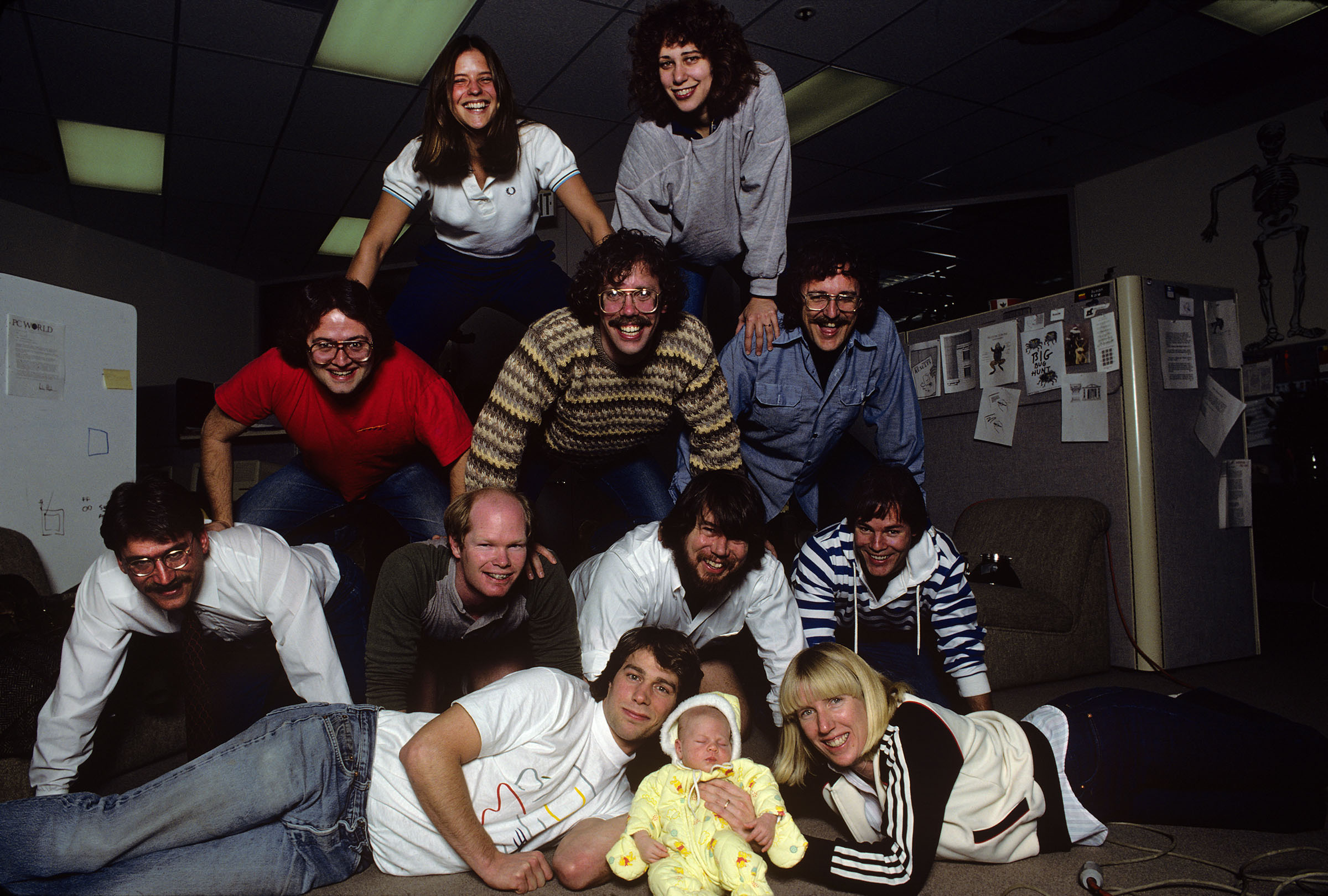 Top to bottom, from left: Rony Sebok, Susan Kare, Andy Hertzfeld, Bill Atkinson, Owen Densmore, Jerome Coonen, Bruce Horn, Steve Capps, Larry Kenyon, Donn Denman, Tracie Kenyon and Patti Kenyon.
-
Frustratingly, the only URL to this content seems to be to Mailchimp, and not the Archive’s website. I expected better from this project. ↩︎
The Immortal Mac⇢
Dan Moren, writing over at Macworld:
Forty years. In the world of technology, where many devices seem to evaporate after only a matter of months, lasting for a decade is an accomplishment—but four of them? It’s nearly unheard of.
And yet today marks the 40th anniversary of the Macintosh. While it has certainly seen its ups and downs over the intervening years, it’s a device that has nevertheless been in constant production since the day Apple co-founder Steve Jobs first took the wraps off it back in 1984.
In that time, it’s run on four different processor architectures and two major operating systems, making it a bit of a computer of Theseus. It’s seen challengers rise and fall, and been threatened with extinction more than once, and yet for all of that has emerged in recent years revitalized and stronger than ever.
The Mac Keeps Moving⇢
Jason Snell has a big feature over at The Verge today:
This week, I asked Greg Joswiak, Apple’s senior vice president of worldwide marketing, the same question I asked Jobs for the Mac’s 20th anniversary and Schiller for the Mac’s 30th: as Apple adds yet more platforms and priorities, what does the Mac’s future look like?
No surprise, Joswiak gave me pretty much the same answer: “The Mac is the foundation of Apple… and today 40 years later it remains a critical part of our business,” he said. “The Mac will always be part of Apple. It’s a product that runs deep within the company, and defines who we are.”
Watch Steve Jobs Announce the Macintosh⇢
This video from the January 1984 Boston Computer Society meeting is really special:
The machine was actually introduced a few days before at Apple’s annual shareholders meeting, but the Boston Computer video is of higher quality, and includes a panel made up of Steve Capps, Andy Hertzfeld, Randy Wigginton, Bill Atkinson, Bruce Horn, Burrell Smith, Owen Densmore and Rony Sebok, taking questions from the audience. There’s a spicy one about the Apple III in there that’s a lot of fun.