Overcast 2022.2 Delivers Phase One of App’s Redesign

Marco Arment’s excellent podcast client Overcast has been updated today to version 2022.2. The new build includes what he is calling “Phase One” of an app-wide redesign.

As you can see from these screenshots, quite a bit is new:
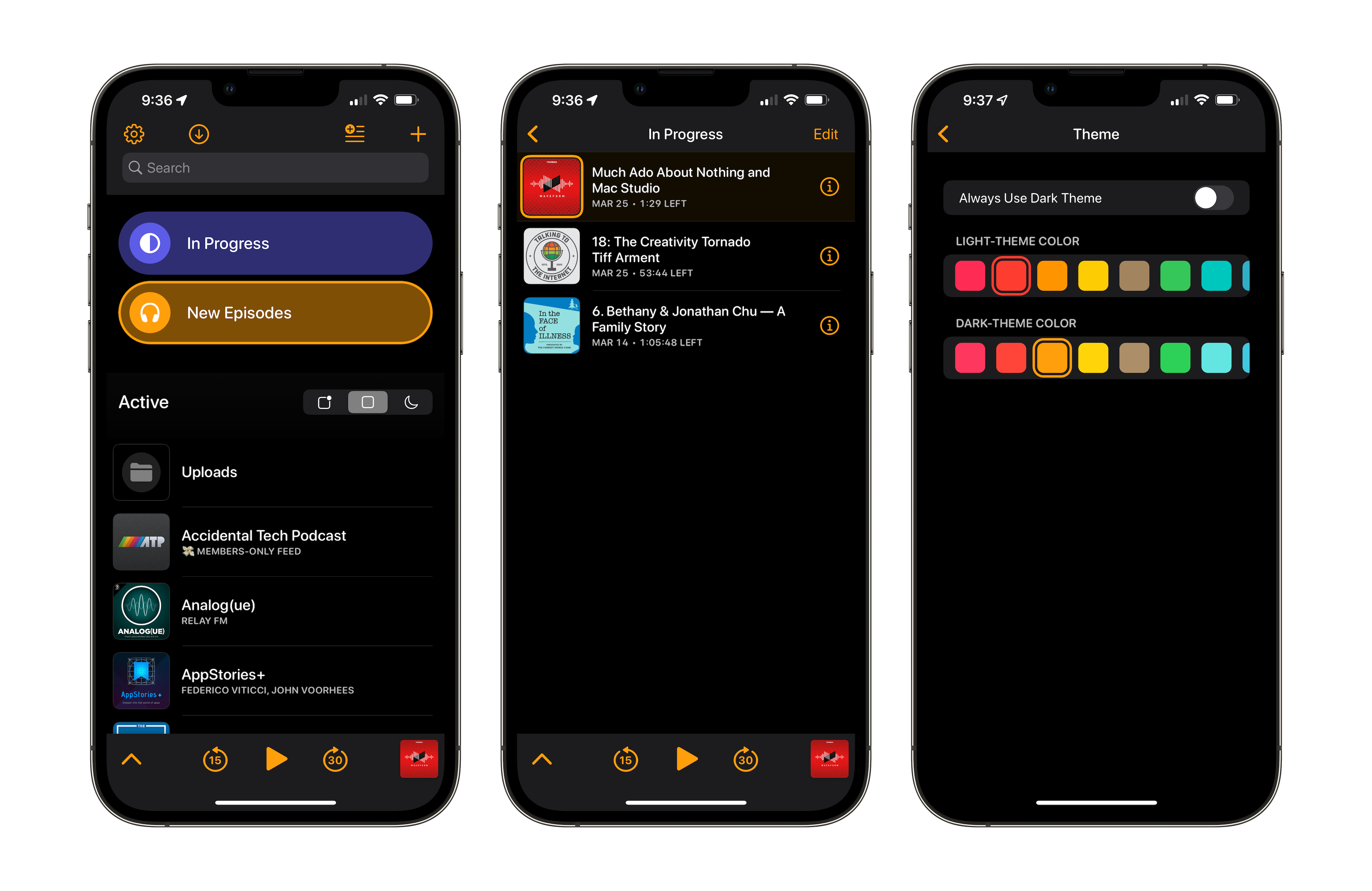
Overcast 2022.2

The biggest improvement comes to the styling of playlists. I’m not a huge playlist user as you can see, but I can appreciate this change. I know some folks have a lot more playlists than I do, and I think the ability to customize the color and icon of each playlist individually really adds a lot of fun to the app.

In addition to the styling, there are some new tricks when it comes to creating playlists, including the ability to set one up for in-progress episodes. I added that one as soon as I saw it.

The main screen also now has the ability to show recent episodes. This feature and the new playlist options are available with a tap at the top of the screen:
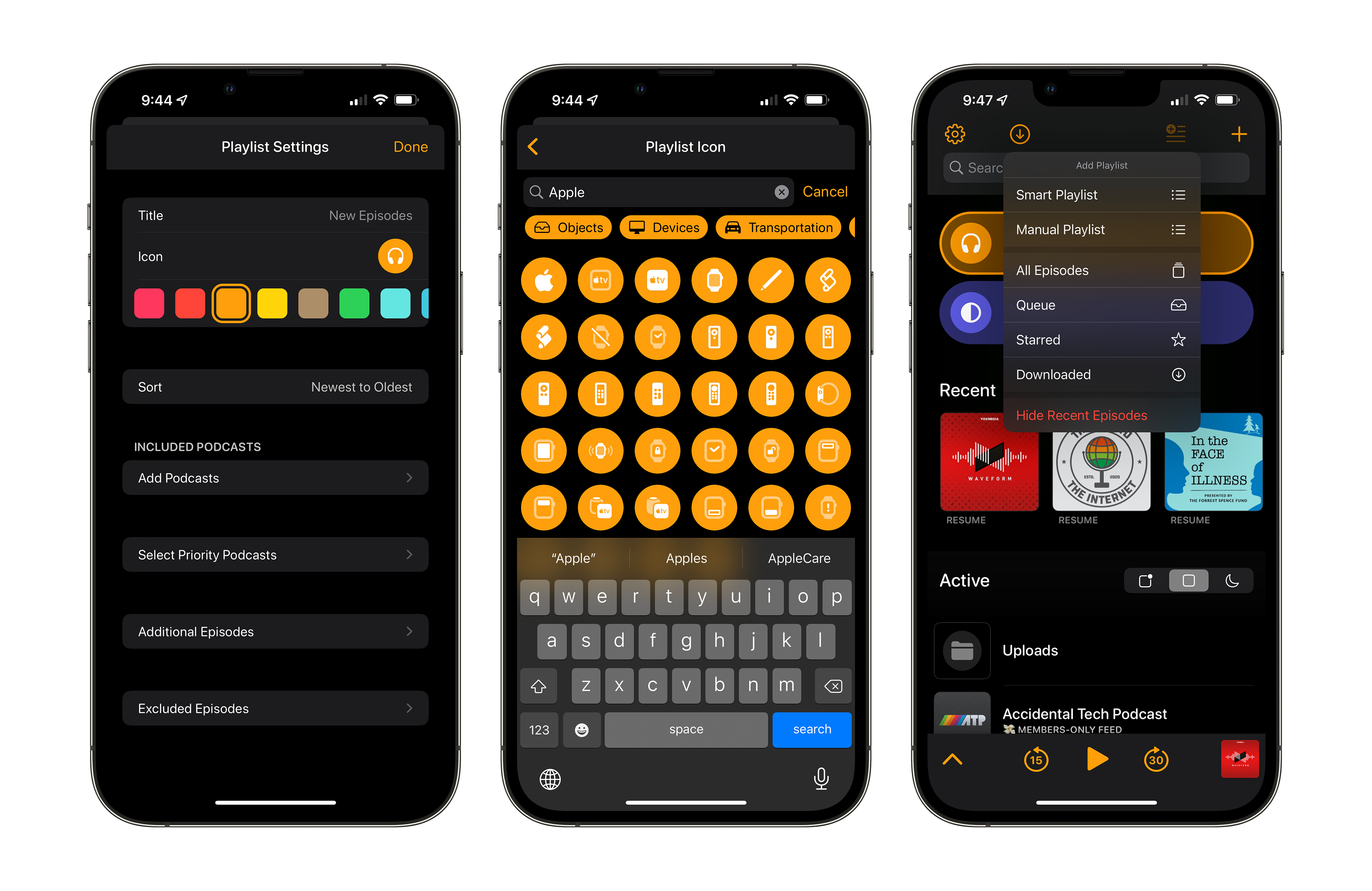
Overcast 2022.2

Below the playlists section, the list of podcasts can now be automatically filtered into three buckets:

  • Unplayed
  • Active
  • Inactive

I have some feelings about that last one. For a while, Overcast has shown how often a podcast is published. For example, on the Connected Pro screen, it shows “Wednesday Afternoons,” reflecting when I publish the show each week. After a time, if no new episode appears, Overcast would label a show as Inactive.

I like this attention to detail, but as a publisher, I don’t want a podcast client deciding when a show is “inactive,” and stashing it off in another part of the app’s UI. At Relay FM, most of our shows publish on a regular basis, but not all of them do. Other networks and publishers often do seasonal podcasts, which may show as “inactive” in between seasons. I understand wanting to filter these out for listeners, but I also think listeners can work out what’s going on in a feed by looking at the publication dates on episodes.

Beyond that, the Inactive filter also includes shows with episodes I’ve listened to without subscribing to the podcast itself. I tend to do this to check out interviews on shows I don’t normally listen to, and wouldn’t mind them being in a section on their own.

For a fuller review, check out John’s post on MacStories. He has a nice bit on how the “Inactive” filter works:

The inactive list is worth explaining, though, because it wasn’t entirely clear to me how it worked when I first tried it. What threw me off is that in addition to a handful of shows that I knew hadn’t published an episode for a very long time, my inactive list included shows like Relay FM’s Connected, which published an episode a couple of days ago. The reason is that Overcast’s inactive list combines shows that haven’t published an episode recently with those that you no longer follow and where you manually deleted all episodes from your library, which is why Connected showed up. Months (probably years?) ago, I subscribed to the Relay membership version of Connected, unsubscribed to the ad-supported version, and deleted old episodes. I suppose this is a way to easily revisit shows that you don’t subscribe to but sometimes download episodes of, but I think it’s likely to confuse some users because of the way it combines inactivity from both a show and user perspective into one list.

(I totally understand my nitpicking about “inactive” shows is very much a Owner-of-a-Big-Podcast-Network problem that no one else may care about, but after reading John’s review, I think the label is a bit confusing. Hopefully, Marco revisits it in a future version.)

All in all, the changes to the playlists feature and the main screen of the app make it easier to manage larger libraries, and I’m a fan of them.

I’m also a fan of the revised theme. SF Rounded is used heavily, and I think it looks really nice. And I straight up love being able to pick a color for use in my theme. Dark Mode + Orange is the one true way to use the new version of Overcast.

Overcast has been my podcast client of choice since it launched, but I’ve noticed the UI feeling more and more out of date. This update has things moving in the right direction, and I can’t wait to see what comes next.

Kbase Article of the Week: Apple Displays: Changes In Colors Requires Degaussing

This week, we’ve got another Q&A-style support document:

What can cause the below symptoms?

When the computer and monitor are powered on, a green an area on bottom left of the monitor changes colors depending on what is displayed on screen. Another less intense area is directly in the center of the screen. Both distortions are approximately one inch high and 3.5 to 4 inches wide.

The display has been moved in the house and checked for any environmental factors but this didn’t change anything. The monitor was left off for over 24 hours but the discolored areas didn’t change.

For younger readers, this problem will sound super bad. For others of you, it’s probably brought back memories you’d rather not relive:

This sounds like a classic case of magnetic field interference. Evidently the CRT has come in contact with a strong magnetic field that magnetized the CRT screen and thus created the problem you are now having. The magnetic field could have been generated by anything from a small magnet to the electric motor on a vacuum cleaner. The cure is fairly simple. The unit should be degaussed with an external manual degaussing coil, as used by TV technicians. They can be purchased at most good electronic parts stores and cost about $30.00.

On the Mac Studio’s Extra SSD Slots

Last week, a story went around that at least some Mac Studio models come with unpopulated slots for SSD modules. This led to speculation that the machine could be upgraded with more storage.

I asked around about this, and came to the conclusion that these slots are populated on higher-end models with 8TB of storage, and maybe even the 4TB option. SKUs with less storage still have the slots, just without any modules in them.

Today, there’s confirmation that the Mac Studio freaks out when additional modules are added:

The Mac Studio recognizes the SSD, but Apple’s software prevents it from booting, suggesting that this is a conscious decision by Apple to prevent users from upgrading their storage themselves. On its website, Apple claims that the Mac Studio’s SSD storage is “not user accessible” and encourages users to configure the device with enough storage at the point of purchase.

Let’s look at my 2019 Mac Pro. In it, Apple used a similar design, with smaller, individual SSD modules raided together and tied to the logic board with encryption. Upgrades on those machines were possible but required a bonkers (and more than a little scary) process to set the drives up with the Mac’s T2 chip.

Apple may very well offer an in-store program1 for those wanting to add capacity to these machines, but things aren’t looking good as far as being able to buy additional storage from someplace like Mac Sales and pop it in.2

Don’t miss Quinn Nelson’s Twitter thread on the matter:


  1. Like the one for upgrading the RAM in an iMac Pro. 
  2. I have no doubt that Apple continues to lock their storage modules and logic boards together. I’m not surprised at all that components from one Mac Studio made another one refuse to boot. 

Sponsor: TextExpander

What can you do with more hours every month? Repetitive typing, little mistakes, searching for answers — they’re all taking precious time away from you and your team. With TextExpander, you can take it back so you can focus on what matters most in your business.

With TextExpander, you and your team can:

  • Keep your message consistent
  • Save time and be more productive
  • Be accurate, every time

The way we work is changing rapidly. Make work happen wherever you are by saying more in less time and with less effort using TextExpander.

You will never need to copy-paste repetitive responses again – with TextExpander, your knowledge will always be at your fingertips with a quick search or abbreviation.

Here’s how it works:

  • Drop your commonly used content into a TextExpander snippet and give it an abbreviation.
  • Share your snippet with your entire team.
  • Just type a few characters to trigger your snippet and the content expands anywhere you type.

It’s that easy!

TextExpander is available on Mac, Windows, Chrome, iPhone, iPad. 512 Pixels readers get 20% off their first year.

I’m on Vacation, but This Take is So Bad and I Wanted to Burn it So Badly, I Posted This From the Mountains with my iPhone

Daniel Howley, writing at Yahoo Finance:

Apple says a Mac Studio with an M1 Ultra will outperform a Windows PC outfitted with an Intel Core i9 desktop chip and Nvidia’s formidable RTX 3090 graphics card, while consuming less overall power.

That not only means the Mac Studio will run at lower temperatures than competing PCs, but it will also maintain peak performance longer than its PC counterparts.

The M1 Ultra seems incredibly impressive, but then Howley goes on to quote Dan Ives, an analyst at Wedbush:

“This latest M1 Ultra is a game changer on the graphics front and ultimately is competitive versus Nvidia,” Ives said. “Now it’s about how big Apple goes outside Cupertino and selling its chip to third parties.”

Yes, Ives is suggesting that Apple would sell its custom silicon to other companies for use in their products.

I mean … has Ives ever thought about Apple for longer than about 14 seconds? Since the return of Steve Jobs, the company has done all it can to keep as much of its fate under its own control as possible.1 Apple silicon is the inevitable outcome of that mindset. To consider the company selling Apple silicon chips to the likes of NVIDIA, AMD or PC OEMs is downright laughable.2


  1. This includes its financial fate. There are many reasons that Apple was near death before Jobs returned, but losing Mac sales to clone makers was one of them. Today’s Apple fights tooth and nail for every dollar that passes through things like the App Store, and they wouldn’t risk hardware sales to make some money selling chips to other companies. 
  2. It’s not like Windows on Arm has gotten off the ground anyway. 

Unite 4

My thanks to Unite 4 for macOS for sponsoring 512 Pixels this week. It allows you to turn any website into an app on your Mac. Using a lightweight, WebKit powered browser as a backend, you can easily create isolated, customizable apps from any site.

512 Pixels readers get 20% off this week when you purchase Unite 4 at bzgapps.com/unite512 or when you use the promo code ‘512Pixels’ at checkout.