Riccardo Mori has outlined the different futures that could be in store for the Mac mini. It mirrors my thoughts exactly.
My Mac Menu Bar: October 2017
Back in 2012, I wrote up what was in my Mac’s menu bar, and I thought five years was long enough, so here we are again:
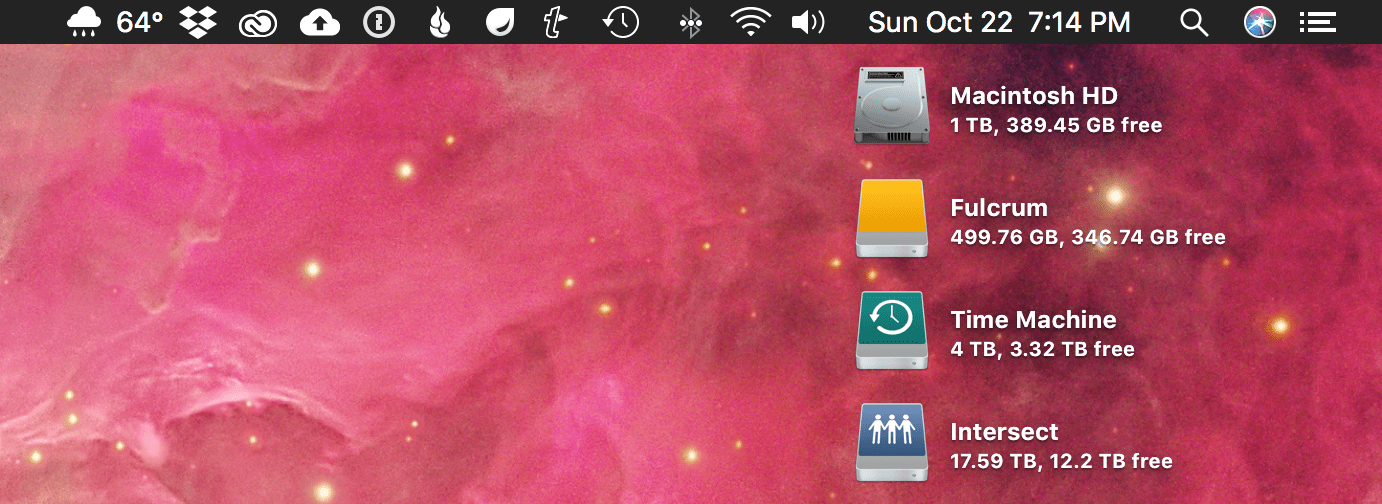
Here’s what’s hogging space on my iMac’s menu bar, from left to right:
Third-Party Apps
Carrot Weather
Carrot Weather for Mac isn’t quite as polished as its mobile cousin, but I love having quick access to the weather from everywhere on my iMac. A click of the icon brings up current conditions, a five-day forecast and the ability to open a somewhat mediocre radar.
Dropbox
Despite the product’s recent redesign, Dropbox remains critical to how I work. I have tons of shared folders with collaborators for all sorts of projects. There are very few files on my iMac that aren’t on Dropbox.
Adobe Creative Cloud
A necessary evil when you rely on Photoshop, Illustrator and Audition on a regular basis.
Google Backup and Sync
This app replaces the old Google Photos Uploader and runs far, far better than the previous app. I don’t sync my Google Drive account with my computer, but I do use this app to backup my photos to Google Photos, even though they are stored in iCloud Photo Library.
1Password Mini
I like good passwords, so I use 1Password on all of my devices.
Backblaze
In addition to my Time Machine and off-site backup drives, I have every bit of data on all of my Macs backed up with Backblaze. It lets me sleep better at night knowing my data is somewhere safe, far away from anything that could happen to my house.
Droplr
This utility lets me share text, images, links and more in a way that I can track the number of opens. As a bonus, images aren’t compressed on Droplr like they are when uploaded to Twitter’s native photo-sharing service. I’ve used Droplr for a long time and am a big fan, but its admittedly a niche product.
TextExpander
Smile’s TextExpander is one of those things that makes my computer feel complete. I have dozens and dozens of custom snippets saved here. Everything from email addresses, common misspellings, strings of code I need on a regular basis and far more are just a few keystrokes away.
First-Party Services
Time Machine
I use Time Machine to backup both my iMac’s internal SSD and that “Fulcrum” external SSD to a big 4 TB spinning hard drive.
Bluetooth
I use a Magic Keyboard and Magic Trackpad, so this is a must.
Wi-Fi
Even though my iMac is wired with Ethernet, I leave wireless on for things like AirDrop. This menu bar item lets me keep an eye on that.
Volume
When I’m not using my headphones via a USB interface, I listen to music with my iMac’s built-in speakers.
Calendar
I love having the date and time just a glance away. This takes up a lot of space, but is totally worth it.
Spotlight
I use Alfred instead of Spotlight, but I’m stuck staring at its icon.
Siri
This is a recent addition. I turned off Siri’s menu bar item when I upgraded to Sierra last year, but recently have started using for simple things like controlling iTunes. We’ll see if it lasts.
Notification Center
I only really use a handful of Today View widgets; my notifications just stick around forever in there. I wish Apple would re-think this corner of macOS.
A Note on Bartender
I love Bartender, a little Mac app that can hide a bunch of your menubar items behind a single icon. I use it on my 13-inch MacBook Pro, but on my 27-inch iMac, I have plenty of room, and like seeing what everything is doing.
Going Out on Top: The iPod mini ⇢
Very often in life, we see things like products, athletic careers and even relationships end way later than they should. When this happens, sometimes the end goes unnoticed and with little fanfare.
Occasionally, things end on a high note, like when an athlete announces their retirement after winning a championship or a band calls it quits after a massive album and tour.
In the world of Apple products, the iPod mini is an example of the latter. It’s perhaps the best example of Apple killing one of its darlings.
Tim Cook, on the Mac mini ⇢
Apparently, Apple plans for it to be “an important part” of the Mac product line in the future. TIL.
Query #15: Sometimes Things Happen and You Eat a Sandwich ⇢
This week on Query: smart home hubs, cleaning tech products, Wi-Fi password sharing and more.
Endurance: A Year in Space, A Lifetime of Discovery ⇢
Astronaut Scott Kelly capped off an impressive career by spending a year aboard the International Space Station. His new memoir is out, and I can’t wait to start it this weekend.
Apple: Remove Touch Bar Data Before Selling MacBook Pro ⇢
As noted by Zac Hall, this kbase article about prepping your Mac for sale has a surprise step for those of us with Touch Bar Macs:
You can clear any information stored by the Touch Bar before you sell or give away your MacBook Pro.
First, start up from macOS Recovery: Hold down Command-R on your keyboard immediately after pressing the power button to turn on your Mac, or immediately after your Mac begins to restart.
When the macOS Utilities window appears, choose Utilities > Terminal in the menu bar. Type this command in Terminal:
xartutil --erase-allPress Return, type yes when asked if you’re sure, and then press Return again. Finally, choose Terminal > Quit Terminal and proceed to the next step.
When I first saw this, I assumed this has to do with the fingerprint information stored in the Secure Enclave. I rebooted into macOS Recovery, ran the command and rebooted again. After the restart, my Touch ID information had been wiped from the machine:
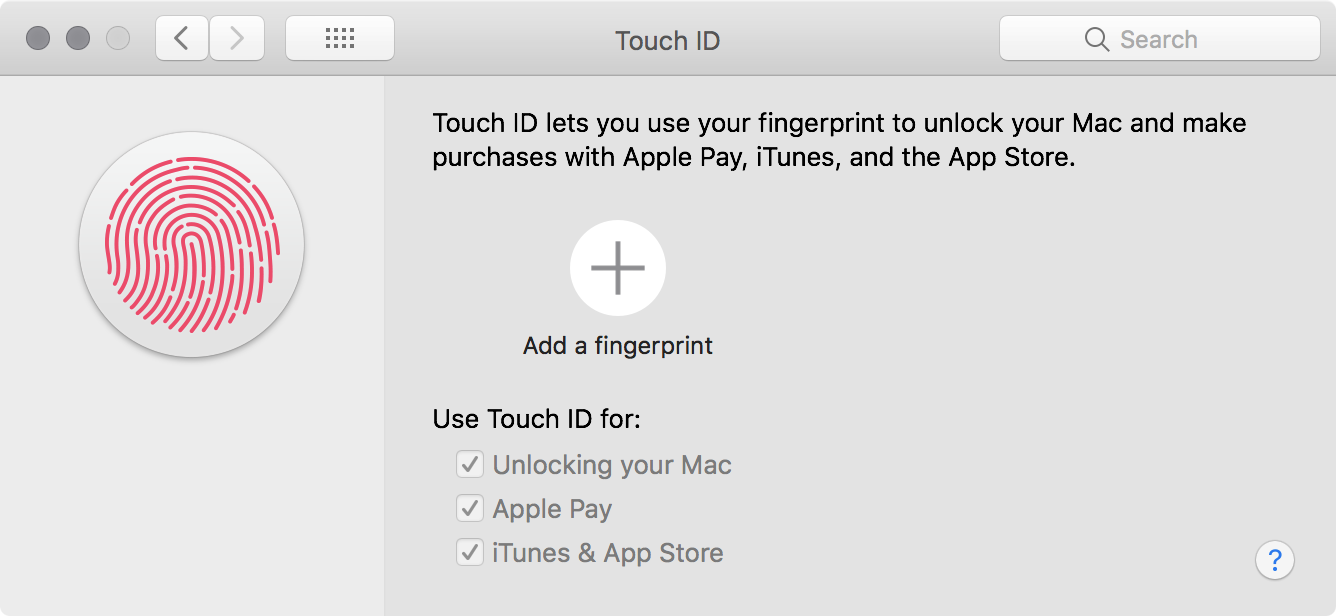
Mystery solved. Add this to the long list of things to get a Mac ready for sale that macOS should handle itself.
Cardhop for Mac ⇢
Flexibits, the makers of Fantastical, have a new Mac app out for dealing with contacts. It boasts the same easy-to-use, text-driven intelligence that its calendar-based sibling does. The natural language input field at the top of the menu bar app can handle search, creating contacts, editing record information and more.
The app can also serve as a launchpad for contacting someone. The input field can turn “email Jason Snell” into a draft to the man with a spider in his iMac. It builds upon natural language input in a new way that I find clever.
While I do keep a fairly robust contacts database, I almost always start a new conversation with someone within the app I’m going to use for that interaction. Mail pulls from my contacts database as well as their own internal history, and Messages works in a similar fashion. Slack and Skype are already islands all their own.
If you do a lot with contacts at your Mac, it is well worth the cost of admission, which is reduced to $14.99 for launch.
Personally, I would love to see the addition of more CRM-focused information that could sync to my iOS devices. The app’s notes field is a great start, but a way to enter structured data about phone calls and emails to form a paper trail of communication would make it a real winner in my book.
Kbase Article of the Week: iBook G3 and G4: Power Consumption and Thermal Output (BTU) Information ⇢
Learn about the power consumption and thermal output of iBook computers.
Dropbox Professional ⇢
Todd Jackson at Dropbox, after some mumbo jumbo I tried reading before blacking out:
That’s why we’re launching Dropbox Professional, a new plan that lets you store, share, and track your work from one place. It’s designed specifically for independent workers, and it comes with two new features: Dropbox Showcase and Dropbox Smart Sync.
The new $19.99/mo plan comes with 1 TB of data, like the $9.99/mo Plus plan that I’ve been using for a while. All of the various plans can be seen here.
Dropbox Showcase is a new way for users to share and publish files for others to interact with. The far more interesting feature is Dropbox Smart Sync, which grants access to every folder and file in your account in Finder, without the need to sync everything to your local disk.
Ultimately, this isn’t a big enough temptation for me to pay twice what I’m paying now for Dropbox. I have several folders un-synced with my computers, and just go to the website if I need to access them. If this new plan came with more storage, I may feel differently, but for now, I’m staying on my $9.99/mo plan.
There’s No i in Keyboard
As outlined in the most recent episode of Connected, the keyboard on my Late 2016, 13-inch TouchBar-equipped MacBook Pro is not doing well.
A couple of weeks ago, its i key started feeling a little sticky. This keyboard does not boast a large amount of travel, but this key was barely moving at all when pressed.
I assumed a tiny bit of dust or other debris had worked it way under the key. This is a bit of a known problem with these laptops, as Casey Johnston has noted at The Outline in an article titled “The New MacBook Keyboard is Ruining my Life.” She writes:
“Maybe it’s a piece of dust,” the Genius had offered. The previous times I’d been to the Apple Store for the same computer with the same problem — a misbehaving keyboard — Geniuses had said to me these exact same nonchalant words, and I had been stunned into silence, the first time because it seemed so improbable to blame such a core problem on such a small thing, and the second time because I couldn’t believe the first time I was hearing this line that it was not a fluke. But this time, the third time, I was ready. “Hold on,” I said. “If a single piece of dusts lays the whole computer out, don’t you think that’s kind of a problem?”
Like Johnston, I remember that on previous versions of Apple’s laptops, this would be easy to resolve. Simply (and carefully) remove the key, blow out the offending particle, and pop the key (carefully) back into place.
That’s not so easy on the 2016 and 2017 MacBook Pro and the 12-inch MacBook. The butterfly switches are easily disrupted by tiny intrusions of dust and crumbs.
I, like the good kbase follower that I am, consulted and followed Apple’s directions for dealing with this:
- Hold your Mac notebook at a 75-degree angle, so it’s not quite vertical.
- Use compressed air to spray the keyboard, or just the affected keys, in a left-to-right motion.
- Rotate your Mac notebook to its right side and spray the keyboard again, from left to right.
- Repeat the action, this time with your Mac notebook rotated to its left side.
I walked through the process, somehow without dropping my notebook on the concrete floor of my studio. The travel of my i key improved somewhat, but I still had to strike the key with a lot of additional force for my key press to register. I had work to do, so I pressed on, whacking the i key with a bunch of force when I needed to use it.
After a couple days of light usage, the problem got worse.
The bottom lip of the key began to flip up a little bit as the key tried sprinting back up after being depressed. Light was leaking around it, and eventually this happened:

One of the tiny arms that the key cap clips onto is broken. My nearly $2,000 laptop that I bought less than a year ago is now missing a key, as I shared with our Connected audience this weekend before using an iBook G3 for the rest of the show:
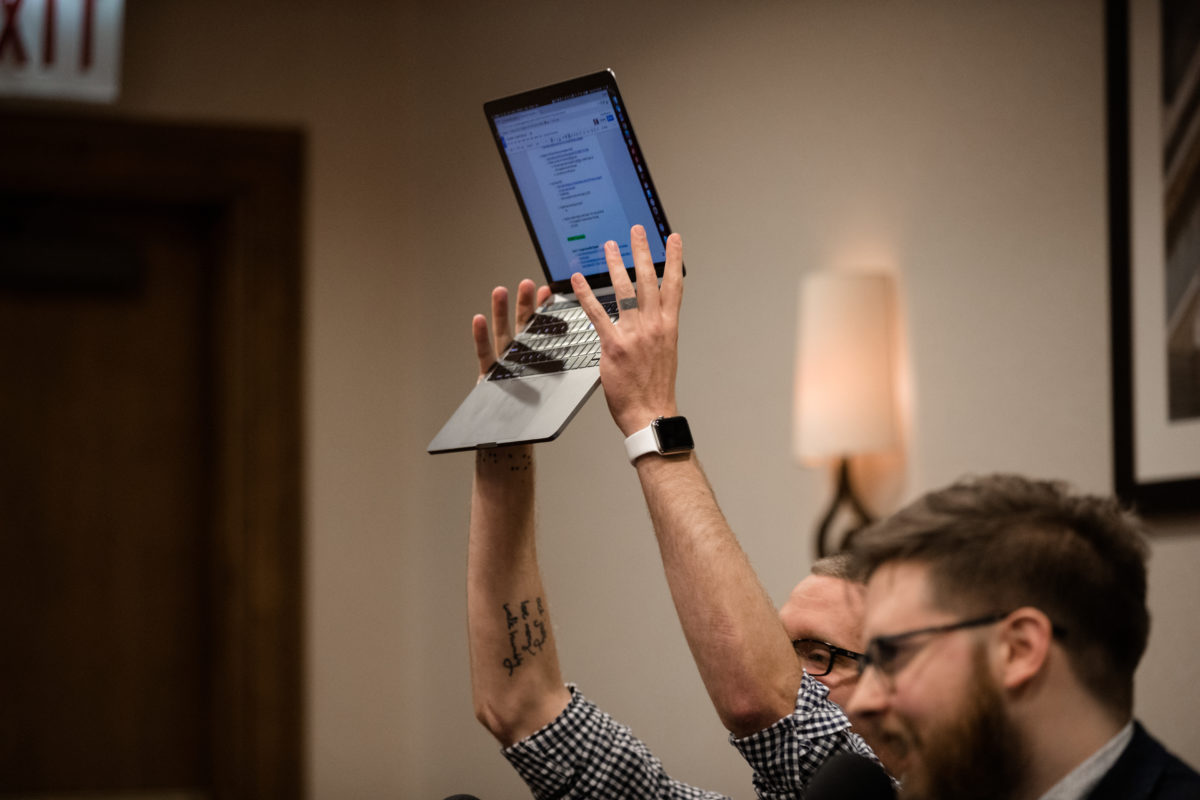
I have a Genius Bar appointment set up for the end of the week. I have the i key ready, tucked away in a small plastic baggie, as if it was a piece of police evidence. I’m not looking forward to it.
Ungeniused #35: The SS Eastland ⇢
Last night, Myke and I recorded a special bonus episode of Ungeniused:
Recorded live in Chicago, the story of a horrific and deadly accident involving a ship that took place a mere 20 feet from shore.
All aboard!