
In macOS 27.2, “Device Control and Data Access” is a unified toggle in System Settings, where Apple says that apps with that level of access can “view and send email, edit contacts and photos, monitor your keyboard, track websites, record your screen, control any app on your Mac, and more.”
In macOS 27.3, Apple is splitting “Device Control and Data Access” into two categories:
- Accessibility: Intended specifically for assistive technologies, with permissions handled through an entitlement process.
- System and App Protection Override: A new category for apps that need to bypass certain macOS protections to control other apps or perform automated tasks.
For the latter, users will be able to specify which apps an automation tool can access rather than granting it unrestricted control. For instance, you could give an app access to the Mail app, but not Messages.
macOS 27.3 also adds an option for users to require an app to request permission every time it needs access, rather than granting it access indefinitely.
There is also a menu bar notice that will alert you when an app (ahem ChatGPT, Claude, etc.) is controlling another app.
This support document has more about the changes coming to Full Disk Access:
An app might ask you to give it access to all of the files on your Mac, or to let it control your Mac. When you turn on access for the app in Privacy & Security settings, depending on the app, your Mac prompts you to:
Allow or not allow the app to have access. This option appears for some apps, such as backup apps that ask for Full Disk Access, and screen readers and voice control tools that ask for Accessibility.
Choose specific protected folders or apps for the app to access instead. This option appears for other apps that ask for Full Disk Access or System & App Protection Override. It allows the app to access only what you choose, while system protections stay in place for the rest of your data.
This is what the new options look like:
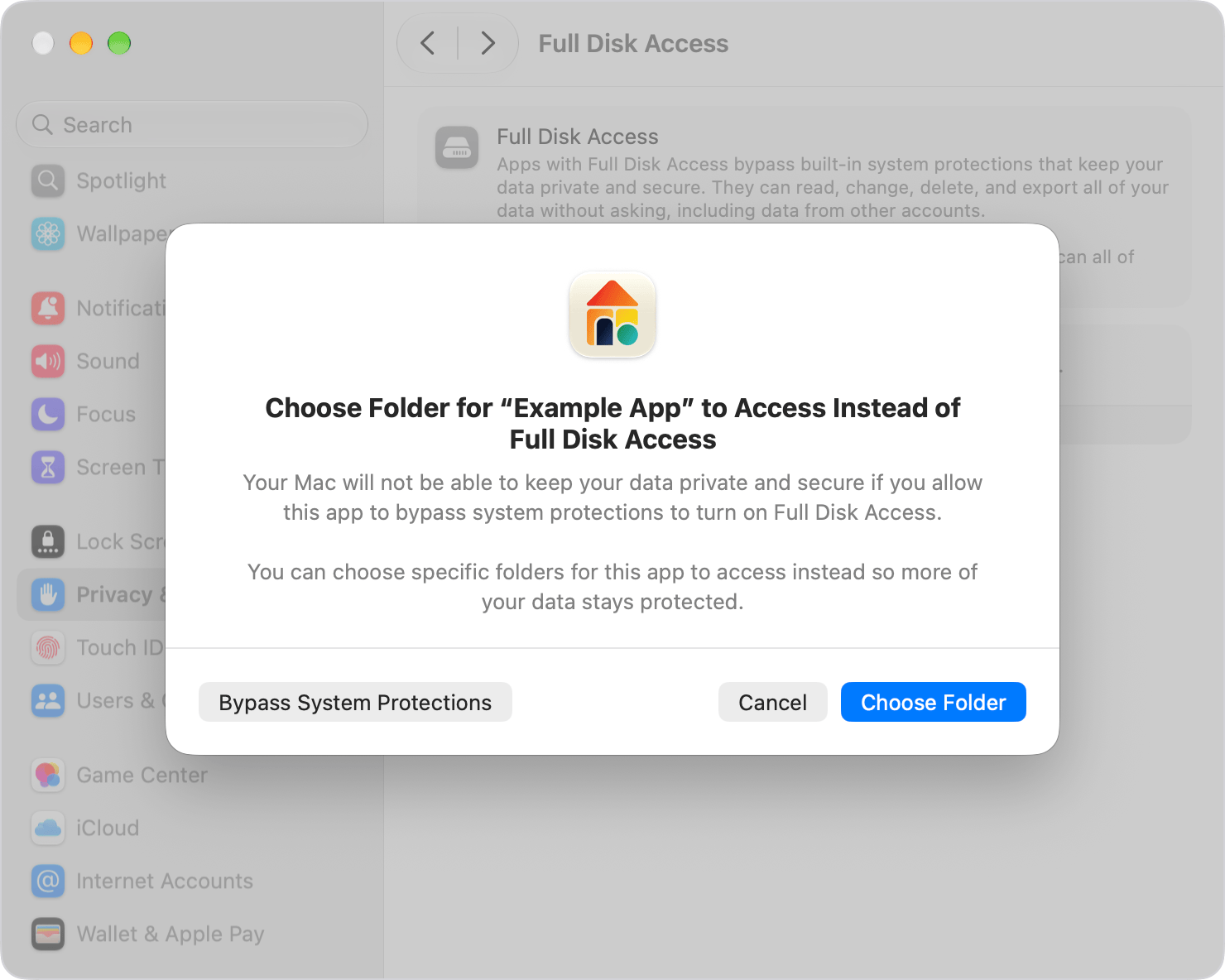
I’m installing it now, but from what I’ve seen so far, these changes not only alleviate my concerns that Apple might over-tighten the screws, I actually think they add clarity and give users more, not less, control over their Macs.
Sure seems like a solid balance to me.