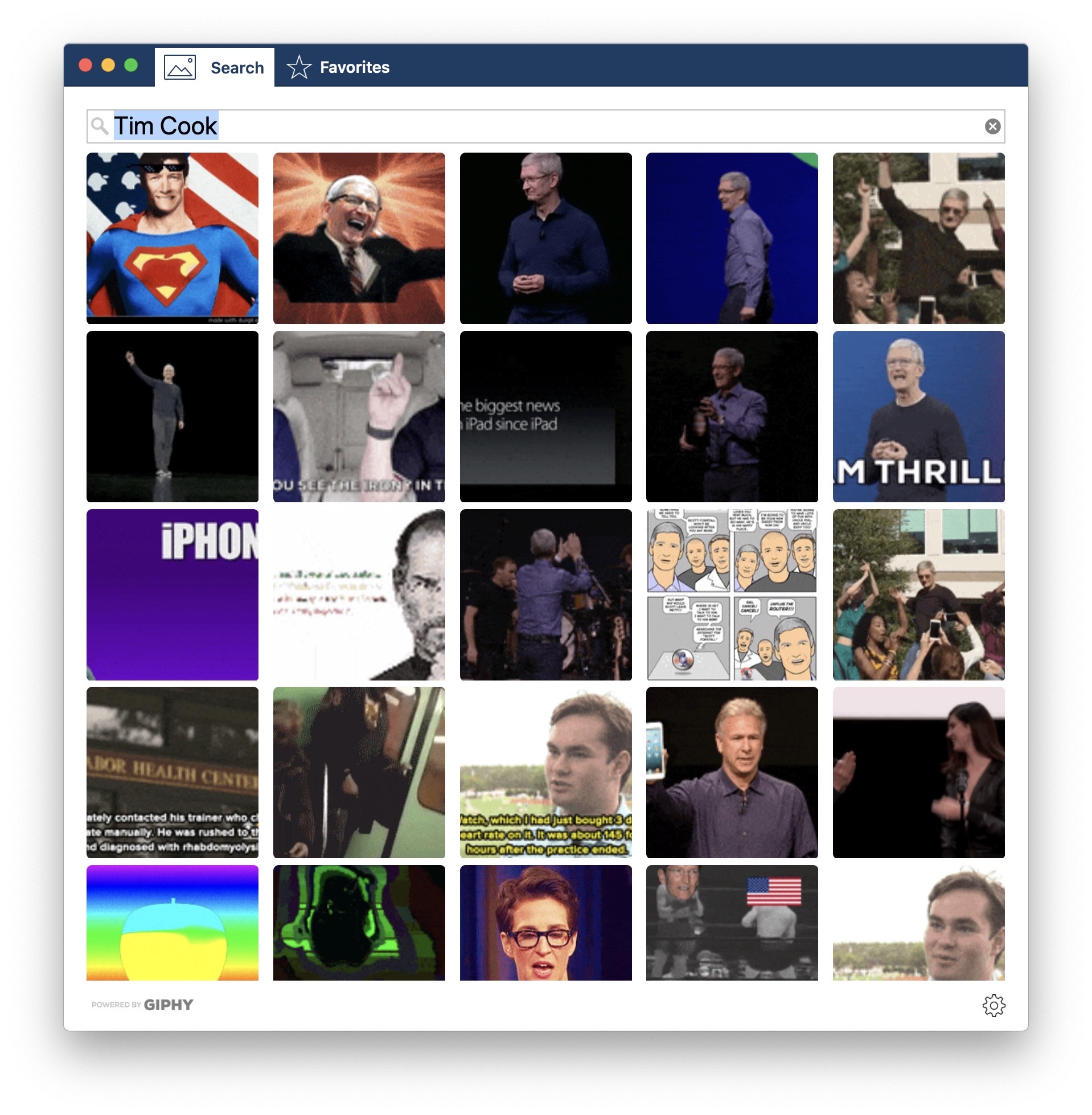
Hard G

Hard G is a new Mac app that brings Giphy search to your Mac’s menu bar or desktop. It makes it easy to drag and drop GIFs to other Mac apps like Messages:

For years, I’ve used a custom Alfred workflow — which you can download as a .zip here — to search Giphy quickly, but Hard G makes it a lot faster.

I do wish that Hard G had the ability to right-click a GIF and be able to copy its URL for pasting into apps where drag and drop is a bit weird. Likewise, being able to copy a GIF to the clipboard would be huge. Hopefully we see these features in a future update.

Hard G can be found on the Mac App Store for $9.99. That’s an introductory price; it will go up to $14.99 on the 21st of this month.

Front and Center

John Siracusa, writing about the move from Mac OS to Mac OS X:

To deal with some of the changes in Mac OS X, I ran apps and system extensions that restored some behaviors from classic Mac OS. Over the years, I weaned myself off most of these, but a few stuck. In particular, I found I did not want to live without the window layering policy from classic Mac OS.

In classic, when you click on a window that belongs to an application that’s not currently active, all the windows that belong to that application come to the front. In Mac OS X (and macOS), only the window that you clicked comes to the front.

My particular style of window management leans heavily on the classic behavior. I also appreciate the Mac OS X behavior in certain circumstances, so I was delighted to find apps that enable both behaviors, using shift-click to override the default.

He goes on to write that the third-party apps he had been relying on to restore this functionally died in the great 32-bit Death Wave of Catalina, so he has re-written a Mac utility named Front and Center:

Front and Center lets you control the window layering policy on your Mac. In “Classic” mode, clicking on a window brings all the windows in that app to the front, just like it did in classic Mac OS. In “Modern” mode, only the clicked window comes to the front. In either mode, Shift-click on a window to get the opposite of the chosen behavior.

Front and Center can be found on the Mac App Store for $2.99, and has a very good app icon:

Two Spies

I’m not a big game player, but I am loving Two Spies. My brother and I have been playing each other every day at lunch this week and it’s a great turn-by-turn game with just the right amount of chance thrown in.

MusicBot

Federico Viticci:

For the past several months, I’ve been working on a shortcut designed to be the ultimate assistant for Apple Music. Called MusicBot, the shortcut encompasses dozens of different features and aims to be an all-in-one assistant that helps you listen to music more quickly, generate intelligent mixes based on your tastes, rediscover music from your library, control playback on AirPlay 2 speakers, and much more. I poured hundreds of hours of work into MusicBot, which has gained a permanent spot on my Home screen. Best of all, MusicBot is available to everyone for free.

MusicBot is wild, and pushes Shortcuts further than I’ve ever seen. If you use Apple Music, you should download this.

Snowflake Weather

The folks at Bjango have a new iOS weather app. I was able to use it during the beta process, and I’ve been really impressed with it.

It comes with all the data you could want, laid out in a compact, clean way. It’s complete with a Today View widget and Apple Watch app, and there are a bunch of ways to customize the data the app shows on its various screens.

Go check it out on the iOS App Store. Snowflake Weather is $4.99, with an in-app subscription for a bunch of extra goodies.

Drafts for Mac Ships with Actions

Rosemary Orchard, writing at MacStories:

An action is something you can add to Drafts to give yourself a button (and optionally a keyboard shortcut) to do something. What that something is, is entirely up to you. From integrations with WordPress and Dropbox, to scripting and custom HTML previews, the combination of steps you can combine to do your bidding is positively mindboggling.

Drafts for Mac ships with five action groups, which by themselves greatly increase the power of the app; these include: Basic, Editing, Markdown, Tools, and Processing. The names of these groups are fairly self-explanatory, and they deliver plenty of punch so you can easily do more with Drafts – even without looking into the wealth of actions available in the action directory.

Drafts is crazy powerful, and I’m excited to see it bloom into a full-blown Mac app its iOS most important features.

Twitter Has Realized That Sometimes, People Die

Chris Welch, The Verge:

Twitter has followed up with more details surrounding its plan to remove inactive accounts over the coming months. First, the company says the process “impacts accounts in the EU only, for now.” That important tidbit wasn’t made clear when the news broke on November 26th. But far more important is that Twitter has recognized that it can’t go around deleting accounts until it finds a way to preserve the accounts of people who’ve died.

“We’ve heard you on the impact that this would have on the accounts of the deceased. This was a miss on our part,” the company tweeted today. “We will not be removing any inactive accounts until we create a new way for people to memorize accounts.” Emails sent by Twitter on Tuesday warned that any account that’s gone inactive for more than six months could be subject to removal if customers fail to log in by December 11th. Now, presumably that deadline will shift.

Sadly, I’m not even a little surprised this wasn’t thought of by whoever was in charge of it. Twitter leadership continues to prove it’s unable to really understand how people use their service, and how it should evolve.

Reminders Isn’t for Me … Yet

When Apple announced that its Reminders application was receiving a much-needed overhaul this year with iOS 13 and macOS Catalina, I was excited. I think Apple has done an amazing job at modernizing the Notes app, and I was hopeful Reminders would become an equally useful application across Apple’s platforms.

I’ve tried just about ever task manager out there: OmniFocus, Things, Remember the Milk, 2Do, TickTick and more. I usually end up back in Todoist for its reliable sync, coupled with its lightning-fast native language processing for inputting tasks. Many applications require too many clicks or taps to create a new task within a given project, with a due date.

Past reliable syncing and natural language processing, I also prefer applications that can keep tasks within a project sorted by due date. Things, Remember the Milk and 2Do — among others — can do this, but Todoist always adds a new task to end of a list, requiring me to resort my projects on a regular basis. This is quick enough on the Mac and iOS, but still annoying.

I don’t often use Siri to add tasks to my system, but Shortcuts support is critical for me. I love being able to send a URL to my task lists, either for linking on 512 Pixels or just to check out later. Currently, Todoist’s shortcut integration is completely broken, with a fix coming “soon,” according to the Todoist support engineer I spoke to about it a month ago.

The vast majority of the tasks in my system are repeating tasks. Running a business means doing a lot of the same work, over and over, on a weekly, monthly, quarterly or even annual basis. Managing these — and being able to adjust them on the fly — is critical, which is why I cannot use Things as my task manager, as it doesn’t allow me to easily complete repeating tasks early.

All of that is to say that Reminders looks like it could be the magic bullet for my GTD pain. Now that iOS 13 is less bumpy than it was, Reminders seems to be syncing well enough, so last week, I re-created a single project in the app to run it in parallel with Todoist.

It didn’t go well. Here are some of my complaints:

Sorting in Reminders is just weird. Items in a list can only be sorted when on the Mac, and the sort order doesn’t seem to stick for very long. Worse, when a list is sorted by due date, items with no due date appear before items with due dates … which is madness.

Entering tasks is clunkier then it should be. On iOS, Reminders relies on the QuickType bar for making the typed word “Tomorrow” the due date for the task. It’s awkward, and In this example, I’ve typed the word “tomorrow” in the task name field, but to make it the due date, I have to tap it above the keyboard. Reminders should be confident enough to use what I type as metadata. At least repeating tasks can be created at the same time:

The app can get a bit junky. This is a personal preference thing, but I don’t need to see all of the metadata on a given task at once. In this example, I added a due date, location, note, URL, flag and an iMessage reminders to a single task. Some of this could be stashed away behind the i button.

The user should be able to customize what they see in this view, including the default text size, which is both too small and unchangeable on the Mac, not unlike Notes was for a long time after its reboot.

I want to use Reminders. I like using default apps when they meet my needs. My complaints may be esoteric, but that’s how things are when dealing with task managers. Hopefully Apple puts some of these things on its own task list, because so much about Reminders is great.

Download macOS Installers with Terminal

Most of the time, you can re-download the current version of macOS via the Mac App Store, and older ones via these links:

However, I’ve run into a situation several times where the Software Update mechanism simply refuses to initiate a download:

Thankfully, macOS installers can be downloaded via Terminal in macOS Catalina. This command will download the most recent version of macOS, depositing it in your Applications folder:

softwareupdate --fetch-full-installer

The softwareupdate command has some neat tricks up its sleeve, as pointed out by Armin Briegel:

The --fetch-full-installer flag has a sub-flag: --full-installer-version which allows you to download a specific version.

During my testing in the Catalina beta version I was able to download 10.15, 10.14.6, 10.14.5, and 10.13.6. I was not able to test if 10.13.6 would download the hardware specific build of 10.13.6 for the 2018 MacBook Pro, since I do not have that hardware.

So, to pull 10.13.6 down, you’d use:

softwareupdate --fetch-full-installer --full-installer-version 10.13.6

I wish Apple would just have a support document up with direct downloads for all of this stuff, but this tool is not a bad alternative.

Update: Don’t miss this documentation from JAMF for more on the subject.

Hazel Updated to Support macOS Catalina

Noodlesoft Support:

As of version 4.4, Hazel is compatible with Catalina. Catalina introduced a number of changes and bugs which affect Hazel. Hazel 4.4 works around many of these issues though some still remain, possibly indefinitely.

Most noticeably, dark mode is broken. There are limits to what can be overridden so as a result, certain places, like the System Preferences title bar and contextual menus, will remain in light mode regardless of your system appearance setting.

You will see magenta rectangles in certain windows. This is considered a “security feature” by Apple.

There may also be various drawing artifacts and oddness with mouse input.

The bit about no dark mode support for third-party system preference panes is really weird, but when I went to go check on Backblaze, I was surprised to see that the preferences pane looks the same in Light and Dark Modes:

I promise one of those screenshots was taken in Light Mode and the other in Dark Mode, but you’d never be able to tell which one is which. I get the feeling that Apple could be moving toward a world where preferences panes like these are shown the door. It seems that Hazel sees the writing on the wall:

For Hazel 5, Hazel will be converted from a preference pane to an app form factor. This will require re-working the UI. The end result is that this will avoid the issues described above as well as others that were introduced in Catalina.