
The serial number for these iBook models is located in the battery bay.
If the computer is on, shut down it down and close the lid.
Turn the computer over so you are looking at the battery door.
Remove the battery door. For information on how to do this, see technical document 58447, “iBook: Replacing the Battery”.
The serial number is located near the bottom edge of the battery door. See below.
Category: Kbase of the Week
Kbase Article of the Week: Gray screen after installing Snow Leopard⇢
I remember this happening to a family member’s Mac in 2009:
Your Mac may start up to a gray screen after upgrading from Mac OS X v10.5 to Mac OS X v10.6 Snow Leopard. This may occur if a previous Mac OS X v10.5 software update had been downloaded using Software Update, but not completely installed, before installing Snow Leopard.
Kbase Article of the Week: HyperCard 2.2: Creating a Home Button Script⇢
Kbase Article of the Week: Keynote 1.1 unexpectedly quits with Mac OS X 10.4⇢
When you use Keynote 1.1 with Mac OS X 10.4 Tiger, the application may unexpectedly quit. To resolve this issue, update to Keynote 1.1.1, or upgrade to Keynote 2 (part of iWork).
Kbase Article of the Week: Illegal Operation Message in Windows 95⇢
You know a support article is going to be good when it opens like this:
This information was provided by Claris Corporation on 16 March 1998, and incorporated into Apple Computer’s Tech Info Library.
Kbase Article of the Week: Twentieth Anniversary Macintosh: Memory Expansion⇢
Up this week is Article TA36432:
The Twentieth Anniversary Macintosh uses the same logic board and memory as the Power Macintosh 5500 and 6500 series computers. Like those computers, the Twentieth Anniversary Macintosh does not have any DRAM memory soldered on the logic boards. All RAM expansion is provided by DIMMs installed in one of the two 168-pin sockets. It includes 32 MB installed in one of the two DIMM slots.
Kbase Article of the Week: If iTunes Doesn‘t Recognize your iPhone, iPad, or iPod⇢
Here’s an article I hope goes away at some point in the near future:
If you connect your device to your computer with a USB cable and iTunes doesn’t recognize your iPhone, iPad, or iPod, get help.
When iTunes on your computer doesn’t recognize your connected device, you might see an unknown error or an “0xE” error. If you do, follow these steps and try to connect your device again after each step.
Kbase Article of the Week: How to Force Restart your iPod shuffle⇢
This article was last updated back in May:
If your iPod shuffle doesn’t respond when you press the buttons, you can force restart your device:
- Unplug your iPod shuffle from its charger and from your computer.
- Use the power switch to turn off your iPod shuffle. If you see green by the switch, your device is on. (Can’t find the power switch?)
- Wait for ten seconds. Then turn on your iPod shuffle again.
It even includes this charming illustration of iPod shuffle power buttons:
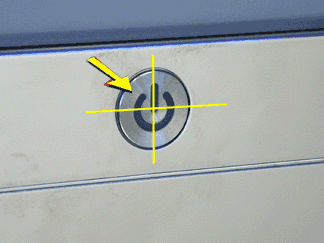
Kbase Article of the Week: Power Mac G4 (Mirrored Drive Doors), Power Mac G4 (FW 800): Power Button May Require Firm Push⇢
This article comes with a photo:
Symptom: Some Power Mac G4 (Mirrored Drive Doors) and Power Mac G4 (FW 800) computers’ power buttons may require a firm push.
Solution: As a workaround, press the power button in its upper left quadrant to turn on the computer. The activator is directly behind this area.
Here’s the masterpiece, which is labeled “Where to press power button.”
Kbase Article of the Week: Apple Thunderbolt 3 (USB-C) to Thunderbolt 2 Adapter Requires Thunderbolt 3⇢
Kbase Article of the Week: How to Change Your Mac wallpaper⇢
This article felt relevant this week:
Your Mac includes many photos and other images that you can use as desktop pictures (wallpaper) to give your Mac a custom look. Or you can use your own.
Follow these steps to change the desktop picture used as the background of your screen. You can do it from from Photos, the Finder, or Desktop preferences.
Kbase Article of the Week: Fonts Included with macOS Sierra⇢
Apple spared no expense writing the introduction for this article:
macOS Sierra comes with many built-in or downloadable typefaces.