
Around this time 30 years ago, two separate working groups were putting the finishing touches on technical standards that would come to reshape the way people observed the world. One technical standard reshaped the way that people used an important piece of office equipment at the time: the fax machine. The other would basically reshape just about everything else, becoming the de facto way that high-quality images and low-quality memes alike are shared on the internet and in professional settings. They took two divergent paths, but they came from the same place: The world of compression standards. The average person has no idea what JBIG, the compression standard most fax machines use, is—but they’ve most assuredly heard about JPEG, which was first publicly released in 1992. The JPEG format is awesome and culture-defining, but this is Tedium, and I am of course more interested in the no-name formats of the world.
512 Pixels
The iOS App Icon Book⇢
Michael Flarup has launched a really cool Kickstarter campaign:
I simply love app icons — they continue to be everything that excites me about visual design. App icon design is a carefully balanced discipline with the goal of producing a memorable graphic that sits at the intersection of art and utility. At their best, app icons are design, distilled. This book is a celebration of the art and craft of app icon design and the golden age of icon design that has lived and evolved on our devices this past decade.
Backed.
Kbase Article of the Week: AppleScript to Access Aperture Library Generates an Error Under Leopard⇢
An AppleScript used to select a project in Aperture may generate the error message “Aperture got an error: Can’t get project ‘yourprojectname’ when run on Mac OS X 10.5 Leopard. The same script runs without an error message on Mac OS X 10.4 Tiger.
This may happen if you do not specify the library to be used in your script. This has always been the best practice, but it was not mandatory under OS X 10.4.x.
Sponsor: Drafts, Where Text Starts⇢
Quickly jot down ideas in a trusted capture system. Hone your text in a familiar, customizable editor. Output your text to a practically unlimited number of other apps and services through powerful actions. All the while, Drafts’ fast iCloud sync keeps all your text handy across all your devices.
It is your Swiss Army knife for text on Apple platforms.

Once you capture text, Drafts provides powerful, extensible tools to process it and send it out to other services like task managers, messages, email, files, and more.
Don’t let that next great idea slip away; start capturing it with Drafts today!
Mac Power Users #613:The Future of Work, with Sean McCabe⇢
This week on MPU, David and I talk with Sean McCabe about how he runs his businesses from what can only be described as a Mac battle station, while stitching together macOS apps and several cloud services to be more productive.
Loopback⇢
My thanks to Rogue Amoeba for sponsoring the site this week!
Their app Loopback provides powerful Mac audio routing with no cables required. Save 21% right now on Loopback (and anything else Rogue Amoeba makes), with coupon code PIXELSXXI.
Flashback #22: Building the Personal Computer⇢
On Flashback this season, we’re looking at the history of the IBM Personal Computer. This week, we talked hardware:
The IBM Personal Computer was developed in a shockingly short period of time. Quinn and Stephen discuss the machine’s hardware as well as some of the company’s earlier attempts at personal computers.
My thanks to our sponsor for this episode:
- Clean My Mac X: Your Mac. As good as new. Get 5% off today.
Review: The 14-inch MacBook Pro Resets the Timeline
We’d all like to forget the 2016-era MacBook Pros, so in this review, I’m just going to pretend they didn’t happen.
I’m typing this on a new 14-inch MacBook Pro, powered by Apple’s new M1 Pro system on a chip. This is a huge speed increase over my old MacBook Pro, an original Retina MacBook Pro from 2012.

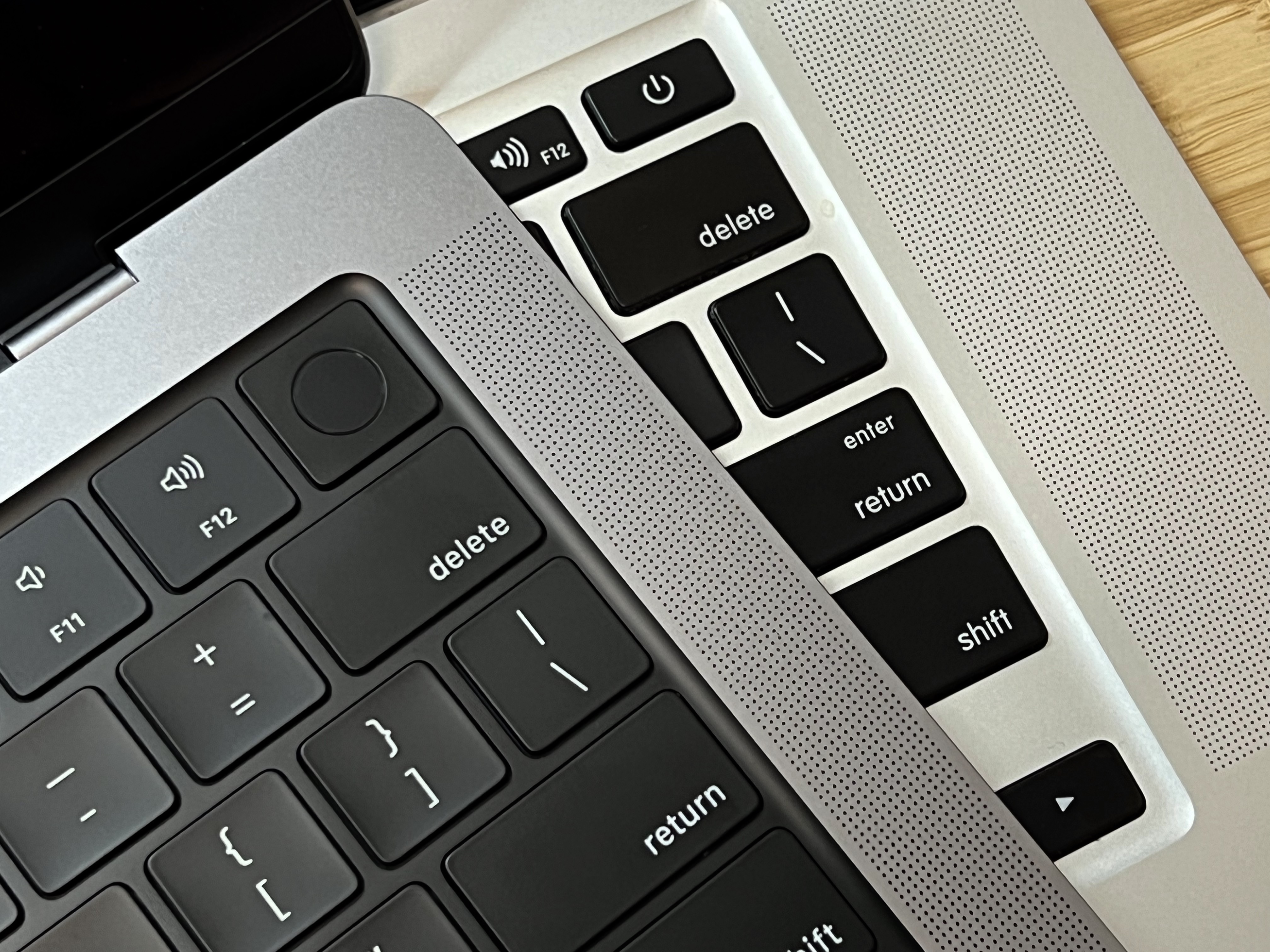
Despite the nearly nine years between the two machines, the keyboard’s feel isn’t radically different. The new keys seem slightly larger, have less space between them, and feel more stable, somehow. The sound is a little deeper, but I’ve gotten used to the new keyboard pretty quickly. Apple has shipped good keyboards on their Macs for a long time, and this one is a real winner. I even dig the black well it sits in.
The most significant change is the function row. On the 2012 MacBook Pro, they are half-height keys, not unlike the arrow keys, but on the 2021 model, they are full height. This means the glyphs on the backlit keys are larger. Oh, and for some reason, the escape key is way wider than it used to be.
On the far right of the function row is a Touch ID button. It registers fingerprints quickly and makes logging into macOS and applications a breeze.
For all the similarities between the two machines’ keyboards, the trackpads couldn’t be more different. The new unit is massive, eating a huge percentage of the palm rest area. Like before, the trackpad accepts gestures and lacks a physical button. However, while using the new trackpad, you can click anywhere and a click is registered; the old one is hinged at the top, mimicking the old days where a button was along the bottom of the trackpad.1
The overall design of the notebook hasn’t changed much, with ports down the right and left sides. Apple has changed up the IO in a big way here, moving to a newer version of Thunderbolt that combines both Thunderbolt and USB into one high-speed port.
(This means the new MacBook Pro has one less port than before, as the two Thunderbolt and single USB ports on the left side have been merged into two new Thunderbolt/USB-C ports. It is a bit of a bummer if you have a lot of USB-A stuff lying around.)
This new port can be up to 4 times faster than the Thunderbolt ports on my 2012 MacBook Pro, but that requires compatible equipment and cables capable of such speeds. I have neither handy, but I’m sure it’s incredible to get this thing going at full speed.

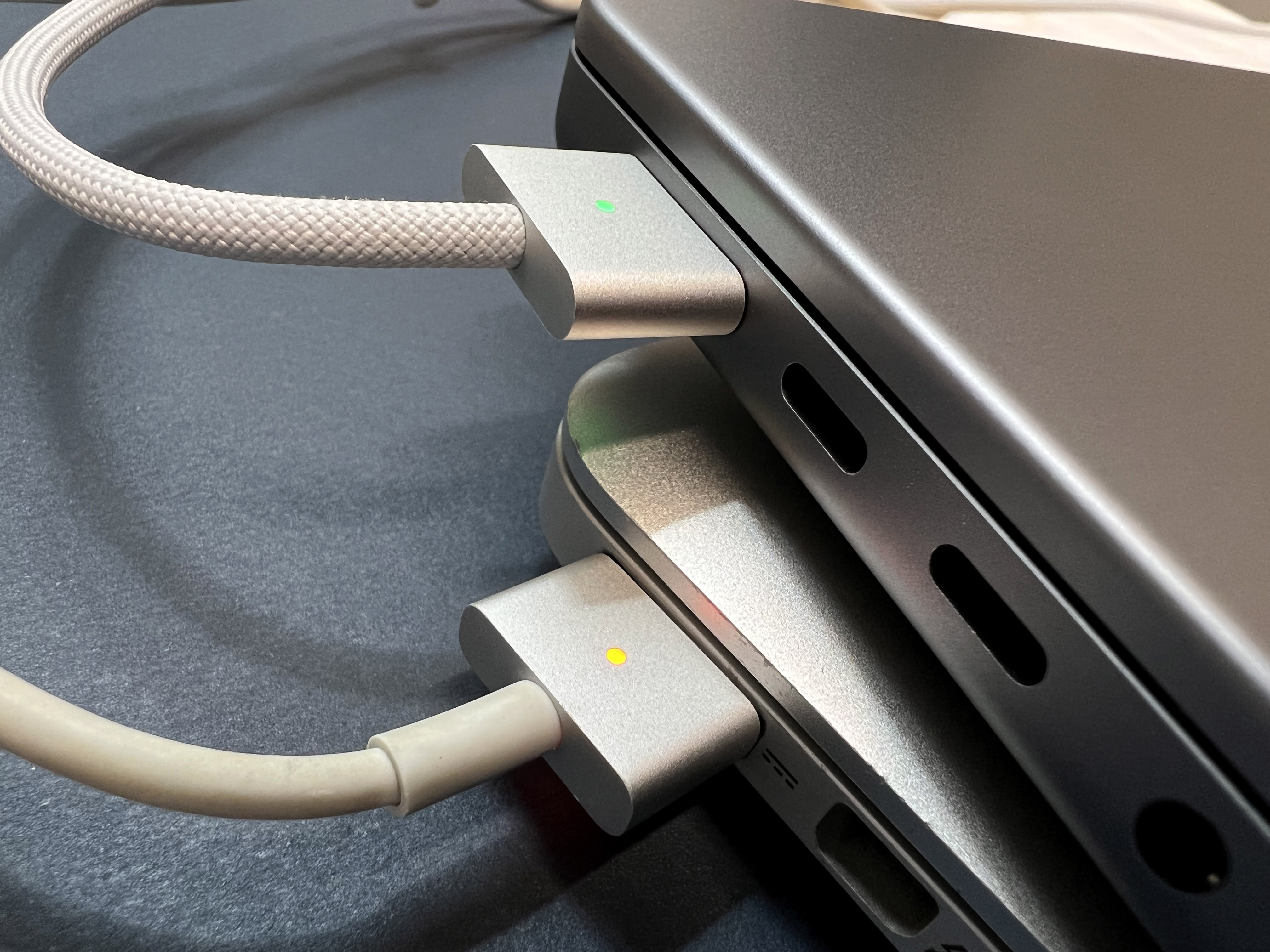
Thankfully, the rest of the IO is more or less the same. The headphone jack remains on the left side of the machine along with MagSafe, which has shrunk yet again. Unfortunately, there’s not a converter on the market at this point, so you’re going to need to pick up a new MagSafe charger if you want a spare in your bag or at the office.
Here you can see MagSafe 2 and 3, the latter of which uses a braided cable that feels very fancy.
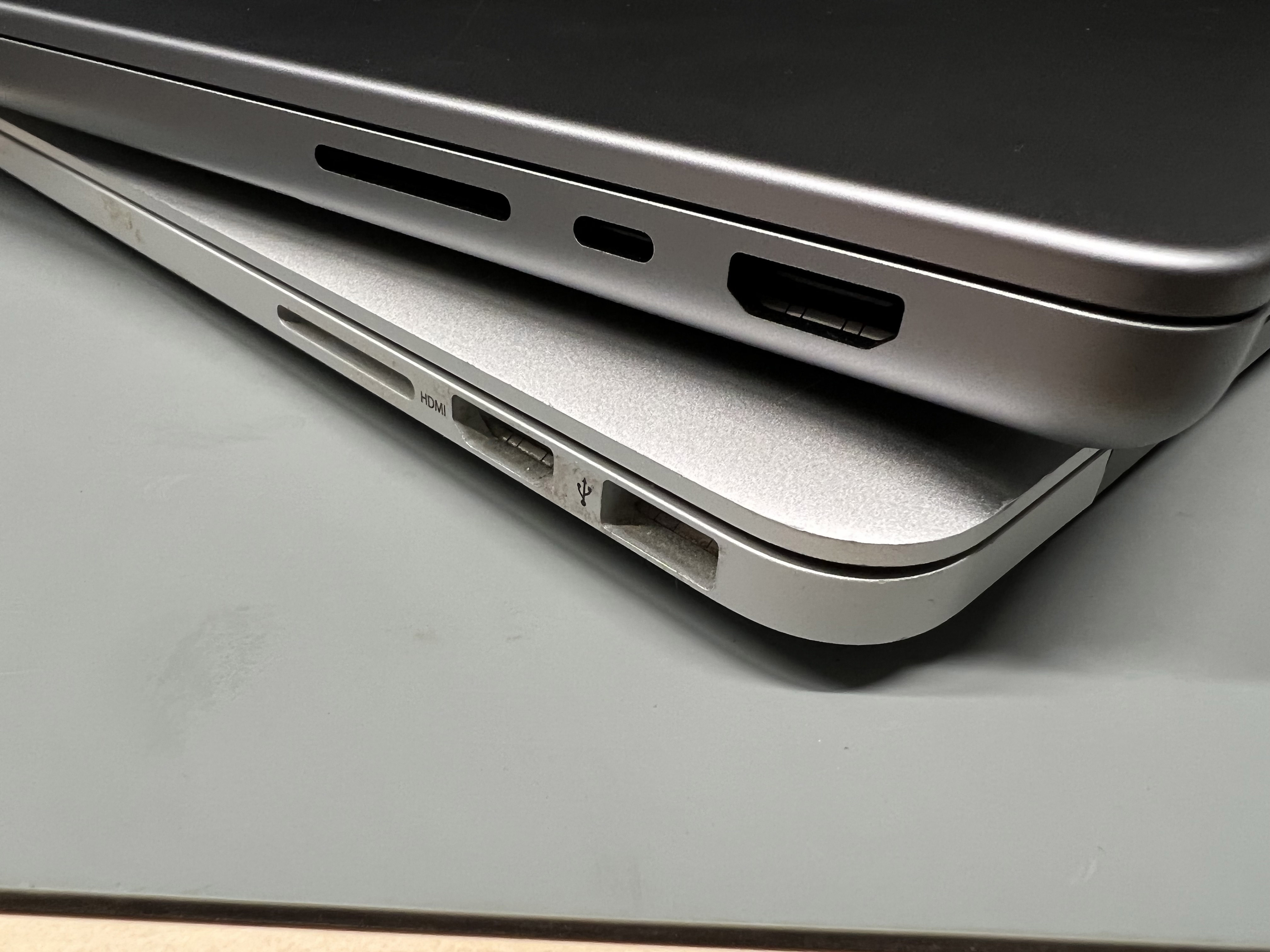
On the right side of the notebook, we get another fancy new USB-C port snuggled between the HDMI port and SD card slot. On the old machine, the HDMI port wasn’t at the back corner of the machine, which always bugged me when I needed to plug into a TV or projector. HDMI cables are often thick and heavy, and I like having them route back behind my MacBook Pro and not block any other ports.
The speakers still flank the keyboard. Since I’ve gone down a size, the speaker grilles aren’t as prominent on the top of the machine, but this new MacBook Pro sounds great. It’s impressive how such a small machine can fill a room when listening to music or a podcast.
… and all in a notebook that is one-tenth of an inch thinner!
Speaking of design, the new MacBook Pro is a nice evolution of the unibody design Apple has perfected over the years. I opted for Space Gray because NEW, but the flat sides and round corners seem instantly familiar.
I gotta say it, though; I really miss the light-up Apple logo. I don’t know why Apple had to get rid of it with these new notebooks, and I hope we see it come back in a future revision. Until then, I’ve slapped a sticker over the Apple logo in protest.2
The other side of the display lid is incredible. My new 14-inch machine packs a lot more pixels than my 15-inch Retina MacBook Pro. Colors are vibrant; the backlight is bright; the notch is … fine. A week in, I’ve mostly forgotten it’s there. If you do professional photo or video work, you’re going to be drooling over this new panel. Some of it is a little lost on me, as I mostly use my notebook for writing, admin work, and the occasional podcast recording.
On the inside, this MacBook Pro is all new. Apple silicon is fantastic, simply blowing away anything we’ve seen in a Mac before this. If you remember the feeling you had when you used your first Intel Mac, that’s going to come back to you in a big way. In most of my testing, it trades blows with my Mac Pro, a much larger and much more expensive computer.
All in all, I am impressed with this new laptop. While leaving USB-A behind is a pain right now, Apple’s willingness to move forward doesn’t often backfire.
-
If you have a 2015 MacBook Pro, this isn’t new to you, but it’s new to me! ↩︎
-
Could this be an early sign of the post-Jony Ive design era at Apple? I feel like he is the type of person who was delighted by the old glowing logo! ↩︎
Connected #370: MacBook Venti⇢
The guys are joined by One True John to talk about life midway through the Apple silicon transition, how Shortcuts for the Mac is shaping up and how our moms feel about our media appearances.
My thanks to our sponsors:
- StoryWorth: A meaningful gift to treasure forever. Get $10 off your first purchase. Get started right away with no shipping required.
- Bombas: Give a pair when you buy a pair, and get 20% off your first purchase when you use this link.
- Squarespace: Make your next move. Enter offer code CONNECTED at checkout to get 10% off your first purchase.
An Actual Monterey Desktop Photo⇢
The folks at Vyncher have put together an amazing dynamic wallpaper for macOS Monterey.
Kbase Article of the Week: Use High Power Mode on your 16-inch MacBook Pro with M1 Max⇢
Your MacBook Pro has multiple energy modes you can switch between. By default, your Mac is set to Automatic mode to balance energy use and performance. Low Power Mode reduces energy use to increase battery life. On the 16-inch MacBook Pro with M1 Max, High Power Mode allows the fans to run at higher speeds. The additional cooling capacity may allow the system to deliver higher performance in very intensive workloads.
You can use High Power Mode to improve performance in graphics-intensive workflows such as color grading 8K ProRes 4444 and 8K DNxHR video. In video editing and 3D applications, you may experience smoother playback and faster exports when High Power Mode is on.
When High Power Mode is on, the fan may run at a higher speed and you may hear additional fan noise. High Power Mode can be used whether your Mac is connected to power or not.
Snell, with Charts⇢
With the closing of the fourth quarter comes the closing of a fiscal year. And while none of us gathered around a HomePod and shouted “Happy New Year!” on midnight of Sept. 26 (the first day of the new fiscal year), as far as Apple is concerned it’s now fiscally 2022.
That means it’s time for the final totals, and an entirely new set of charts based entirely on Apple’s annual performance. This provides a fun opportunity to revisit some charts from about two years ago and look back at where the company has been, while considering where it might go next.
Some of these are just wild.