Apple’s iTunes affiliate program can earn you commissions when you link to apps, movies, TV shows, music, books, and other media. The trouble is, creating those links is a hassle on iOS. Blink, by Squibner, solves that with easy-to-use search and link conversion.
Blink’s search functionality puts Apple’s iTunes stores at your fingertips. Run a search for media, then tap the result you want. Blink does all the hard work of generating an affiliate link that includes your affiliate program credentials.
Blink also has an extension for generating links from within Apple’s apps or any third-party app where you find an iTunes link. Blink grabs the link and converts it into a link with your affiliate credentials in just one tap.
I think that sums up how I feel about Apple’s latest TV offering: It removes so much minor irritation and is leaps and bounds better to navigate than any other individual app out there, but it doesn’t have nearly enough support from networks and other content providers right now, and it’ll ultimately fail without them.
My YouTube suggestions list is a wonderful place. This gem recently popped up. It’s a recap of the original iMac keynote coupled with the coverage done by Computer Chronicles on the machine:
While it has always been known that Apple considered a variety of ideas when they were deciding to enter the mobile phone market (with ex employees discussing it behind closed doors, as seen in this Cult Of Mac article, not much was known about alternate versions of the iPhone until now.
Much like the first production iPhone, the prototype features many of the same features including an aluminum chassis, multi-touch compatible screen, 2G connectivity and WiFi radios. However, despite carrying a similar design, the phone itself is extremely different from the iPhone we know today.
It’s long been documented that there were essentially two factions in the development of the iPhone: Tony Fadell, who helped created the iPod and wanted the iPhone to run a version of the music player’s OS, and Scott Forstall, who argued that the iPhone should instead be based on the Mac’s operating system. Forstall won, Fadell left the company, and the rest is history.
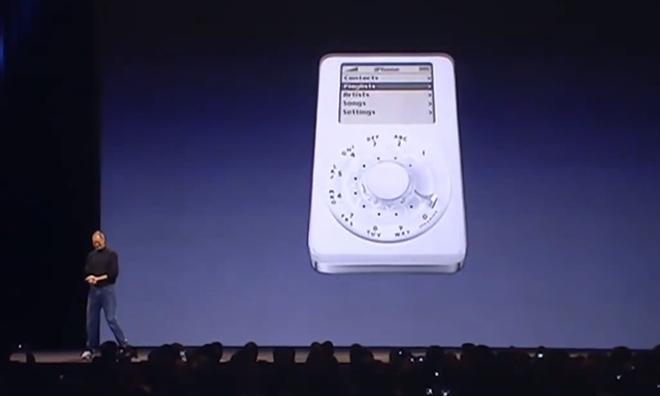
The nail in the coffin of course being when Steve Jobs jokingly showed off a rumored look at the iPhone in the smartphone’s debut.
I think this is more like an emulator, and if Apple had gone this route, the display on the actual device would have been small — only the white rectangular area at the top.
Earlier this week, an Imgur user named Greatease uploaded some photos that explain the key difference between an Apple SuperDrive and a run-of-the-mill optical drive. Namely that his or her SuperDrive had a US penny wedged underneath the plastic cover.
As an isolated incident, finding money crammed into a rapidly-spinning computer part is of course strange. Did it fall in? Is it serving some crucial operational purpose? Thing is, Greatease is far from the only person to discover loose change in their optical drive.
In all my years of repairing Macs for a living, I’m not sure I ever came across this.
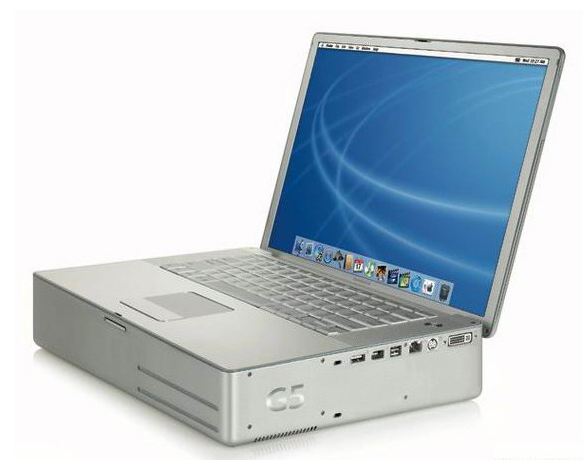
However, if you are ever repairing a 12-inch PowerBook G4 and the heatsink mounts are broke, you can wedge a dime between the heatsink and the top case to keep everything nice and tight.
The DEC attaches to the bottom of the MacBook Pro by replacing the screws that hold on the bottom plate. This method won’t void your warranty, but it will allow for the dock to be securely attached at all times.
[…]
When considering the functionality of the dock, the size and weight compromises may be worth it. The DEC connects to the MacBook Pro over Thunderbolt 3 and will bring USB Type-A ports, Gigabit Ethernet, an SD Card Slot, and up to 4TB of storage. Additional features are also being considered, such as an expanded battery pack.
With the DEC attached, the 2016 MacBook Pro’s thickness will match that of the 2012 MacBook Pro’s. A short USB-C cable is required to connect the notebook to the coasterbasedock accessory.
The renders and hands-on video show this thing really is just a prototype at this point, but OWC says it will ship in the coming months.
It’s easy to make fun of the DEC,1 but I’m sure there are users who will pick this up, especially if it packs a battery.
Apple never shows up to CES, but the last couple years, it’s still managed to have a quiet presence through HomeKit. That’s true this year, too, but it’s been really quiet, failing to drum up anywhere near the excitement of something like Amazon’s Alexa.
[…]
CES is where that tends to change, as companies building HomeKit gadgets turn up to show off their newest products. This year, there are more than a dozen companies presenting HomeKit devices — but, for better or worse, they’re all pretty boring.
I’ve been very impressed with Alexa. We’ve had an Echo in our kitchen for months, and I recently picked up an Echo Dot to put in my studio.
It’s an open platform, meaning developers can write applications — dubbed Skills — that users can enable with just a tap in the Alexa mobile app.
I’ve added a bunch of Skills to our account. We can listen to Spotify, control our Hue lights, change our Nest thermostat, ask a Magic 8 ball questions, add stuff to Todoist and more.
HomeKit, on the other hand, is a closed system. Apple has a rigorous approval process before allowing a device or service to be listed as a supported partner. From a security standpoint, this is a big win.
For example, before Nest had an official Skill, there were a handful of third-party ones that claimed to offer control of Nest hardware via Alexa. I steered clear of those, as I didn’t want a third-party developer I didn’t know in between me and thermostat or security cameras.1
The downside is exactly what The Verge points out. When compared directly, it’s hard to argue that HomeKit is as exciting as Alexa.
However, I think that’s unfair to both systems. With Alexa, Amazon is building a voice-driven ecosystem to rival Google Assistant or Siri. Controlling home automation devices is a vitally important part of that ecosystem, but it’s not the whole pie.
A side effect of using both Apple and Amazon’s systems is realizing just how much stuff works with both. Nest — founded and formerly run by “Father of the iPod” Tony Fadell — is an exception, with no HomeKit support in site. ↩︎
Myke, Federico and Stephen draft their predictions for Apple’s 2017 before talking a little bit about some resolutions for the new year, tech-related and otherwise.
Between me and you, some of Myke’s predictions are way out there. My thanks to our sponsors this week:
Casper: Because everyone deserves a great night sleep. Get $50 off with the code ‘CONNECTED’
Squarespace: Make your next move. Enter offer code WORLD at checkout to get 10% off your first purchase.
I’ve been thinking more about the Mac’s place in the world, and there’s more to worry about than “just” the hardware.
An Obligatory Look Back
Let’s talk about macOS’ release cycle. Here’s when every major version was released, and how long until it was replaced:
Release
Date
Time on Market
Public Beta
September 2000
6 months
10.0 Cheetah
March 2001
6 months
10.1 Puma
September 2001
11 months
10.2 Jaguar
August 2002
14 months
10.3 Panther
October 2003
18 months
10.4 Tiger
April 2005
30 months
10.5 Leopard
October 2007
22 months
10.6 Snow Leopard
August 2009
23 months
10.7 Lion
July 2011
12 months
10.8 Mountain Lion
July 2012
15 months
10.9 Mavericks
October 2013
12 months
10.10 Yosemite
October 2014
11 months
10.11 El Capitan
September 2015
12 months
10.12 Sierra
September 2016
—
There are some interesting things here.
In the beginning, Apple moved very quickly to get updated versions out the door. This was a necessity, as Cheetah and Puma needed a lot of work. They were slow and prone to crashing.
Starting with Jaguar, OS X began to stabilize. As things settled down, the release schedule slowed down. The result was that Jaguar, Panther, Tiger and Leopard where all big releases, chock-full of new features:
Jaguar brought Bluetooth support, Rendezvous (now Bonjour), iChat, QuickTime 6, Sherlock 3-powered Finder search and more.
In addition to new interface elements, Panther brought an improved Finder, Exposé, Fast User Switching, a much-improved Preview, Xcode and more.
Tiger was on the market for 30 months, and was the OS Apple used to transition the Mac to Intel. It boasted Spotlight, Dashboard, iChat AV, Automator, VoiceOver, improved .Mac syncing, a new version of QuickTime and more.
Leopard introduced Time Machine, Boot Camp, Back to my Mac, Spaces, Universal Access improvements, Stacks, Podcast Capture and Quick Look.
Several of these released were also impacted by the rise of the iPod and the creation of the iPhone. Most notably, Leopard’s launch was delayed as Apple scrambled to finish the iPhone. I’m sure even more of that sort of thing took place behind the scenes.
A Shift in Direction
In 2009, Snow Leopard shipped with “no new features,” despite packing a lot of work under the hood to modernize Mac OS X.
In the fall of 2010, Apple held its “Back to the Mac Event,” and showed off Mac OS X Lion, which was a big departure from Snow Leopard.
The philosophy behind Lion was pretty simple, according to Steve Jobs:
We started with Mac OS X, and we created from it a version called iOS, which we used in the iPhone. We invented some new things, and we’ve perfected it over the last several years, and it’s now used in the iPad as well.
What’d we like to do… We’re inspired by some of those innovations in the iPad and the iPhone. We’d like to bring them back to the Mac.
That’s what Lion’s about: Mac OS X meets the iPad.
The keynote went on to highlight these features in Lion:
Multi-Touch Gestures
App Store
App Home screens (Launchpad)
Full-screen apps
Auto save data within apps
Resuming apps when launched
These features ushered in the current era of macOS. Sierra may not be smothered in linen like Lion was, but almost everything we’ve seen since has been rooted Lion’s idea that macOS and iOS should have a lot more in common than they did initially.
The Current Era
Starting with Mountain Lion, Apple has been releasing new versions of macOS every year or so:
Mountain Lion brought Notification Center, Messages, Notes and Reminders to the mac.
Mavericks shipped deeper iCloud integration, Maps and iBooks. It also brought big changes to power management, including App Nap, Timer coalescing and compressed memory.
Yosemite is best-known for its sweeping UI changes, merging what was left of Aqua with the iOS 7 aesthetic. Notification Center gained widget support, while Continuity meant passing data and work between the Mac and iOS devices was far easier. CloudKit and Photos.app were also featured.
El Capitan was basically a modern Snow Leopard, with much of the work being small refinements.
Sierra gave users the option to offload local files to iCloud and added support for Siri, TouchID and Apple Pay within Safari. Notably, iOS 10’s Messages improvements did not make it to the Mac.
Role Reversal
In looking at that chart and each release’s feature lit, it’s easy to feel that progress on macOS has slowed, despite the faster release cycle.1
In the early days, Apple had the pedal to the floor to get the OS to a point where it was usable for everyday consumers. With the advent of the iPod and then the iPhone, the Mac had to learn how to get along with its new, smaller siblings.
Today, Apple isn’t the Mac company. It’s an ecosystem company, and the driving force is the iPhone.
In the quest to find common ground between its two very different platforms, both iOS and macOS have seen changes. I think the Mac’s been at the short end of the stick, and Apple has been working to simplify it harder than it’s been working to complicate iOS.
From renaming iCal as Calendar to Notification Center widgets, from Continuity to iCloud Clipboard, Apple wants moving from the Mac to iOS and back to be as seamless as possible without actually combining the platforms. (That’s not to mention macOS’ aging AppKit and the empty promise of Photos.app’s UXKit to help unify development across the platforms.)
Improvements like Mavericks’ battery improvements or the addition of TouchID are welcome. The engineering it must take to bring features to the Mac and iOS at the same time seems incredible to me. However, it sure feels that most of the new macOS features over the last several years aren’t just about the Mac.
Some think Apple doesn’t see macOS development as worthy of the investment it once enjoyed. I think the company views macOS as stable and mature, and doesn’t feel like rocking the boat, and instead wants to focus on making its entire product lineup work better together. To be fair, the Mac had a big headstart on the iPhone and iPad.
Whatever the reasons are, macOS isn’t in the driver’s seat anymore. iOS is, and it’s attempting lugging macOS along with it as the iPhone and iPad mature. I can’t blame Apple for that; they are an ecosystem company. It is focused on the big picture, not just the Mac anymore.
Mac users who don’t understand that will continue to be frustrated with the pace of things.
Those who do will still probably be frustrated.
Some say that the feature lists have gotten smaller because of the yearly cycle, but I don’t fully buy that. iOS is on an annual cycle, each year, WWDC is full of new features for iPhones and iPads. Secondly, big macOS projects could be planned further in advance than one release. ↩︎
NASA has selected two missions that have the potential to open new windows on one of the earliest eras in the history of our solar system – a time less than 10 million years after the birth of our sun. The missions, known as Lucy and Psyche, were chosen from five finalists and will proceed to mission formulation, with the goal of launching in 2021 and 2023, respectively.
Lucy will study the Trojan asteroids that share Jupiter’s orbit, while Psyche will be the first spacecraft to visit a metal asteroid.