512 Pixels

Piracy Vs. Ease of Use

Lev Grossman for Time Magazine, on media and the Internet:

So what ever happened to the pirate apocalypse of yesteryear? In the U.S., piracy hasn’t turned out to be quite as bad for content producers as everybody thought. A report by the U.S. Government Accountability Office released last April labored mightily to establish a strong link between piracy and lost sales, but the results were inconclusive.

[…]

Which brings us to another important reason the media apocalypse never happened: Steve Jobs. On April 28, 2003, the very day TIME published a grand excursus on the explosive growth of file sharing, Apple unveiled the iTunes Music Store. At the time, it was difficult to see why iTunes would succeed where Snocap, among many others, had failed. Because, again, how do you compete with free?

But iTunes did succeed. Apple’s relentless emphasis on simple, attractive user interfaces, backed by Jobs’ steely negotiating power in dealing with music studios, produced a streamlined, curated service with which you could download and transfer music with a minimum of fuss. And we did — even though it cost us money and our purchases were bogged down with DRM that constrained what we could do with them.

‘A More Selective App Store’

Ben Brooks, on the App Store:

I would love the app store even more if there was less crap and more quality apps – I think everyone would. There will always be those odd cases where some really great sounding app can’t get in, but I think we have proven that if we are vocal enough Apple will, at the very least, hear us. Precisely the reason I think we should let Apple start removing some of the crappier apps from the store.

Great food for thought.

My Offsite Backup Rig

Any data that is just on one hard drive is temporary.

I am pretty religious about my backups. At home, my wife and I have a 24-inch iMac that stays backed up to our Time Capsule. To accommodate our ever-growing media library and my collection of Apple take-apart guides and software installers, two years ago, I added a Guardian Maximus box to the iMac. I have a set of 1 TB hard drives that stay mirrored, thanks to the box’s built-in hardware-based RAID–1 system. Connected via FireWire 800, this rig is fast and redundant — just the way I like my drives.

Starting last year, I used Mozy to keep a copy of all of this data offsite. However, I grew frustrated with their Mac software, so I added two additional hard drives to the mix — one to keep my RAID backed up offsite, the other for the iMac.

All I had handy was a 750 GB and a 500 GB external drive — not enough space for my 1 TB RAID and the 640 GB drive in the iMac, but they were just big enough to keep a second copy of my data, especially the 750 GB hard drive for the RAID. Then the 500 GB up and died.

So Monday, daddy got an upgrade.

Hardware

I ordered a set of 1 TB, 7,2000 RPM Seagate hard drives. Before you email me complaining about Seagate, let me explain that every single hard drive on the planet will fail, no matter who makes it. Personally, I’ve had decent luck with Seagate’s 3.5-inch offerings, and these drives were deeply discounted on Amazon for Cyber Monday. They have three years of warranty, so when they do fail, it’s not a big deal.

Instead of ordering a set of cases for these drives, I opted for the NewerTech Voyager Q, a nice hard drive dock that will accept 2.5-inch or 3.5-inch SATA drives. With a full array of connection options (including eSata, FW800, FW400 and USB), it is pretty flexible.

Having a single dock means I have fewer cables to deal with moving and hooking up. As a bonus, I can use the dock for other projects.

Software

Copying data by hand in the Finder is for cavemen. I use the excellent utility SuperDuper. (I do love Carbon Copy Cloner, but usually just use it for full-blown drive copies.) SuperDuper offers straight-forward scheduling, and can do incremental backups, run scripts post-flight and more. It really is wonderful.

The RAID (which holds our iTunes library and a large collection of junk) gets backed up every other Friday night using SuperDuper. I have it set to do a “Smart Update,” making the single drive an exact mirror of what is on the RAID.

For the iMac, I simply use Time Machine. I reset the preference to use the external drive, update it, then set it back to my Time Capsule. I don’t need this drive to be bootable, and Time Machine gives me simple versioning.

Why Offsite?

So, why do all of this? It’s actually a pretty simple answer: I don’t trust my data to my apartment.

It could get robbed. It could burn down or collapse. My pipes could burst, or the tree out front could decide to come inside for a visit.

Having my data at another physical location is about peace of mind. The drives live in a locked drawer in my office at work. I have the only key. The worst-case scenario (besides Memphis being wiped off the map, in which case, I will lose both sets of my data) is that my apartment burns down, taking the iMac, RAID and Time Capsule with it. The worst-case would be losing 13 days of data. I can live with that.

Yes, it can be annoying to remember to take the drives home. But it’s worth it.

Project 365 and Photo Processing on the iPad

In 2008 and 2009 I completed a Project 365 series. In a nutshell, I took a photo a day, every day for two years. The projects were draining and exhilarating, all at the same time.

In 2008, I retouched the photos as little as possible. This helped me really get to know my camera equipment, and rely on things like F-stops and correct light balances to get my photos the way I wanted them. I’m a better photographer for it.

For 2009’s project, I retouched my photos a good bit more, working with Aperture and Photoshop to help extend the artwork from the camera into the Mac more than before.

While I took 2010 off, I am re-starting the series in January. For 2011, I had planned on processing and retouching my photos exclusively on my iPad.

However, after a little testing, I’m not sure I can.
IMG_0180.PNG

Why the iPad?

My tablet is pretty much always with me. This means I could work on my images at home, at school or at work. This would be much more flexible than my old system of importing images into Aperture every evening at my iMac.

Secondly, the iPad just feels like the future. It would be very badass to complete a project of this magnitude with it as the main workhorse.

My Setup

I have the 16GB Wi-Fi iPad.1 My two cameras are a Canon Rebel XT, which is about 5 years old, and a 3-year old Canon PowerShot G9. Both are great rigs. I have (somewhat obviously) the iPad Connection Kit.

The rules of Project 365 include the stipulation the photo must be posted online by midnight to count. I have a pro account over at Flickr I use for these and other photos. I include the photo number and date in the title in this format:

Title of Photo [###/365; MM/DD/YYYY]

Testing with the iPad

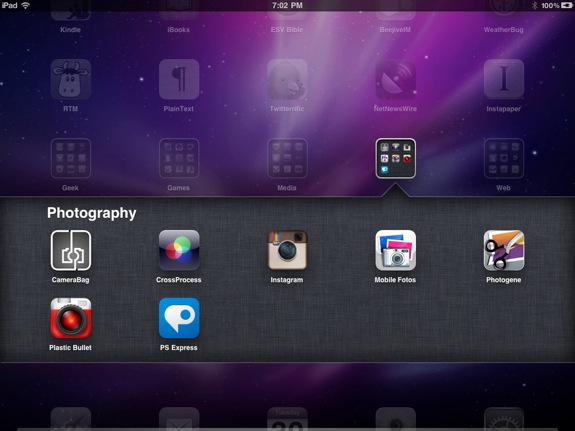
In testing, I had the following photography apps on my iPad. Please note this links go to the developers’ webpages, not to iTunes:

Additionally, I’ve been using Mobile Fotos to upload images to Flickr.

If you have any others that you like, please email me suggestions.

In addition to looking at the features of these apps, I examined the way the apps treat the photo files themselves.

I took my test photo with my G9 in full-auto mode, with the ISO dial turned to “HIGH.” Here is the photo without any edits, except for downsizing for faster loading here.
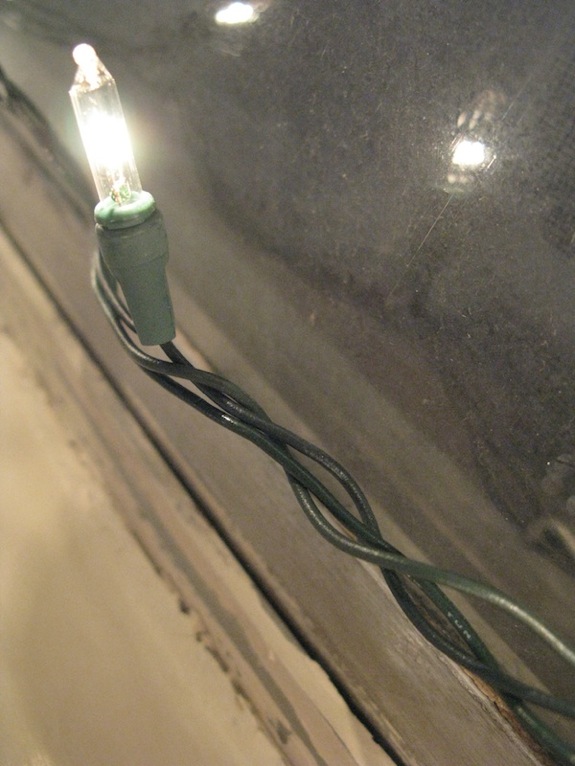
IMG_2501.jpg

The full-resolution image is over on Flickr.

The original image is 3000 × 4000 pixels at 180 pixels per inch. The file weighs in at 3.5 MB and is in sRGB. The files I imported directly from my G9 and the files I imported to the iPad and then to the Mac are identical in every way. In short, the iPad’s Photo app preserves the original file’s data and size

Let’s look at these apps.

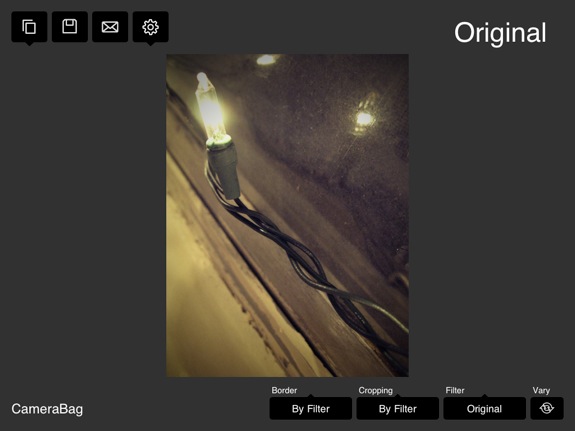
App #1: CameraBag
IMG_0165.PNG

CameraBag is a native iPad app, taking up all the screen space. However, the UI uses a lot of non-standard elements, but is easy enough to understand. CameraBag has numerous filters, borders and cropping options. Filters themselves each have several variations. It is capable of some really nice effects.

CameraBag has two downsides. The first is that the app only does heavy-handed filters. There’s no color correction here. This is true of many iOS photo apps. Heavily filtered photos are in style right now. Personally, if this is done well, it can really add to a shot. Sadly, not many people (or apps) do it well.

The second downside has to do with the files CameraBag exports. My 3000 x 4000 image ended up being 1875 x 2500 after export, even on the highest setting. My image is a full 1/3 smaller after being edited in CameraBag. A real bummer.

This is the photo after being edited in CameraBag.

App #2: CrossProcess
IMG_0169.PNG

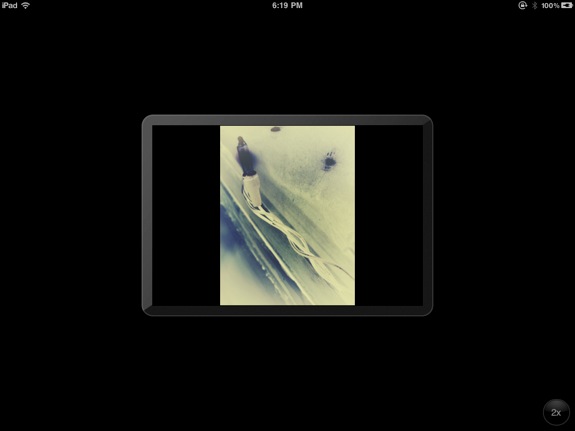
CrossProcess is an iPhone app that left me scratching my head. The interface is very simple — select a photo, select some options, and it overlays a colored layer on top of the image. However, the interface is too sparse. There’s no feedback when options are changed that they have taken affect. The effects are sometimes great — and sometimes awful. Sadly, I couldn’t ever get the effect I wanted right off the bat.

CrossProcess does, however, export images full-sized, making it a rarity among the apps I tested. Sadly, the lack of fine control is too big to ignore.

This is the image after being edited with CrossProcess.

App #3: Instagram
IMG_0173.PNG

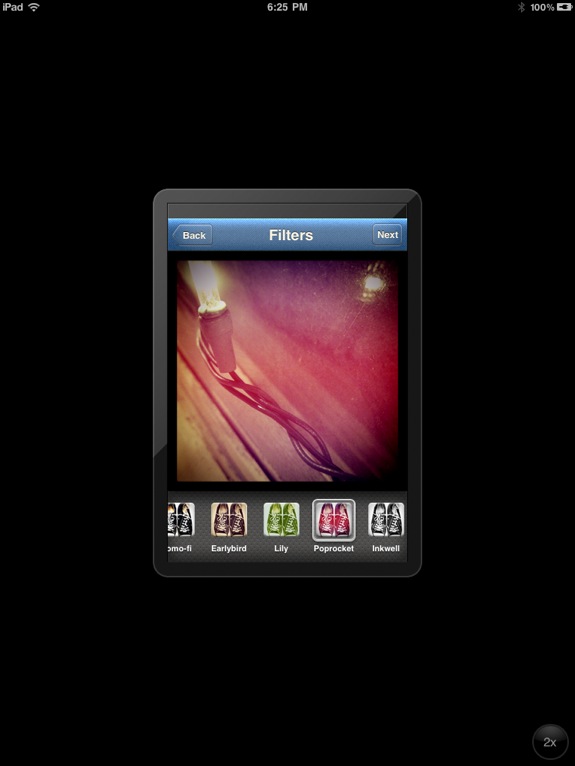
Instagram is not only an iPhone app, but an entire web service that allows uses to snap a photo, lay a filter down and post it to Twitter all very quickly. It even includes an Inbox to keep up with fellow Instagram users.2

The filters in Instagram are amazing, but the app forces a square crop region on every photo — there is no option to turn this off.

Probably due to its primary function as a web service, the app exports photos at a measly 612 x 612. That means my Instagram exported photo is just 21 percent of its original size. Just unacceptable.

Here’s the image post-Instagram.

App #4: Photogene
IMG_0174.PNG

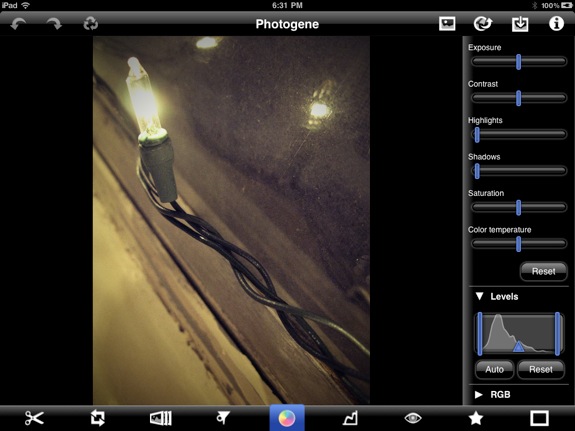
This app is the only one in my testing that does substantially more than just heavy-handed filtering. Photogene comes with filters and with more traditional adjustment tools, including Exposure, Levels, Temperature and even Curves.

Photogene is easy to use and pretty fast. However, it shrunk my original image 20%. WHY!?!?

This is the photo after being edited with Photogene.

App #5: Plastic Bullet
IMG_0177.PNG

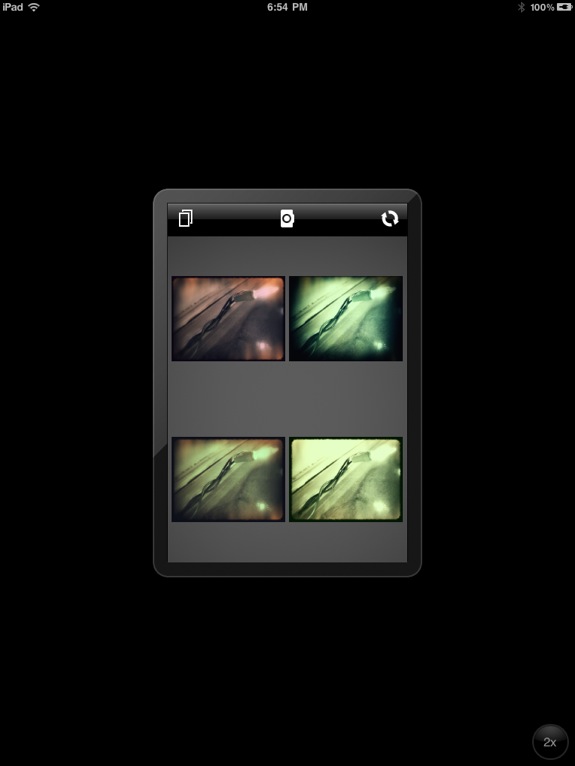
Plastic Bullet is a cross between Instagram and CrossProcess. It will cycle through several heavy filters, but doesn’t offer any customization. To make up for this, it has a lot of filters, and most of them are quite good.

The app exports full-sized images. That is, when it doesn’t crash while exporting. Which is what usually happens.

This is the photo after running it through Plastic Bullet.

App #6: PS Express
IMG_0181.PNG

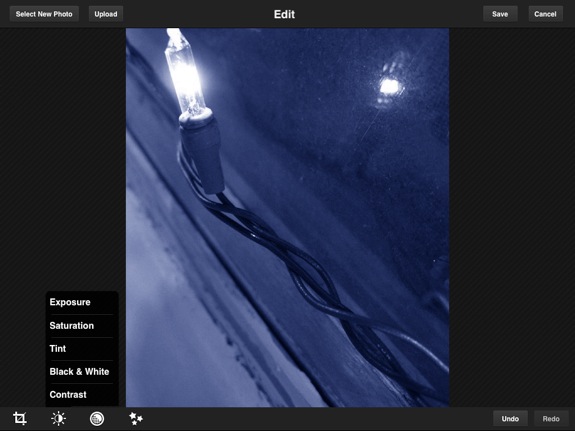
The elephant in the room here is Adobe’s Photoshop Express. It offers both rich photo editing tools like Photogene, as well as several simple filters. It exports photos full-sized, and can even tie into Adobe’s cloud service, making photos availble within the iPad app and on photoshop.com

PS Express is the best photo-editing app I’ve found for the iPad.

A Plea to App Developers

Guys, I know that the iPad can save photos full-sized. If some developers can get this right, everyone should be able to get this right.

While we’re on this subject of things that aren’t being done right, let’s talk about EXIF data. Why can’t you keep EXIF data intact? I never took any photos with an iPad. No one has.3

Just as importantly, there are a class of photographers that want to do more than just put a heavy filter on top of our photos. Let us tweak — truly tweak — our photos, like we can on the desktop.

iPad Project 365?

At this point, I don’t see completing a year of photos on the iPad being super reasonable. To maintain a full-sized image, I’d be limited to just a few apps. Hopefully this feature will become more commonplace. In the meantime, PS Express will be my main go-to app for photo adjustment. It really is great — which is sorta rare for an Adobe product these days, sadly.


  1. Check out my review here. ↩︎

  2. Ben Brooks isn’t a fan of this. I’m not sure I am, either. ↩︎

  3. Yet. ↩︎

Reeder for Mac Beta 1 Out

Reeder for Mac — a desktop version of the poplar iOS Google Reader app — is here, in beta form at least.

The app looks like its mobile counterpart, complete with a services menu and big buttons. It is quick, stable and easy on the eyes, which is wonderful.  However, I’m not certain that Mac apps should be look so much like iOS apps. I guess the Mac App Store and OS X Lion will probably prove me wrong here. Until then, go check it out.

If you don’t use it on the iPad or iPhone, you really should.

Stream Audio from Mac to iOS Devices

Earlier today, I linked to an article outlining how to stream audio from a Mac to an iPad. This method used jailbreaking to trick Apple’s AirPlay service into doing things the boys and girls in Cupertino don’t allow for yet.

Turns out, there’s a legit way of doing this. ForkBombr reader Paul S. sent me an email, pointing me toward a free iPhone app named Airfoil Speakers by Rogue Ameoba.1 When coupled with their Mac software Airfoil, audio from iTunes can play on any iOS device. It’s pretty damn magical.

Take streaming iTunes music off the list of reasons to jailbreak.


  1. The firm has the best logo of any company, ever. Period. ↩︎

The Quest for a Desk

About two years ago, my uncle called me up, offering to give me his old computer desk. It was a 1990 Steelcase — a monster of a desk. It had a filing cabinet on the right side, and was made of steel. It weighed a ton, it was huge and I loved it. It even had AT&T inventory tags on the underside of the work surface. Whoops.

Notice that’s all in past tense. Because this morning, my desk died.

The cabinet drawers became locked a few days ago. I have a key to the desk, but after trying to unlock them, it became clear that the lock wasn’t actually attached to anything. I decided to try a trick I found online of taking the back panel off, then tipping the desk back, which would allow the rod to dis-engage.

Sadly, when I took the rear panel off, the desk went wobbly real quick. It ended up breaking off a bolt on the right side, and bending the right leg panel and brackets so bad I couldn’t get it on straight again. The sheer weight of the desk was its demise. Thankfully, I had removed my 24-inch iMac, Harman Kardon SoundSticks, Apple Extended II keyboard and Guardian Maximus FireWire RAID before I began.

So now, I am on a quest to build1 an awesome, yet minimal desk.

I have some requirements. I want to have built-in cable management2 to keep my gear out of my two-year old’s “temptation zone.” I also want to be able to hid my APC Batter Backup and maybe even the RAID — the latter of which needs some airflow to keep cool. I also know I want solid sides, not 4 individual legs, and maybe a bookcase built into one of them. My wife and I going to purchase a separate filing cabinet, which should make this build a bit easier.

For the time being, I’ve swiped a very tiny desk we had in our bedroom for the iMac. I have the Apple chiclet keyboard hooked up, since there’s not room on the desk for the Extended II.3 The speakers are boxed up as well for now. The one upside is that I moved the RAID to an open space underneath the drawers in the desk, so the setup is a little quieter now, but definitely more cramped.

Obviously, I’m not very far into this project, but I promise to keep you updated. Every nerd needs a good man cave, or at the very least, a killer desk.


  1. By “build,” I mean hand my dad tools. He’s been building houses for three decades. ↩︎

  2. I love the idea of using a rain gutter to keep cables off the ground. ↩︎

  3. And wow, it is hard to adjust to this thing… I keep getting lost on the keyboard. ↩︎