
I just came across this and very much enjoyed it. If you want to read a lot more about MECC, I wrote about it a couple of years ago on iMore.
512 Pixels
Connected #214: The Californian Idea of Food⇢
Stephen was wrong, and Myke demands an apology before explaining what makes up dust. The FileMaker world is considered, then Federico explains why he thinks the pizza emoji is wrong. Lastly, Adobe and Palm are both in the news.
My thanks to our sponsors:
- Squarespace: Make your next move. Enter offer code CONNECTED at checkout to get 10% off your first purchase.
- Luna Display: The only hardware solution that turns your iPad into a wireless display for your Mac. Use promo code CONNECTED at checkout for 10% off.
- PayPal: When it comes to growing your business, PayPal is your payments partner for today and tomorrow.
The World’s Largest Apple Collection Needs a New Home⇢
Francois Murphy and Leonhard Foeger for Reuters:
Over the years since he began working for a company that repaired Apples in Vienna in the 1980s, Roland Borsky’s collection has grown to roughly 1,100 computers, he says - far more than the 472 items at Prague’s Apple Museum, which says it is the world’s biggest private collection of Apple products.
“Just as others collect cars and live in a little box to afford them, so it is with me,” he said in his office, which is so packed with dusty items like a wall of old monitors that he has moved most of them to a warehouse outside the city.
Borsky’s Mac repair shop has struggled since an Apple Store opened up in Vienna, and he is looking for places to show his collection to generate income, but may be forced to sell it all off. That’s a real shame, and I hope these machines find a good home.
Apple’s Forgotten iOS Apps⇢
Apple has just about always offered iOS apps on the App Store, separate from what apps come bundled on its devices from the factory.
Sometimes, these apps get promoted to being part of the iOS image, like Podcasts and iBooks have. Once stuck hanging out on the App Store, they now ship on the iPhone and iPad by default.
A lot of other apps weren’t luck enough to get that lifeline, and have since been removed from the App Store. Let’s take a look at a few examples.
This is a weird, sad trip down memory lane.
New Kindle Paperwhite is Waterproof⇢
I really like my Kindle Oasis 2, but the new Paperwhite is the obvious Kindle to buy at this point.
Some 2018 MacBook Pros Showing Signs of Keyboard Failure⇢
Casey Johnston, writing about the newest MacBook Pro, which as a set of silicone membranes designed to keep dust and debris from killing the keyboard:
Every time I described the 2017 MacBook Pro I sold because I couldn’t stand its non-functional keyboard and asked an Apple store employee if the new one would screw me over the same way, each assured me that Apple had changed the keyboards so that that would never happen again. I described my issues with “dust” to one shop associate at the Apple Store at the World Trade Center and asked if the new computers were any better. “Yeah, yeah, they fixed that problem… it was a BIG problem,” she told me. “So it doesn’t happen at all?” I asked. “No, it shouldn’t happen,” she said. Maybe the bad days were finally over.
But checking around online, it appears the new keyboards have the same old issues. They may be delayed, but they happen nonetheless. The MacRumors forum has a long thread about the the “gen 3 butterfly keyboard” where users have been sharing their experiences since Apple updated the design. “How is everyone lse’s keyboard doing? I rplaced th first one because ‘E’ and ‘O’ gave double output. The replacment ither eats “E”, “O”, “I” and “T”, or doubles them,” wrote one poster. “I didn’t correct the typos above on purpose.”
My 2018 machine’s space bar got weird for a little while but has since cleared up. I am nervous, however, that this issue isn’t really gone.
Reduced Transparency in Mojave is Bad⇢
Craig Grannell, writing on something that has really been bothering me:
The standard macOS interface has quite a few semi-transparent elements, which like frosted glass provide a glimpse of what’s beneath them. At Apple events, execs go giddy about how pretty this is. In use, these elements vary from being distracting to outright dangerous. For example, if you have a motion-sickness issue and an animating web page is sitting behind a semi-transparent element, it can take a while before you realise it’s affecting you, by which time it’s too late and you’re already dizzy.
“Fine”, says Apple, grumpily, “so just turn on Reduce transparency”. Only it’s not that simple. Because when you do, Apple designers get in a strop and hurl logic out of the window. What you’d expect to happen is for macOS to remove the semi-transparent bits. So instead of Finder sidebars or the macOS app switcher showing what’s beneath them, they’d just have a neutral solid background. Nope. Instead, in its infinite wisdom, Apple’s decided those components should instead be coloured by your Desktop background.
You can see what he means by clicking through this gallery I made showing just how much the desktop background sets the tone for UI elements, even with reduced transparency enabled.
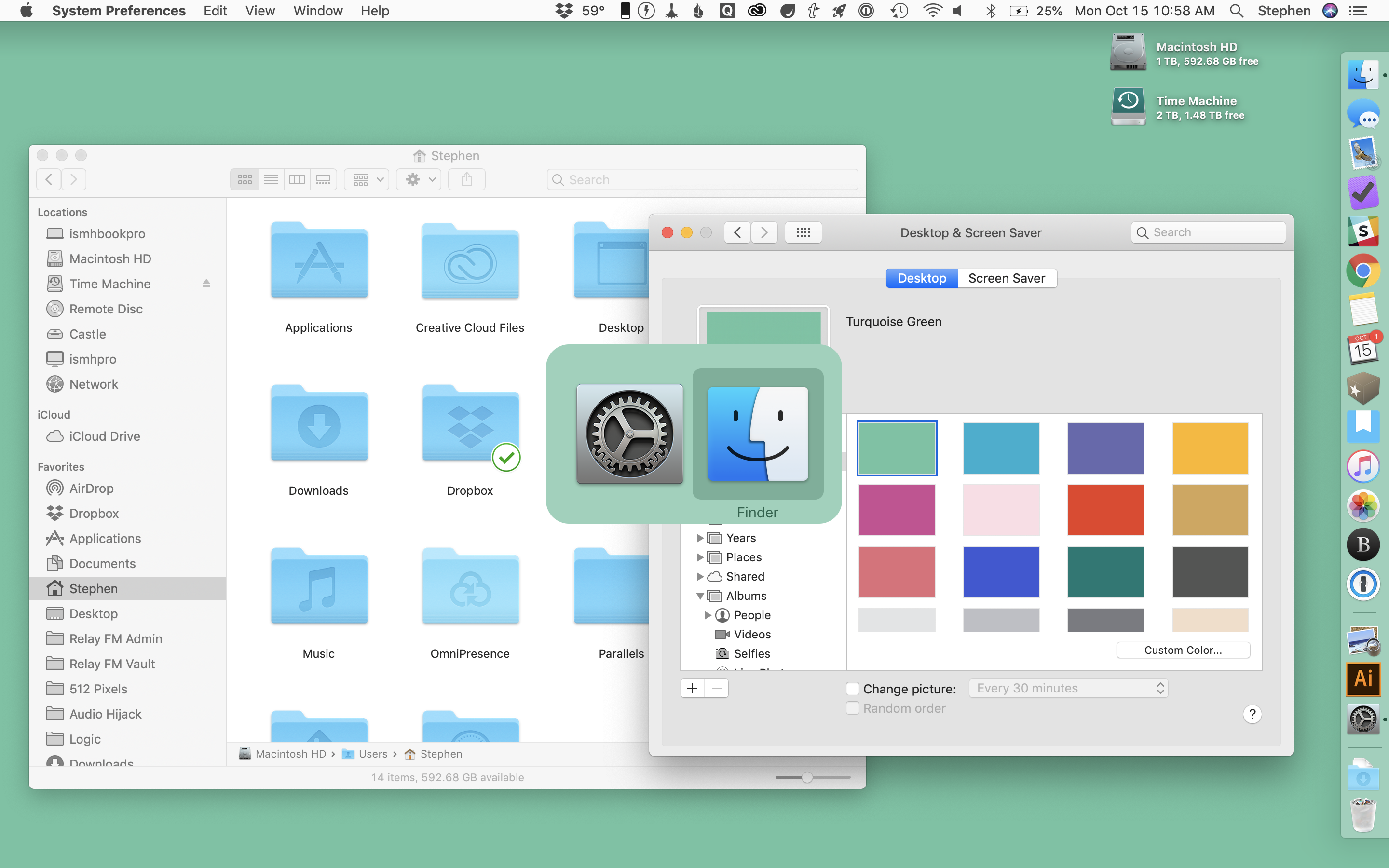
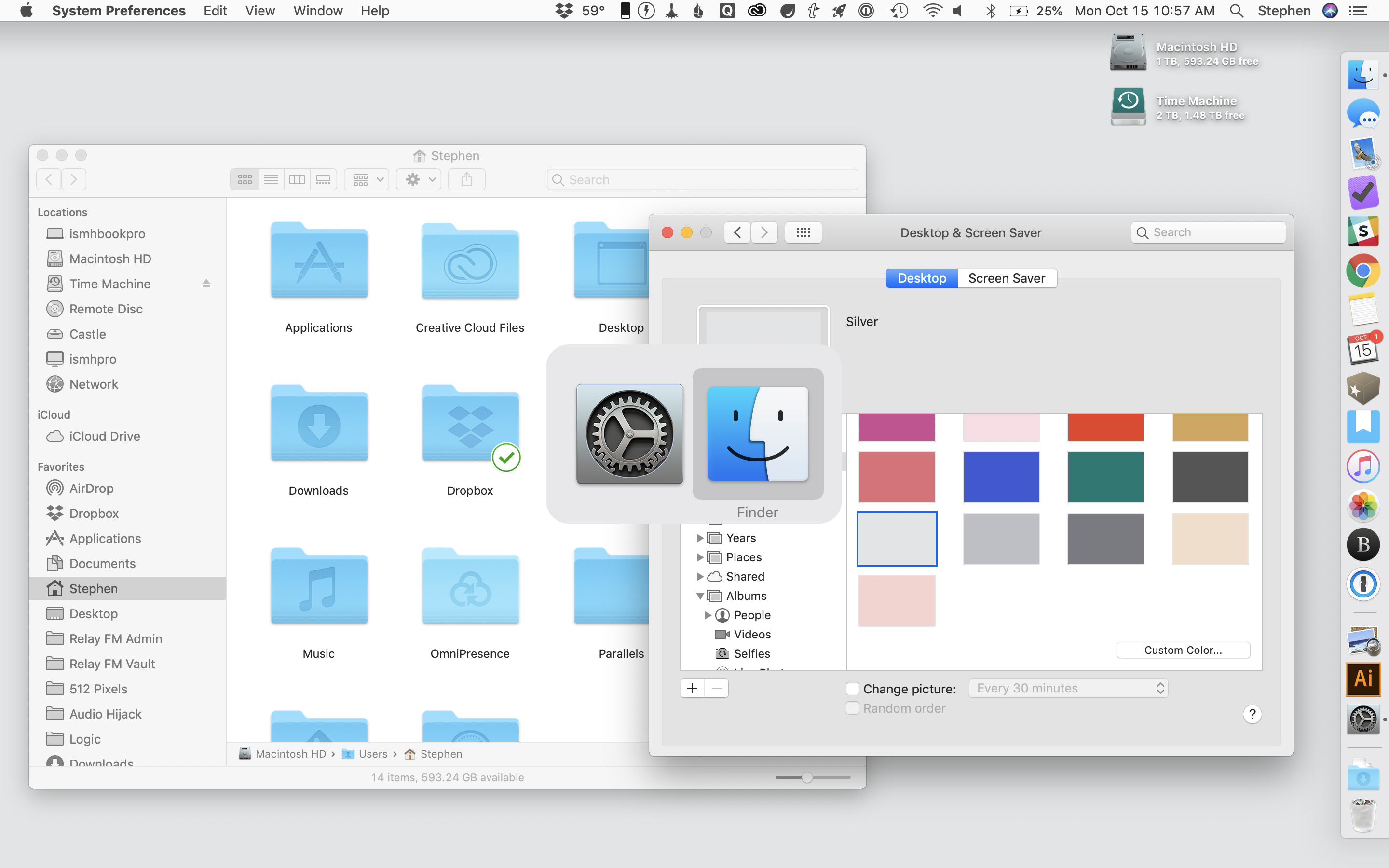
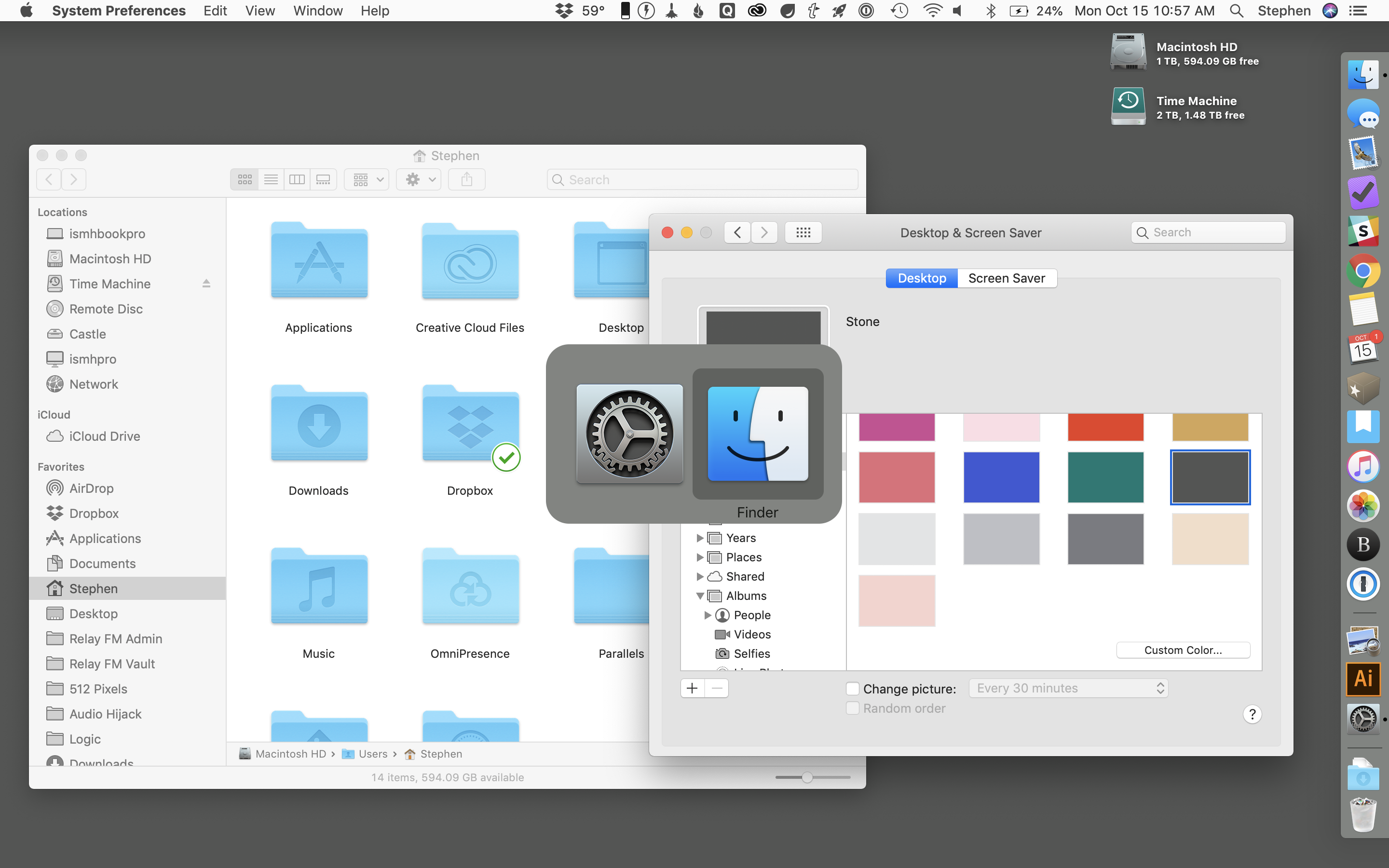
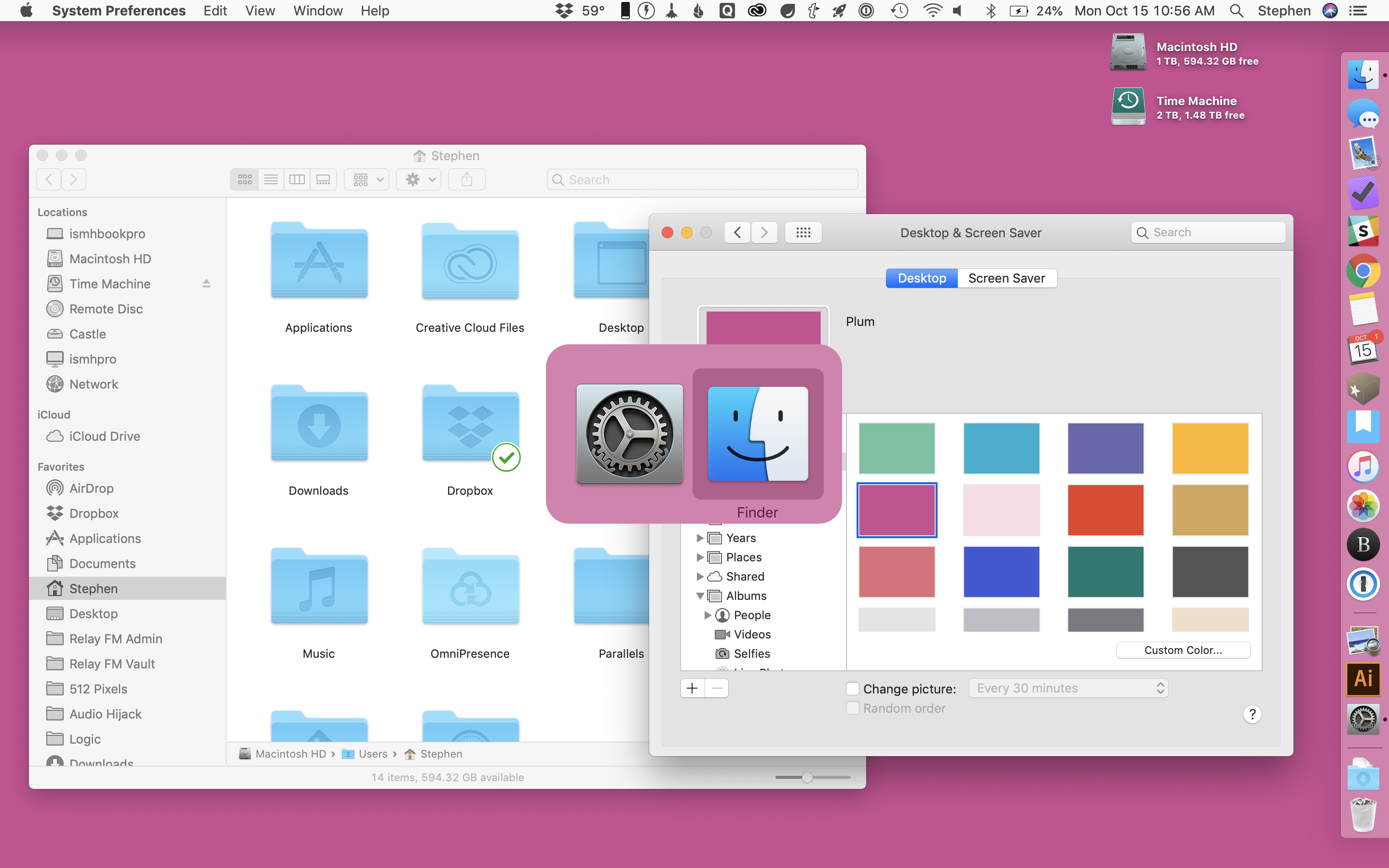
If you use a photograph as your background, macOS samples the colors present to tint its UI elements. It can lead to some pretty awful-looking windows:
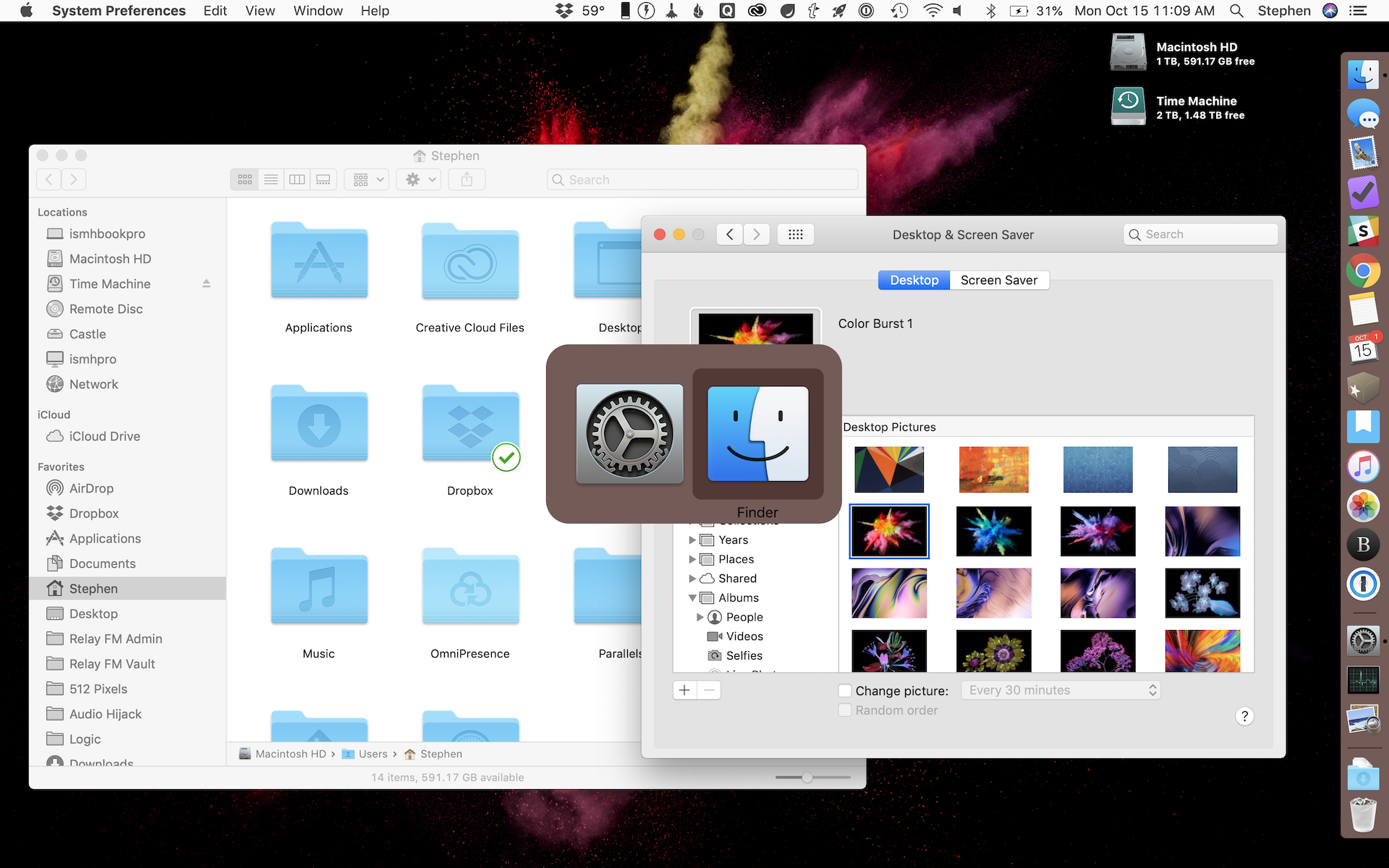
The old ways, sometimes, are just better.
The Case for a HomePod with a Screen⇢
Amazon and Google have set up a new category: smart home speakers complete with screens. Is the market ready for Apple to stroll in and raise the bar?
Kbase Article of the Week: iPhoto for iOS (iPhone): Order Professional Prints of your Photos⇢
So many dead apps and services in this one.
The Modern Hackintosh⇢
I haven’t done anything in the Hackintosh scene since I installed Mac OS X Leopard on a Dell Mini 9 nine years ago, but that doesn’t mean I haven’t kept up with that world. This video recently caught my eye:
In it, Quinn Nelson walks through a $1,400 machine that gives my $5,000 iMac Pro a run for its money, despite having a worse GPU and an i7 CPU.
Nelson points out that these numbers may come down to cooling. The tower in his video, complete with a liquid CPU cooler, can run its components much harder than the iMac Pro, as it has the thermal headroom to do so.
No, I’m not going to use this video to justify building a Hackintosh. While it does seem easier than ever, and they run services like iMessage and iCloud without much hassle at all, I like knowing that the machine I run my business on is going to be as solid as possible.
However, this video does have my wanting to see what Apple does with the Mac Pro next year. I’m sure we won’t see this machine hit the low price points it used to, but I wish it would. I would love iMac Pro performance in a tower that costs half of what the Space Gray machine on my desk cost me.
Clear Apple Case Coming for iPhone XR⇢
Query #41: The Power of the Smart Home⇢
This week on Query, we get real nerdy about HomeKit.
My thanks to our sponsors:
- Pingdom: Start monitoring your websites and servers today. Use offer code QUERY to get 30% off.
- Simple Contacts: Contact lens prescriptions from home: Use offer code QUERY20 for $20 off your first order of contact lenses