
Netflix’s DVD business is winding down on Friday, and Janko Roettgers has a great look at what made it tick.
512 Pixels
Sponsor: Magic Lasso Adblock: 2.0x Faster Web Browsing in Safari⇢
Want to experience twice as fast load times in Safari on your iPhone, iPad and Mac?
Then download Magic Lasso Adblock – the ad blocker designed for you. It’s easy to setup, blocks all YouTube ads, and doubles the speed at which Safari loads.
Magic Lasso Adblock is an efficient and high performance ad blocker for your iPhone, iPad and Mac. It simply and easily blocks all intrusive ads, trackers and annoyances in Safari. Just enable to browse in bliss.
By cutting down on ads and trackers, common news websites load 2x faster and use less data.
Over 280,000+ users rely on Magic Lasso Adblock to:
- Improve their privacy and security by removing ad trackers
- Block over 10 types of YouTube ads, including pre-roll video ads
- Double battery life during heavy web browsing
- Lower data usage when on the go
And unlike some other ad blockers, Magic Lasso Adblock respects your privacy, doesn’t accept payment from advertisers and is 100% supported by its community of users.
Join over 280,000 users and download Magic Lasso Adblock from the App Store, Mac App Store or via the Magic Lasso website.
Kbase Article of the Weekend: Charge and Connect With the USB-C Connector on Your iPhone 15⇢
Apple, in a new support document about the USB-C ports on the iPhone 15 and iPhone 15 Pro:
USB-C is a universally accepted standard that enables charging, syncing data, and playing audio and video. iPhone 15 models have a USB-C connector, which allows you to charge and connect to a variety of devices, including Mac, iPad, AirPods Pro (2nd generation), external storage devices, and displays.
Apple’s FineWoven iPhone Cases Just Aren’t That Good
A lot of folks’ initial impressions of Apple’s new FineWoven iPhone cases have been pretty bad. The new fabric back doesn’t feel premium enough for the price Apple is charging, and is already failing to hold up to real-world use, as Federico Viticci has discovered.
I immediately discovered that the hole cut out in the bottom of the case isn’t big enough to accommodate any of my third-party USB-C cables. Upon closer inspection, I realized one reason why:
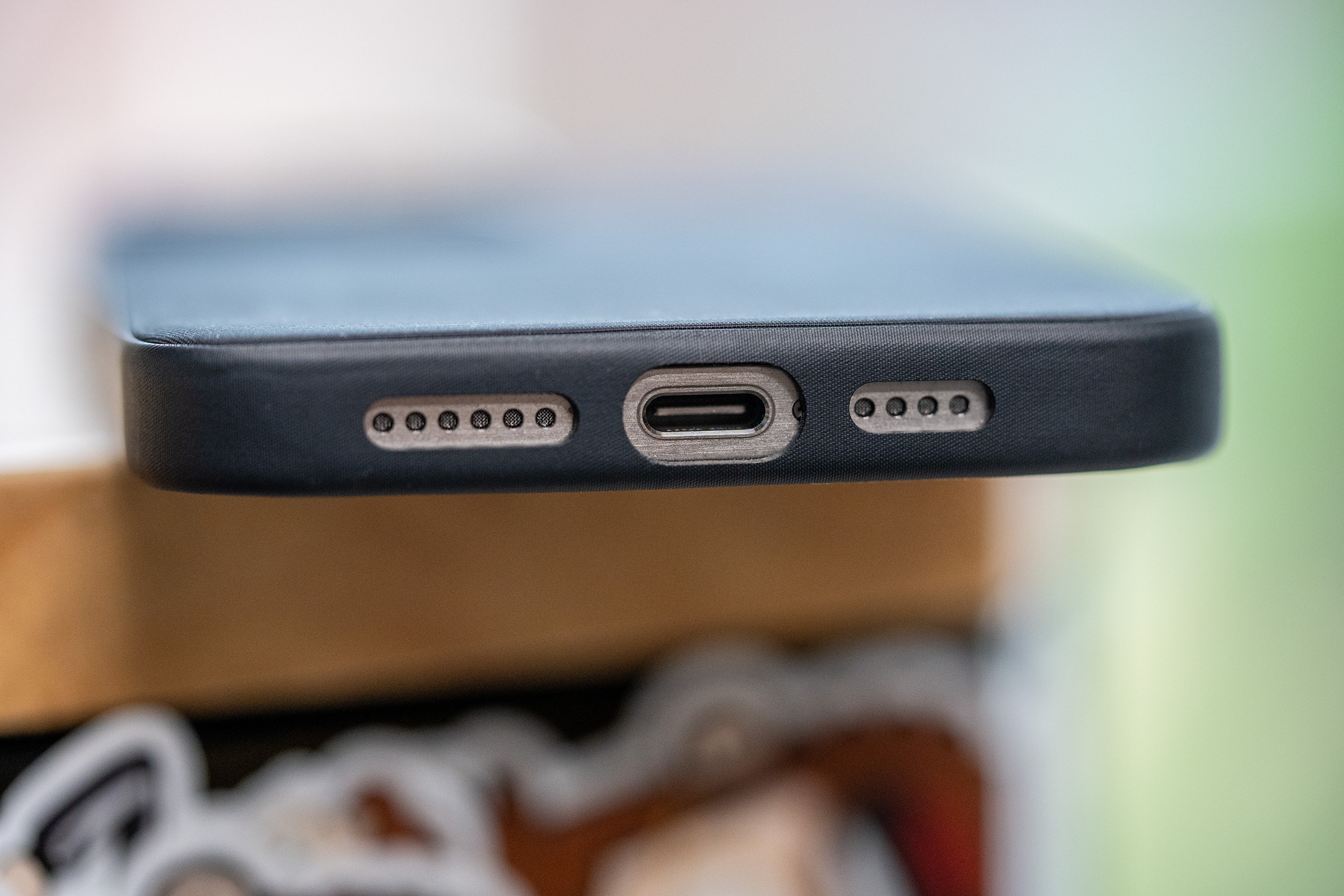
The cutout for the USB-C port on my $60 iPhone case isn’t centered. As you can see, the tiny screw to one side of the port is partially visible, while on the other side, it is completely covered. Likewise, the openings for the speakers and microphones are also misaligned.
It’s one thing for these cases to be a letdown in terms of material, but this is a level of sloppiness that genuinely surprises me from Apple. I know not every example out there is as bad as mine, but the vibes around this case aren’t good.
Connected #468: I Love Clock⇢
Federico’s iOS and iPadOS 17 review is out. The guys talk through it this week before Myke puts Stephen on blast for his Mac setup.
I was personally attacked on my podcast in my own studio by Michael Hurley.
Updated iCloud+ Plans Launched
With iOS 17 out, Apple has released its revised iCloud+ plans:
- 5 GB: Free
- 50 GB: $0.99/month
- 200 GB: $2.99/month
- 2 TB: $9.99/month
- 6 TB: $29.99/month
- 12 TB: $59.99/month
Of course, these prices are all in dollars, and earlier this year, Apple raised prices on plans in many parts of the world.
That free tier is still criminal, despite Apple temporarily giving folks space when transferring their data to a new phone.
Inside the Snoopy Watch Face⇢
Robert Leedham, writing at GQ:
“When you design an analogue watch with Snoopy, he’s a static character right?” says Paige Braddock, chief creative officer at Charles M Schulz Creative Associates. “So all you’re really focusing on is the hands and the arms. You wouldn’t believe the minutiae we go into to make them work at every angle, but going into this first meeting with Apple I was going I don’t even know if I’m smart enough to wear this watch.”
The lengths Apple went to make this work are wild.
Kbase Article of the Week: iOS 7: Supervised Device Becomes Unsupervised After Updating to iOS 7⇢
Some supervised iOS 6 devices may no longer be supervised after updating to iOS 7.
For devices that have not yet been updated to iOS 7, upgrade from iOS 6 to iOS 7.0.3 or later. The devices remain supervised using this upgrade path.
It’s iOS 17 Day!
To celebrate, there’s a lot of great stuff out there to read.
Federico’s iOS and iPadOS 17 review is out and it’s great. I read through it this weekend and learned a lot, even though I’ve been running the betas most of the summer. Grab your iPad, kick back and enjoy this one.
D. Griffin Jones has rounded up 50 of the best iOS 17 features for an article on Cult of Mac.
Over on Six Colors, Dan reviewed iOS 17 while Jason took a look at iPadOS 17. They’ve also published a piece looking at all the cross-platform features coming to Apple’s ecosystem with these updates.
Sponsor: TextExpander⇢
TextExpander’s customizable and shareable snippets of text allow your team to fly through repetitive tasks quickly by expanding the things you type regularly — all you have to do is type a short abbreviation and TextExpander does the rest of the work for you.
Here’s How It Works:
- Create It: Collect your most commonly used emails, phrases, messaging, URLs, and more to create snippets and templates in TextExpander that are always accessible with a quick search or abbreviation.
- Share It: Give your team or different departments across your company access to the content they need to use every day.
- Use It: Expand the content you need with just a few keystrokes on any device, across any app you use — no APIs or integrations needed.
- Optimize It: Add customizations like fill-ins and optional sections to keep that human touch. Anytime you make changes to snippets they update everywhere so your team is always on the same page.
It’s that easy!
Check out TextExpander and say goodbye to repetitive typing.
The One with the Thread Radio⇢
Jennifer Pattison Tuohy has run through all the possible reasons the iPhone 15 Pro and Pro Max come with a Thread radio. Like the U1 chip a few years ago, I assume Apple has a story to tell her in the coming year or two.
Connected #467: The Natural Boys⇢
This week’s Connected, edited in the San Jose Airport, is live:
Myke, Federico and Stephen grade their picks for Apple’s Wonderlust event and talk about the iPhone 15 line, the new Apple Watches and more.