Adding a Driveway Gate to HomeKit

A couple of weeks ago, I wrote about my latest attempt to add my older garage door opener to HomeKit.

That project has been a huge hit with everyone in my household, so emboldened, I recently took on an additional HomeKit project: adding our driveway gate to the network.

When I first had the idea, I assumed that I would need to piece something together on my own, but then I came across a product called the ismartgate. After poking around the website for a few minutes, I came across this really great configuration page. After checking a few boxes, the website told me that the ismartgate LITE would work for my needs. $130 and a few days later, I was ready to go.

Continue reading ⇢

Apple Publishes Design Guidelines for Live Activities⇢

There are several things in this new article that jumped out at me. Up first, is how different phones will treat Live Activities:

In addition to displaying a Live Activity on the Lock Screen, devices that support Live Activities can display your app information in different ways, depending on whether the device also supports the Dynamic Island.

  • On devices that support the Dynamic Island, the system displays Live Activities in a persistent location around the TrueDepth camera.
  • On devices that don’t support the Dynamic Island, the system can display a Live Activity update in a banner that appears briefly while people view the Home Screen or use another app, but only if the app determines that the update is important enough to interrupt people.

Apple also has some guidance about what sorts of information should be shown in Live Activities. For example, developers should not show sensitive data in these UI elements, and should give users full control over starting and stopping Live Activity events.

Continue reading ⇢

Kickstarter Update: September 26⇢

Hello! It’s been a busy month around here with Relay FM’s annual fundraiser for St. Jude, but that is winding down this week, and I’m back in calendar land!

Over the last few weeks, I’ve made some significant progress:

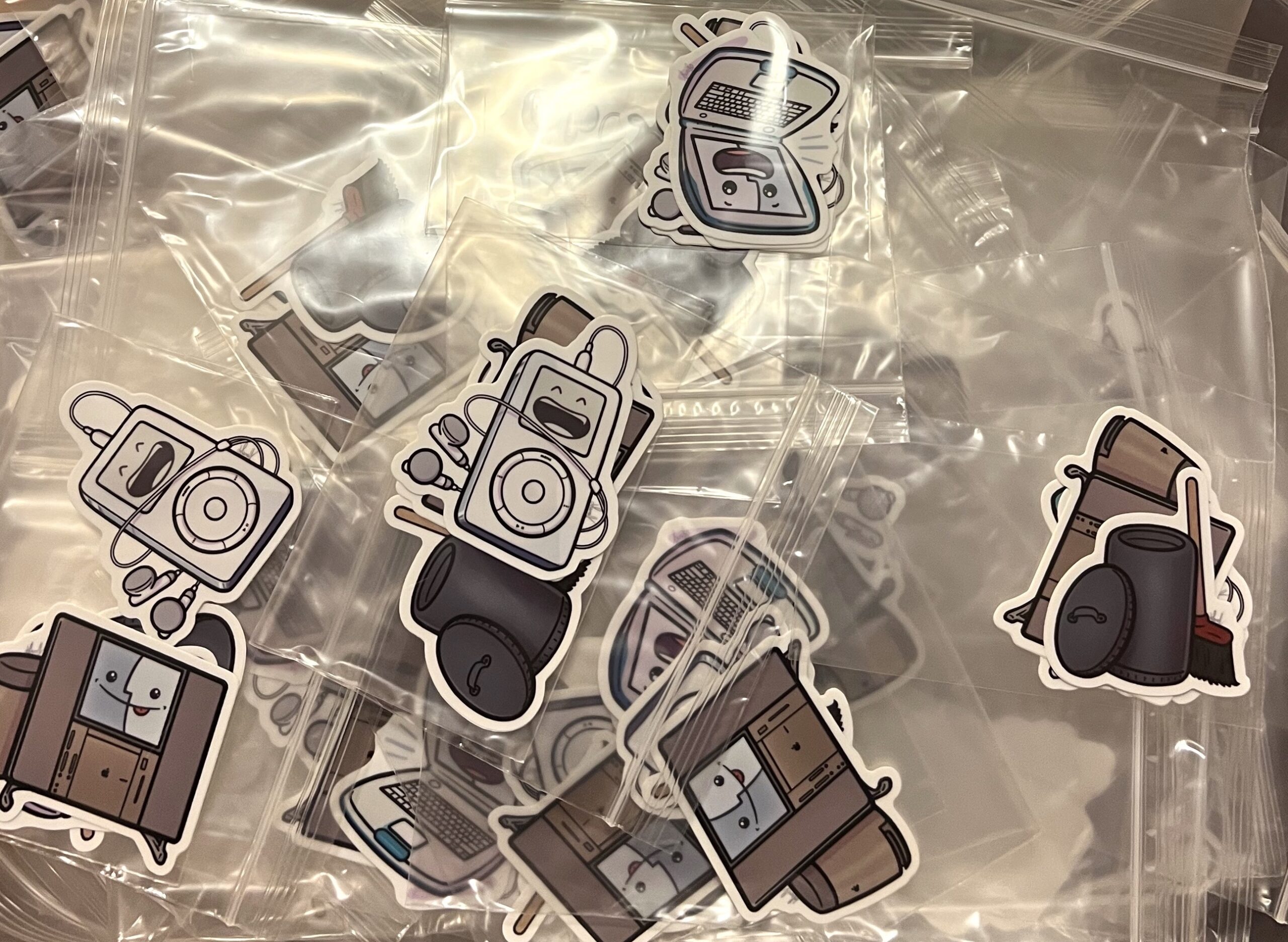
  • The stickers have been all packed! Big thanks to Myke and Adina for helping while they were in Memphis a couple of weeks ago.
  • The 4x6 prints are here, and packing of those is underway now.
  • I am receiving the final calendar proof from the printer today and should give them the green light for production in the coming days!

Kickstarter Stickers

Continue reading ⇢

"Built for the Outdoors"⇢

Apple:

The most rugged and capable Apple Watch yet, Apple Watch Ultra can provide the information you need during a hike, run, or dive; make interactions easy with a single press of the Action button; help maintain your night vision when you’re active after hours; and emit a loud pulsing sound if you need help.

I haven’t needed any of the EXTREME features yet, but the Apple Watch Ultra marks the first time in a long time where people have come to ask me “Is that the new one?” while pointing at an Apple product in my possession.

Continue reading ⇢

Sponsor: 20 Years of Great Software from Rogue Amoeba⇢

Since 2002, Rogue Amoeba has been making amazing audio apps for the Mac. Whether you’re a podcaster, musician, or just someone who listens to audio on their Mac, Rogue Amoeba can make your life better. Whatever your audio needs, it’s a good bet they have a tool to help you. And right now, for a very limited time, you can save 20% off any purchase.

Rogue Amoeba’s product line-up includes:

Continue reading ⇢

Bonus Kbase Article of the Week: Use the Depth app on Apple Watch Ultra⇢

Apple Support, or rather, Apple Legal:

Underwater activities are risky. The Depth app isn’t a dive computer and doesn’t provide decompression stop information, gas analysis, or other recreational scuba diving functionality. If you’re using Apple Watch Ultra where the failure of the device could lead to death, personal injury, or severe environmental damage, always use a secondary depth gauge and timer/watch. Before going on a dive, be sure your Apple Watch Ultra is free of cracks or other damage.

Continue reading ⇢

Kbase Article of the Week: Macintosh TV: Television Connection Tips⇢

Apple Support:

Basically, anything that can be attached to a regular TV can be attached to Macintosh TV. There are two ports for a video source: coaxial and RCA. Things that have an RCA plug can also be attached to the coaxial port with the proper adapter, and vice-versa. One restriction is that closed caption must come through the coaxial port.

In the TV Setup control panel, click on Channel Setup and select Cable (as opposed to Antenna for broadcast TV) as the source.

Continue reading ⇢